
Feeds
Enrich your product feeds, publish them to a URL each channel can fetch, and work with Google Merchant Center and Amazon from one place.
Feeds is where your enriched product data leaves Rezolve Ai for the channels that read a feed or a listing: Google Merchant Center, Microsoft, AI shopping assistants and Amazon. Open Feeds in the sidebar, under Workflow. Every kind of project has it.
The Feeds page
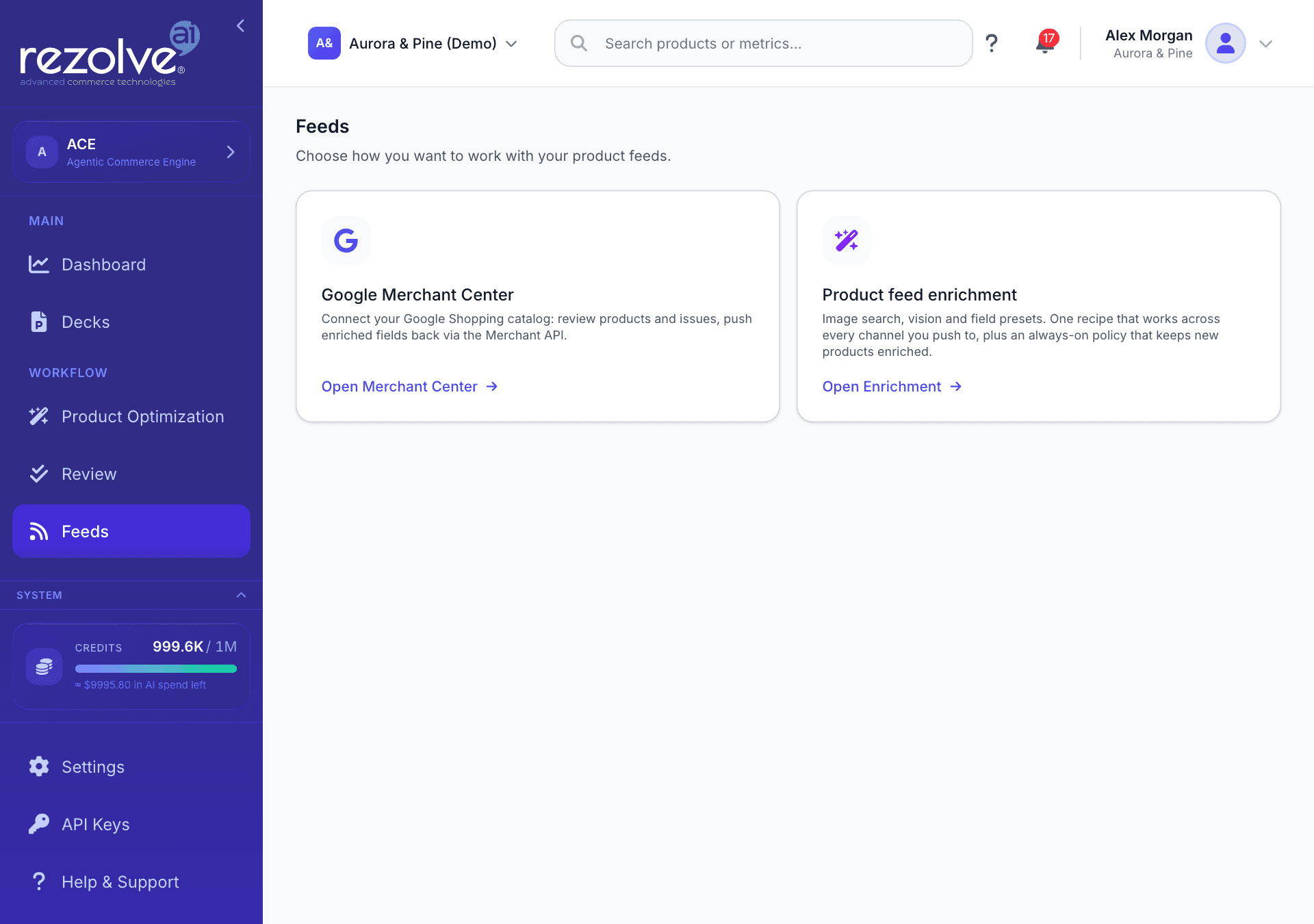
The page opens on a set of cards. Each one leads to its own area, and Back to Feeds returns you here.
| Card | Button | What it leads to |
|---|---|---|
| Google Merchant Center | Open Merchant Center | Your connected Merchant Center accounts: products, issues, reports and what Google's AI shopping surfaces receive. |
| Product feed enrichment | Open Enrichment | Enrichment settings, schedule, sources and delivery for each product feed in the project. |
| Amazon | Open Amazon | Your connected Seller accounts: listings, scores, analytics and sending content back. |
The Amazon card appears when Amazon is available on your workspace, or when a Seller account is already connected.
Product feed enrichment
Enrichment fills gaps in a product feed (missing attributes, categories, images) and keeps the feed current as products change. Each feed in the project has its own settings, schedule and run history. Choose the feed at the top of the page.
If the page says No feeds in this project yet, add a product feed first. See Data sources.
First-time setup
The first time you open a feed, a short setup runs in four steps:
- Fields. Choose which fields to enrich. The step shows how many products in a sample of the feed are missing each field, so you can see where enrichment helps most.
- AI options. Choose how far enrichment may go:
- Use vision: look at product images to extract colour, material, brand, gender and size.
- Search the web for missing images: for products without imagery.
- MPN / GTIN lookup: use manufacturer part numbers to fetch attribute specifications.
- Fill specialist attributes: after the main run, fill what was left blank with category detail, such as fit and occasion for fashion or allergens for food. Every value is a suggestion you approve, and nothing you already have is changed.
- Overwrite existing values: when off, only empty fields are filled.
- Schedule. Pick how often it runs and how much is automatic.
- Review. Check the summary and choose Finish setup.
Skip setup takes you straight to the dashboard with the default settings. You can change everything later.
The enrichment dashboard
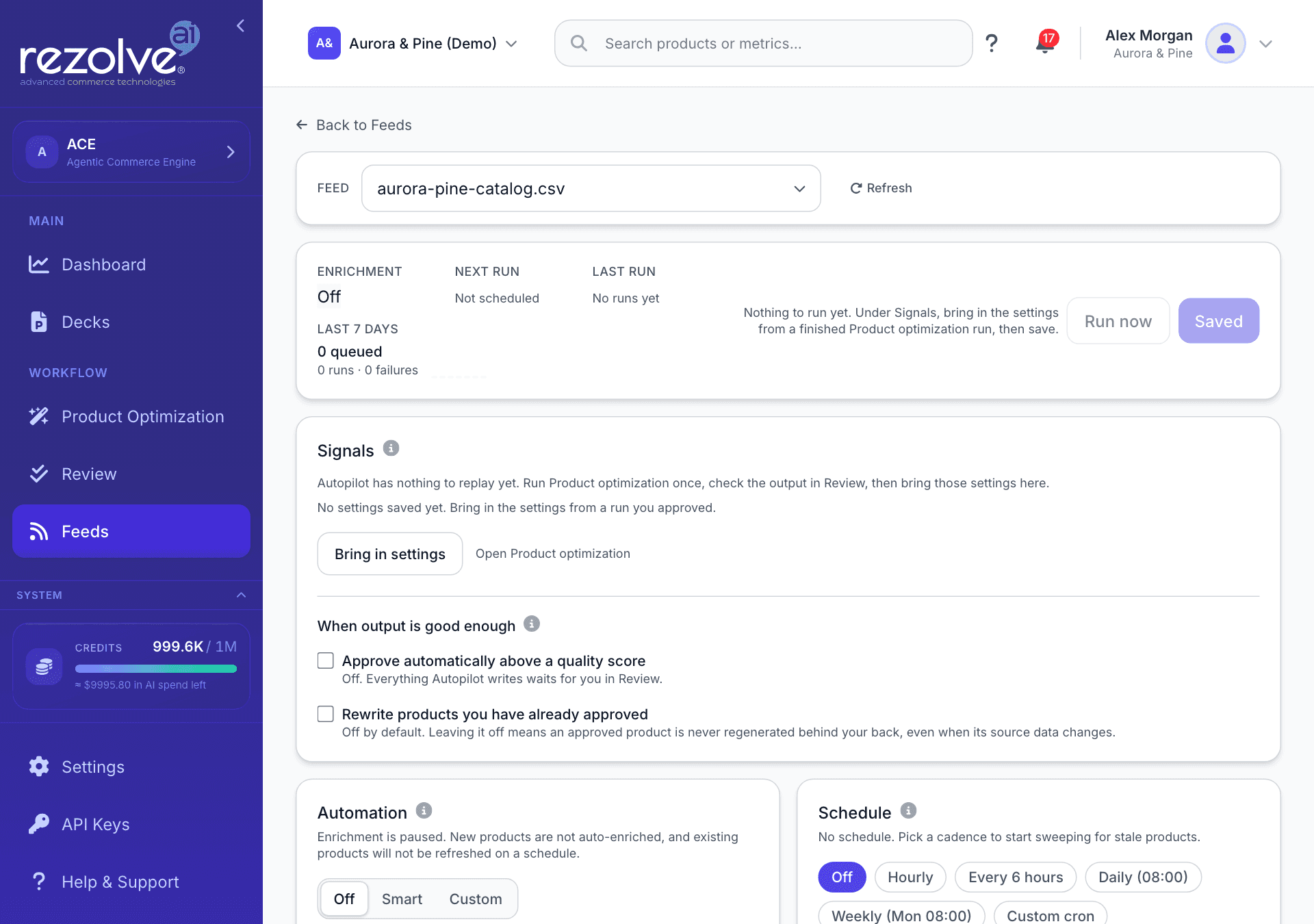
After setup, the feed shows a dashboard. The bar at the top shows whether enrichment is on, the Next run, the Last run and the last 7 days of activity, with Run now and Save changes. Changes to the Signals, Automation, Schedule and Recipe cards take effect when you choose Save changes. The Sources and Delivery cards have their own controls.
| Card | What it is for |
|---|---|
| Signals | The settings Autopilot replays on new and changed products. See Autopilot. |
| Automation | Off, Smart or Custom. Smart enriches new products as they arrive, refreshes them when source data changes and runs the schedule. Custom lets you pick which of those run. |
| Schedule | How often stale products are swept and re-enriched: Off, Hourly, Every 6 hours, Daily (08:00), Weekly (Mon 08:00) or Custom cron, in the timezone you choose. Runs must be at least 30 minutes apart. |
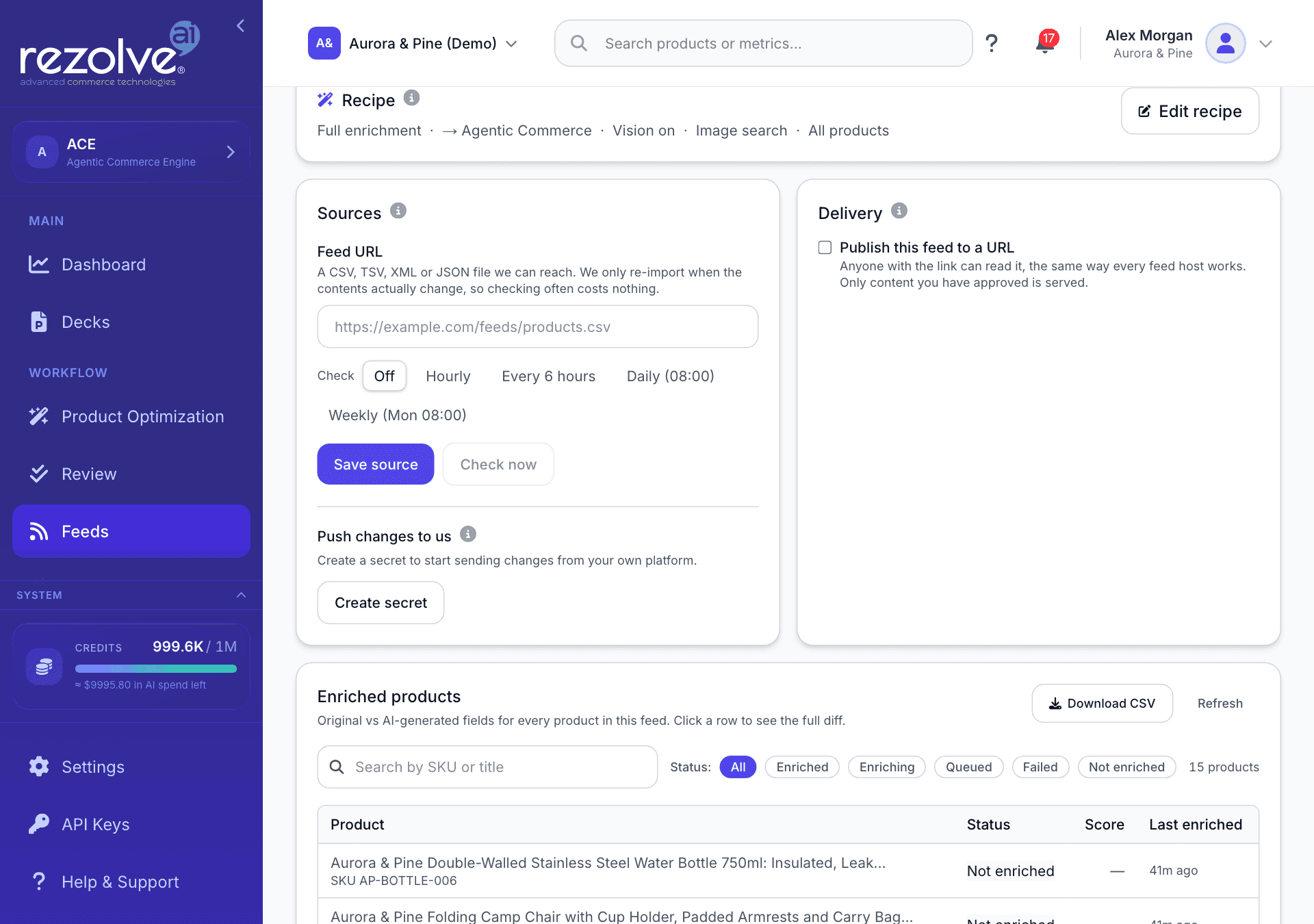
| Recipe | The fields and options chosen in setup. Edit recipe changes them. One recipe applies to every channel. |
| Sources | Where the feed's products come from. See Sources. |
| Delivery | The URL each channel fetches. See Delivery and the hosted feed URL. |
| Enriched products | Original and enriched fields for every product in the feed. Select a row to see the full difference. |
| Recent runs | Each run with its status and whether it was scheduled or manual. |
| Change history | Every saved version of the settings. You can restore an earlier one. |
A schedule only fires while Automation is on. With Automation Off, the Schedule card says so.
Autopilot
Autopilot keeps new and changed products enriched without you starting each run. It does not invent new settings. It replays the settings from a run you already approved: the same content types, brand voice, strategy and feed recipe. Those settings are shown on the Signals card.
To set it up:
- Run Product Optimization once and check the output in Review.
- On the Signals card choose Bring in settings and pick that run or a saved setup.
- Choose Save changes.
Run now stays unavailable until Signals has settings to replay, and it always uses the saved settings, so save first.
Two controls under When output is good enough decide how much Autopilot does alone. Both are off to begin with:
- Approve automatically above a quality score. Every automated item is scored for content quality, SEO, readability and brand voice. Items above your bar are approved automatically. Everything below it waits for you in Review. While this is off, everything Autopilot writes waits for you in Review.
- Rewrite products you have already approved. While this is off, an approved product is never regenerated, even when its source data changes.
Sources
The Sources card keeps a feed current without uploading a file each time. There are two ways:
- Feed URL. Enter the address of a CSV, TSV, XML or JSON file, choose how often to check it, and choose Save source. Check now fetches it straight away. The feed is only re-imported when its contents have changed.
- Push changes to us. Choose Create secret to get an address your own platform can send changed products to. Copy the secret when it is shown, because it is not shown again. Replace secret issues a new one, and Stop accepting pushes turns the address off. Your developer will find the details in the Feeds API guide.
Delivery and the hosted feed URL
A hosted feed URL is a permanent address a channel fetches on its own schedule, so you register it once and never upload a file again.
- On the Delivery card, tick Publish this feed to a URL.
- Tick each channel you want. A URL appears beside it.
- Choose Copy and paste the URL into the channel.
| Channel | Format |
|---|---|
| Google Shopping | RSS 2.0 |
| Microsoft Shopping | RSS 2.0 |
| Agentic Commerce | Flat file (TSV) |
| Shopify | CSV |
| WooCommerce | CSV |
Only content you have approved is served, and the feed refreshes by itself when you approve more. Anyone with the link can read it, the same as any feed a channel fetches.
Issue new URLs replaces every address. Use it if a link is shared by mistake.
After Issue new URLs, every URL you have already registered with a channel stops working. Paste the new one in its place.
The same delivery can be switched on from Settings, Data Management: open Hosted feed URLs on a feed, choose the channels under Publish to, and choose Turn delivery on.
Google product category
When Google product category is one of the fields you enrich, Rezolve Ai sets it only where it can be sure: from a valid category already on the product, from your Shopify standard product category, or from a product type that matches one of Google's category paths. A few categories that Google asks merchants to set explicitly, such as spirits, are also recognised from the product itself. Where none of these gives a certain answer the field is left empty, so Google assigns a category from the title, description, brand and GTIN. A wrong category does more harm than an empty one.
Google Merchant Center
Connect an account
- On the Feeds page choose Open Merchant Center.
- Choose Connect Merchant Center.
- Sign in with Google and approve access.
Each connected account appears as a card with its type, country, language and last sync. Select one to open it. If the project has more than one account, a menu at the top switches between them.
Pull, enhance, push
The Overview tab has three buttons:
- Pull from Merchant Center brings every product in the account into Rezolve Ai.
- Push enhanced products sends approved enhancements back to Merchant Center.
- Pull, enhance, push does both in one go.
Below them, four figures show Products linked, Pending push, Open issues and the Last result.
To have products pulled again whenever their status changes in Merchant Center, open the Settings tab and choose Subscribe to product status changes.
On the Products tab, tick products and choose Push selected to send only those. Open a product to see its details, its Google category, any issues with Merchant Center's own guidance, and what Google receives for it.
Tabs
| Tab | What it shows |
|---|---|
| Overview | The pull and push buttons and the account's headline figures. |
| Products | Every linked product with price, status, issues and last push. Filter to pending push or open issues. |
| Conversational | The content Google's AI shopping surfaces can answer from. See below. |
| Issues | Account level issues and product approval counts: approved, pending and disapproved. |
| Reports | Performance, price competitiveness, market insights and competitive visibility. |
| Promotions | Coupons, sales and free gift offers active for the account. |
| Inventories | Local availability for each store, and regional pricing. |
| Return policies | The account's online return policies. |
| Data sources | Primary and supplemental feeds in the account, and how they are linked. |
| Programs | Free Listings, Shopping Ads, Local Inventory Ads and other programs. |
| Regions | Custom regions used by regional inventory and shipping rules. |
| Conversions | Google Analytics links and conversion sources. |
| Order tracking | Send shipment status to Merchant Center. |
| Reviews | Product and merchant reviews submitted to Merchant Center. |
| LFP | Local Feeds Partnership providers. |
| Quota | How much of Google's daily request allowance the account has used. |
| Account | Account details, homepage, business identity and users. |
| Settings | Notifications from Merchant Center, and Disconnect. |
Disconnecting stops syncing the account but keeps the products already stored. You can reconnect at any time.
Conversational content
The Conversational tab covers everything Google's AI shopping surfaces can answer from: questions and answers, highlights, product details, related products, documents and more. It is filled from content you have approved, your catalogue and entries you write. It never affects product approval.
| View | What it is for |
|---|---|
| Overview | What Google receives across the catalogue, the Google limits it reaches, and the products missing content. |
| Content map | Which sources fill each attribute, and in what order. |
| Custom attributes | Attributes Google has not published yet, sent as an experiment. Merchant Center ignores names it does not recognise, so these cannot break the feed. |
| Products | Every product's content, with your own entries for each product. |
| Delivery | The paths that carry this content to Google. |
The content map. Each attribute (Questions and answers, Highlights, Product details, Related products, Documents, Item group title, Variant options and Popularity rank) lists its sources in order. Sources run top to bottom, and when a Google limit is reached, lower sources are left out first. Your own entries always come first. You can preview the map against one product before saving. Choose Save content map to keep your changes: the next feed build and push use it. Changing the map needs edit rights on the project.
Filling gaps. Where products are missing questions and answers or IRL scenario cards, choose Fill gaps with AI. The dialog shows an estimate of the credits before you start. Everything goes to Review first, and nothing reaches Google until you approve it.
Delivery. Every path runs the same content map, so they all carry the same values:
| Path | What it is |
|---|---|
| Merchant Center push | Sent to your Merchant Center account directly. |
| Hosted Google feed | The feed URL Merchant Center fetches on a schedule. |
| Supplemental file | A tab-separated file to upload as a supplemental data source. |
| Google CSV export | The full product file for manual upload. |
Amazon
Connect a Seller account
On the Feeds page choose Open Amazon, then Connect Amazon. Once connected, the account appears with its marketplace and when it was last synced. Sync now imports its listings and refreshes them later, and Open shows the connection.
What a connection shows
| Tab | What it shows |
|---|---|
| Overview | Listing health, stock and A+ coverage across the catalogue, the lowest scoring listings under Fix these first, and the Send to Amazon panel. |
| Listings | Every SKU, scored against Amazon's attribute requirements. Search by SKU or ASIN, and open a listing to see what Amazon currently shows, its content issues and its attribute coverage. |
| AI readiness | The biggest attribute gaps, and for each missing attribute whether enrichment can fill it or whether it needs a fact only you hold. |
| Analytics | Sessions, units ordered, ordered sales and conversion, with conversion set against Buy Box ownership. |
| Search | Search queries ranked by the gap between click share and purchase share. This needs a Brand Registered Amazon account. |
| Competitors | Share of shelf for keywords you track, and what paired competitor listings have that yours do not. |
| Activity | Syncs and Amazon report requests, most recent first, and what changed between syncs. |
| Settings | The enrichment settings for this connection's catalogue, which Amazon data the connection can reach, the sync schedule, and Disconnect. |
Sales, traffic and search figures arrive from Amazon's own reports, so those tabs stay empty until the connection can read them.
On Listings, a listing page or Competitors, Generate writes new listing content. It uses credits, and the result is saved as a draft for review. It is not sent to Amazon.
Sending content back to Amazon
The Send to Amazon panel on Overview sends approved listing content only. Anything still waiting for review stays where it is.
- Check the three figures: Ready to send, Waiting for review and Held back. A listing is held back when there is nothing approved to write, when it is already up to date, or when Amazon's listing rules or schema would reject it.
- Choose the send button. It carries the number ready, for example "Send 12 to Amazon".
- Choose Confirm. This updates live Amazon listings.
Download listings feed gives you the same document Amazon receives, so you can upload it in Seller Central yourself.
To send content without this step, open Settings and tick Send approved content to Amazon automatically. Approved listing content is then sent as soon as it is approved. Nothing unapproved is ever sent.
How approved content reaches a feed
Nothing reaches a feed or a channel until you approve it in Review. Feed fields are reviewed on Review's Product feed tab. From there, approved content travels by one of these routes:
| Route | How it works |
|---|---|
| Hosted feed URL | The channel fetches the URL on its own schedule. The feed carries what you have approved and refreshes when you approve more. |
| Export from Review | Choose Export on an approved item, pick a feed under Product feeds (export file) (Google Shopping, Microsoft Shopping, Agentic Commerce, Shopify feed or WooCommerce feed), and choose Export selected. You download the file and upload it yourself. |
| Merchant Center push | Push enhanced products on a Merchant Center connection sends approved enhancements to the account. |
| Amazon | Send to Amazon sends approved listing content to Seller Central. |
A store connected through the Shopify app or the WordPress plugin does not need a feed for its own product pages. Approved content reaches those pages through the app or plugin. See Sync.
Credits
Enrichment runs use credits, and vision and image search cost more than text alone. Fill gaps with AI and Amazon's Generate also use credits. See Credits.
Quick links
Sync
Check that your store connection is healthy, see how much content is waiting for review, and audit what has happened to your catalogue and content.
UCP
Serve your catalogue to AI shopping agents over the Universal Commerce Protocol, publish your profile on your own domain, and see which agents are searching it.