
Decks
Build presentations from your project's own figures, rework them by hand or with the assistant, then present them or download them in your own PowerPoint template.
A deck is a presentation built from your project's own figures that you keep. It can cover any mix of the project's areas, shows today's numbers every time it is opened, and downloads as PowerPoint in your template.
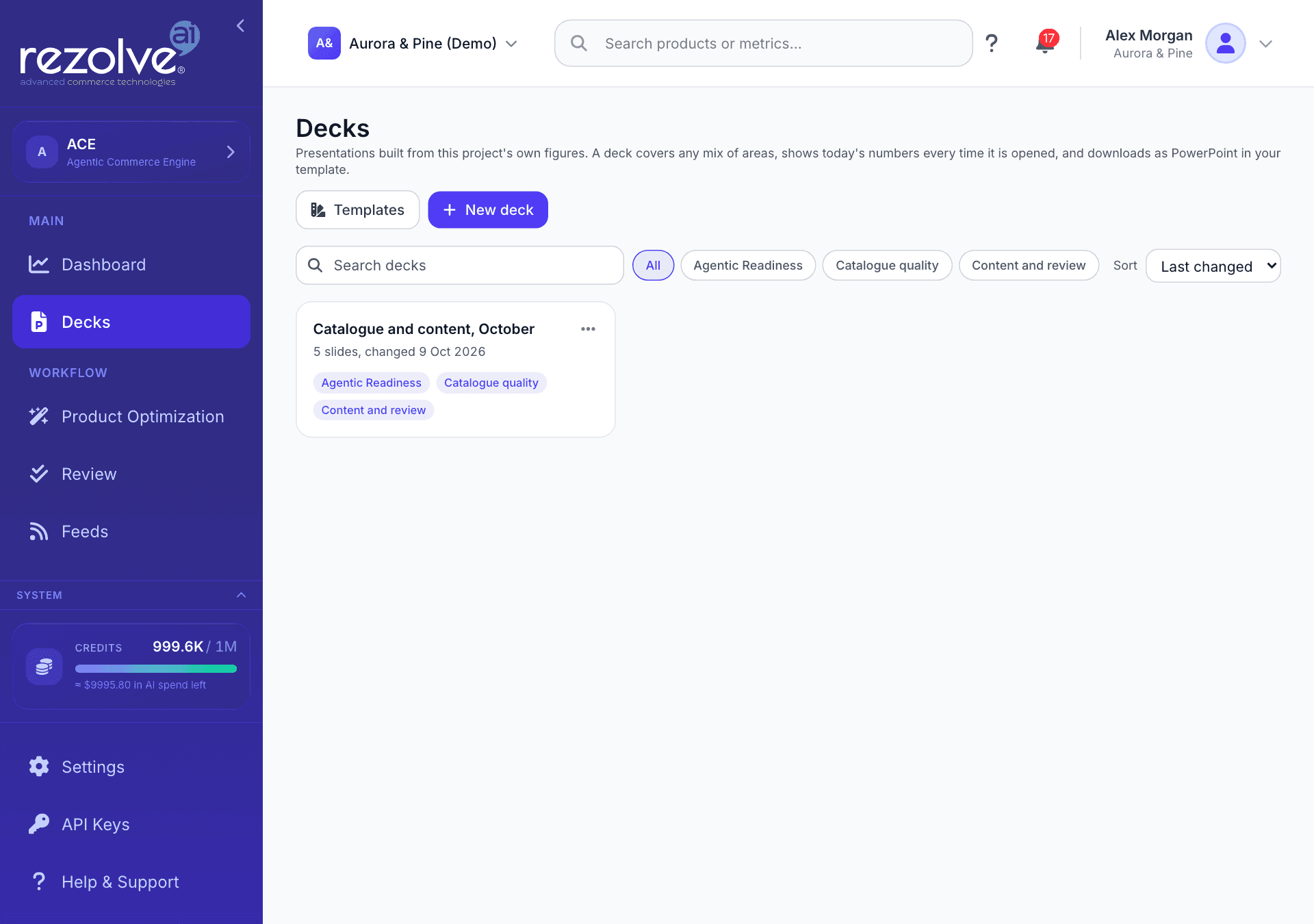
Where to find it
Open Decks in the sidebar, under Main. The Decks page lists every deck in the project. Decks are available on Shopify, WooCommerce and "Feeds and files" projects.
You can also start a deck from the screen you are looking at. Build a deck is on a flow's Results summary, on the Dashboard and on Experiments. Each opens the same dialog with that screen's areas already chosen.
Start a deck
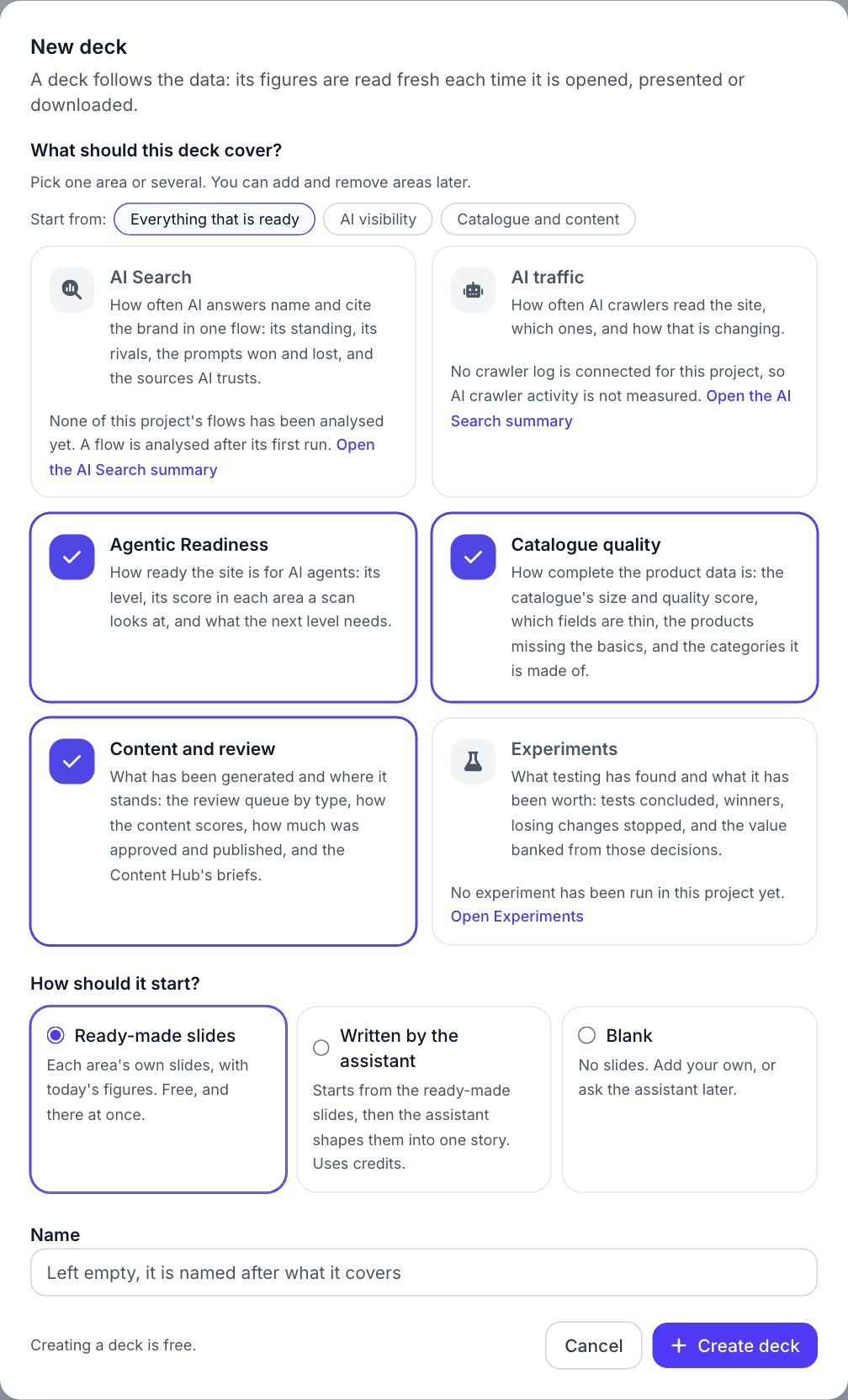
- Open Decks and choose New deck.
- Under What should this deck cover? pick one area or several. Start from offers ready mixes: Everything that is ready, AI visibility and Catalogue and content. If you pick AI Search, choose which flow it draws on.
- Under How should it start? choose one option:
- Ready-made slides: each area's own slides, with today's figures. Free, and there at once.
- Written by the assistant: starts from the ready-made slides, then the assistant shapes them into one story. Uses credits.
- Blank: no slides. Add your own, or ask the assistant later.
- Give the deck a Name, or leave it empty to have it named after what it covers.
- Choose Create deck. The deck opens in the builder.
Each area in the dialog says whether it has anything to show today. An area with nothing to show cannot be picked, says what it is waiting for, and links to the screen that would give it something. You can add and remove areas later.
What a deck can cover
A deck can cover any mix of these areas:
| Area | What it brings | Ready when |
|---|---|---|
| AI Search | One flow, which you choose: how often AI answers name and cite the brand, its rivals, the prompts won and lost, and the sources AI trusts. | A flow has been analysed and has a target brand. |
| AI traffic | How often AI crawlers read the site, which ones, and how that is changing. | A crawler log is connected for the project. |
| Agentic Readiness | The site's readiness level, its score in each area a scan looks at, and what the next level needs. | The site has a completed Agentic Readiness scan. |
| Catalogue quality | The catalogue's size and quality score, which fields are thin, the products missing the basics, and the categories it is made of. | The project has products. |
| Content and review | The review queue by type, how the generated content scores, how much was approved and published, and the Content Hub's briefs. | Content has been generated for review, or the project has briefs. |
| Experiments | Tests concluded, winners, losing changes stopped, and the value banked from those decisions. | The project has run an experiment. |
A few things a slide is careful to say:
- A product counts as having a description when the description is at least 50 characters long, and as having a price when the price is a number above zero. So a slide says "a short or missing description" and "no valid price".
- Content Hub briefs are counted across the whole project. Your own Content Hub lists the briefs you made, so a slide can show more.
- Experiments shows value banked from decisions already taken. What tests still running might be worth is a forecast, and it is not on a slide. Amounts in different currencies are never added together.
- An area that could not be read says so. It is never shown as empty.
The Decks page
Each deck is shown with what it covers. From this page you can:
- Search by name, filter by area, and sort by Last changed or Name.
- Use a deck's menu to Open, Rename, Make a copy, Download PowerPoint or Delete it. Deleting removes the deck and its history for good.
- Choose Templates to manage the project's PowerPoint templates.
The deck builder
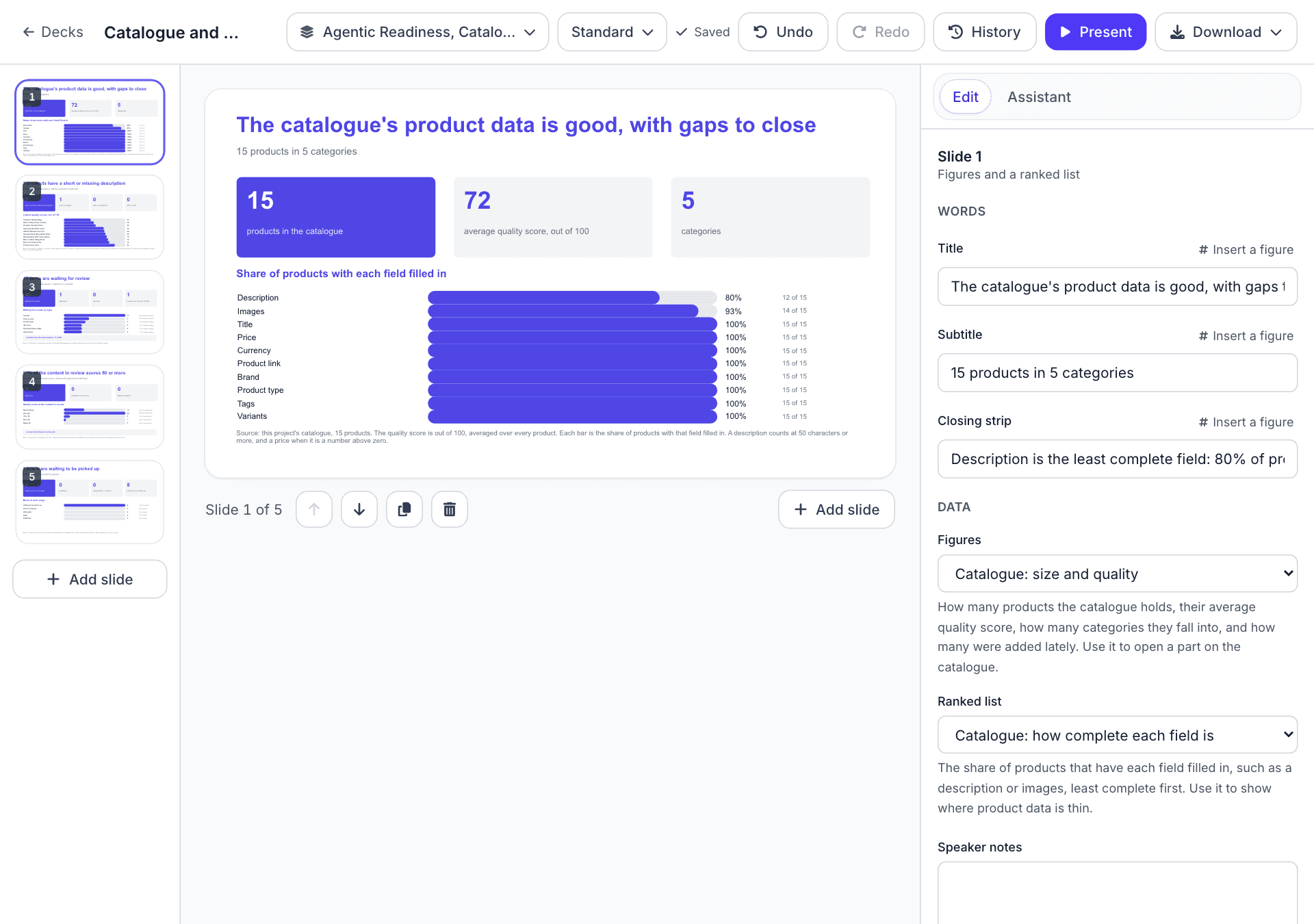
The builder has three parts. Your slides are in a list down the left, the slide you are working on is in the middle, and one panel on the right holds two tabs: Edit, for that slide's words and data, and Assistant. On a narrow screen you see one of the three at a time.
The bar at the top holds the deck's name (choose it to rename the deck), Covers, the template menu, Undo, Redo, History, Present and Download. Changes are saved as you make them.
Add slides and choose a layout
Choose Add slide, pick a layout, and pick the data that fills each part of it. A deck holds at most 20 slides.
| Layout | What it shows |
|---|---|
| Figures and a ranked list | A row of figures over a ranked list. |
| Figures and an explanation | A row of figures, then an explanation and one emphasised line. |
| Bars and two takeaways | Bars, then two takeaways side by side. |
| Ranked list with a side panel | A ranked list with a panel beside it, filled from the data or with your own words. |
| Figures, a chart and a list | Figures, a column chart over time and a list beside it. |
| Section divider | A title and one line, to mark where the deck moves to a new subject. No data. |
| Title and points | A title and up to five numbered points, for next steps or an agenda. No data. |
Only data that is ready today is offered. If the deck is drawn in a template you uploaded, the dialog also has a Your slides tab. See Keeping your own slides.
Edit by hand
- Change the words. Select a slide and edit its lines under Words in the Edit tab. Press a line on the slide itself to put the cursor in that line's box.
- Put a figure in a line. Choose Insert a figure beside the line. The figure is filled in from the data each time the deck is opened.
- Change the data. Under Data, choose what fills each part of the slide.
- Write speaker notes. They are saved with the slide and written into the PowerPoint file's notes.
- Move, copy or remove. The buttons under the slide move it earlier or later, duplicate it or delete it.
- Reorder. Drag a slide to its place in the list. From the keyboard, press space on a slide to pick it up, use the arrow keys to move it, and press space again to put it down.
Ask the assistant
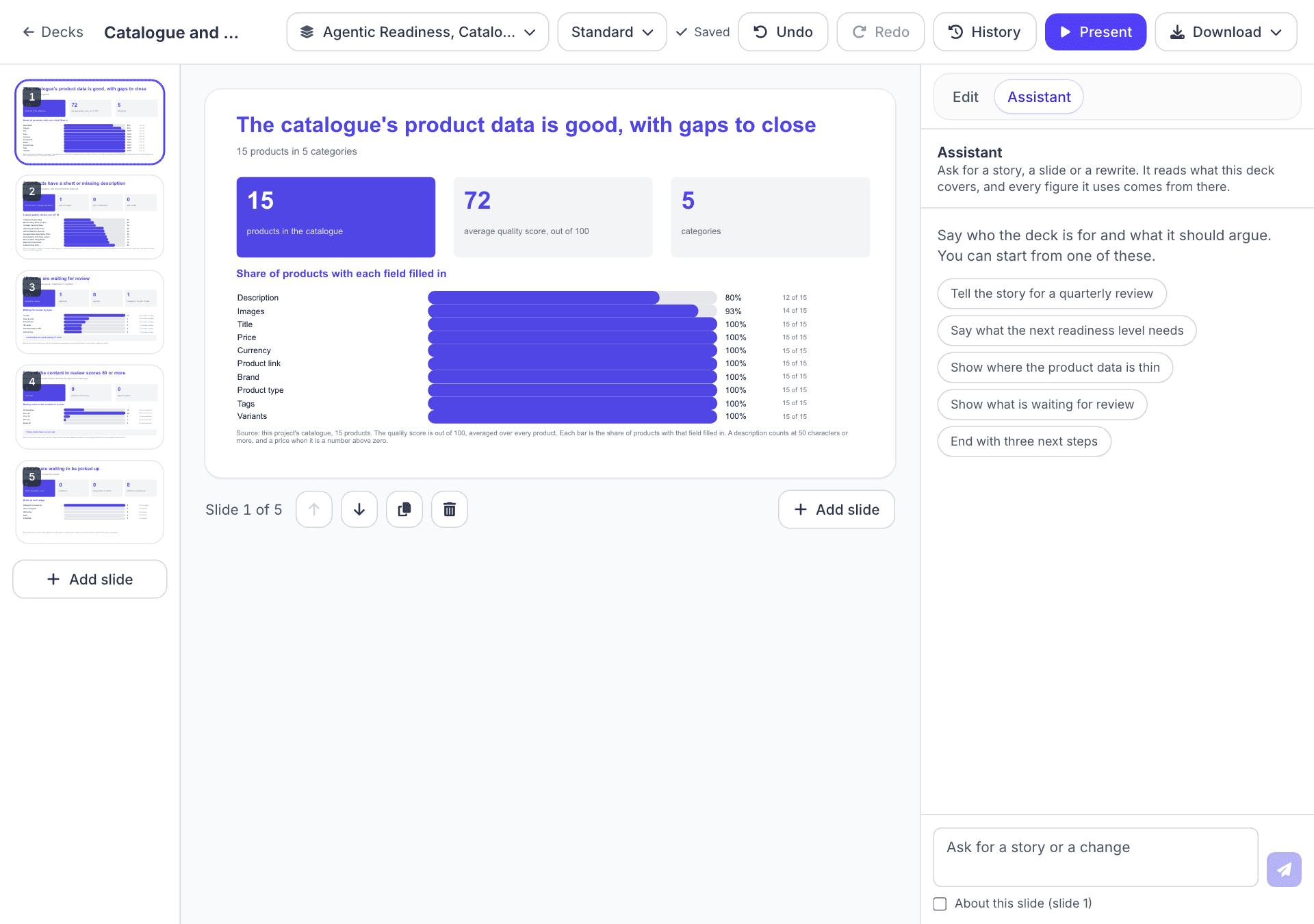
Open the Assistant tab and ask for a story or a change in your own words: "Open with the article AI is citing", "Add a slide on the prompts we lose to rivals", "End with next steps". A new conversation offers requests to start from, such as Tell the story for a quarterly review.
- The assistant lists what it read and each change it made. One request is one Undo.
- To work on one slide, use Sharpen the title, Tighten the words or Write speaker notes under that slide's words in the Edit tab. Each sends that request to the assistant about that slide alone.
- You can stop a request while it is running.
The assistant chooses which data goes on a slide and writes the words around it. It never types a figure. Every number on a slide is read from the project's own data each time the deck is opened, so a deck you built last month shows this month's figures. A slide whose data is no longer available says so instead of showing zeros, and the builder marks it in the slide list as needing attention.
Change what a deck covers
The Covers button says what the deck covers and what each area's figures are over. Use it to:
- Add an area. Tick Add its ready-made slides to the end of the deck to bring its slides in too.
- Take an area out. Slides already in the deck stay, and keep drawing, until you remove them.
- Point AI Search at another flow. Every AI Search slide in the deck then draws on the flow you chose.
Undo, redo and history
Undo steps back one saved change and Redo steps forward again. History lists every saved change, newest first, with when it was made and whether you, the assistant or someone else on the project made it. Restore takes the deck back to any of them. A restore is saved as a new change, so nothing between is lost and Undo takes it back.
Present
Present shows the deck on the whole screen, starting from the slide that is open.
| Key | What it does |
|---|---|
| Right arrow, down arrow, space or Enter | Next slide |
| Left arrow or up arrow | Previous slide |
| Home, End | First slide, last slide |
| N | Show or hide your speaker notes |
| Escape | Leave the presentation |
In the builder, the arrow keys step through the slides and P presents.
Download
Download offers two choices:
- PowerPoint: editable slides, drawn in your template. Bars and columns are drawn as shapes, so you can move, recolour or delete each one.
- Print or save as PDF: sends the deck to the printer. Pick "Save as PDF" as the destination to get one landscape page a slide.
When an area cannot be read
If one of a deck's areas could not be read when the deck opened, the builder says which at the top and offers Try again. Slides that draw on it say so in place of their figures, and the rest of the deck is as it should be. The assistant will not change the deck until the area has been read.
Deck templates
Every deck is written into a PowerPoint template, so the file you download is in a house style and not ours. A project starts on the standard template. To use your own, open Decks, choose Templates, then Upload a template. You can also choose Upload a template in the template menu at the top of the deck builder.
Upload one presentation saved as .pptx, up to 50 MB. A deck you already use works best, because we learn how you use colour from its slides. From the file we read:
- Your fonts. If the font is stored inside the file, it travels with every deck. If it is not, anyone opening a deck needs it installed, and we say so.
- Your colours: the main colour, body and quiet text, card backgrounds, bars and an accent. Each is marked Seen on your slides or Worked out, please check.
- Your master and layouts. Logos, bands and backgrounds on your master appear on every slide we build, exactly as PowerPoint draws them. Where your layout has a title placeholder, our titles go in it and take its style. The rest of each slide is fitted into the area your layout gives to content.
After the upload you see How we read your template: three sample slides in your template, and the reading beside them. Correct a colour or choose another layout for our slides to sit on, and the samples redraw. Download sample gives you those three slides as a PowerPoint file, so you can check them in PowerPoint before building a real deck.
What to expect:
- Slides are drawn On brand: your fonts, colours and master, with our arrangement of each slide. We do not copy the arrangement of your own slides.
- Our slides are designed for widescreen (16:9). In a template that is not widescreen they are drawn smaller to fit.
- Some master artwork cannot be drawn in the on-screen preview. It is always in the file you download.
- A project can keep up to 20 templates.
A project's first template becomes its default, which is the template the Results summary and new decks use. Choose Make default on another to change it. Each deck can also pick its own template from the builder's template menu. Deleting a template leaves the decks drawn in it in place, and they use the project default from then on.
Keeping your own slides
The presentation you uploaded still has its slides, and a deck drawn in that template can keep any of them. In the deck builder, choose Add slide and open Your slides, or ask the assistant: "Open with my About us slide and close with my Thank you slide, and build the story between them."
- A slide you keep is written into the PowerPoint file exactly as you made it, with its own notes, pictures and charts. Nothing on it is changed.
- On screen it appears as a card with its title and first words. We do not draw your slides, so the card says so. Download the file to see it in place.
- The assistant can bring your slides in and move them. It cannot rewrite, replace or remove one, or write notes for it. Remove a slide yourself with Remove from deck. It stays in your template, and you can add it again.
- Your slides belong to their template. If you switch the deck to another template, the slides you kept from the first one are taken out. To get them back, switch the deck to the first template again and choose Undo.
What is removed and what is refused
Before a template is kept, we remove review comments and their authors, the author recorded in the file's properties, and anything that links to a file on another computer. A slide that depends on such a link is left out, and we tell you which. Files with macros, password-protected files and the old .ppt format are not accepted. Save the file as a plain .pptx and upload that copy.
The Results summary of a flow
Every AI Search flow also has a fixed Results summary: a short deck of that flow's standing that is the same for everyone and needs no building. Open it from a flow's Results page or from the AI Search Summary page. Choose Build a deck there to start a deck of your own from the same flow. See Results summary in the AI Search guide.
Who can do what
Anyone who can open the project can open, present and download its decks. Creating or changing a deck, and uploading or correcting a template, needs edit rights on the project. Without them the builder says View only and shows nothing you could not use.
What uses credits
| Action | Credits |
|---|---|
| A request to the assistant, including a new deck started as Written by the assistant and the one-slide requests in the Edit tab | Uses credits |
| Creating a deck with ready-made slides or blank | No credits |
| Opening a deck, editing it by hand, undoing and restoring | No credits |
| Presenting, downloading and printing | No credits |
| Uploading and correcting a template, and downloading its sample | No credits |
Quick links
Dashboard and Analytics
A guide to the Dashboard, its views, the Get started checklist and the Data Quality score, with pointers to where the deeper analytics live.
Product Optimization
Choose products, give the AI your context, pick what to generate, and launch a run whose output waits in Review for your approval.