
Product Optimization
Choose products, give the AI your context, pick what to generate, and launch a run whose output waits in Review for your approval.
Product Optimization is the wizard that generates content for your products. You choose the products, add context, pick the content types, and launch. Nothing it writes reaches your store or your feeds until you approve it in Review.
Open the wizard
In the left menu, go to Workflow, Product Optimization, or open it directly at Product Optimization.
The wizard has four steps, listed in the rail on the left:
| Step | What you do |
|---|---|
| Select Products | Choose which products to optimize. |
| Enrich Context | Build the content strategy and set brand voice. This step is optional. |
| Content Types | Choose what to generate. |
| Launch | Check the plan, preview a sample, and start the run. |
Use Continue and Back at the bottom of the page, click a step in the rail, or press the left and right arrow keys. Continue stays disabled on the first step until at least one product is selected, and on the third until at least one content type is selected.
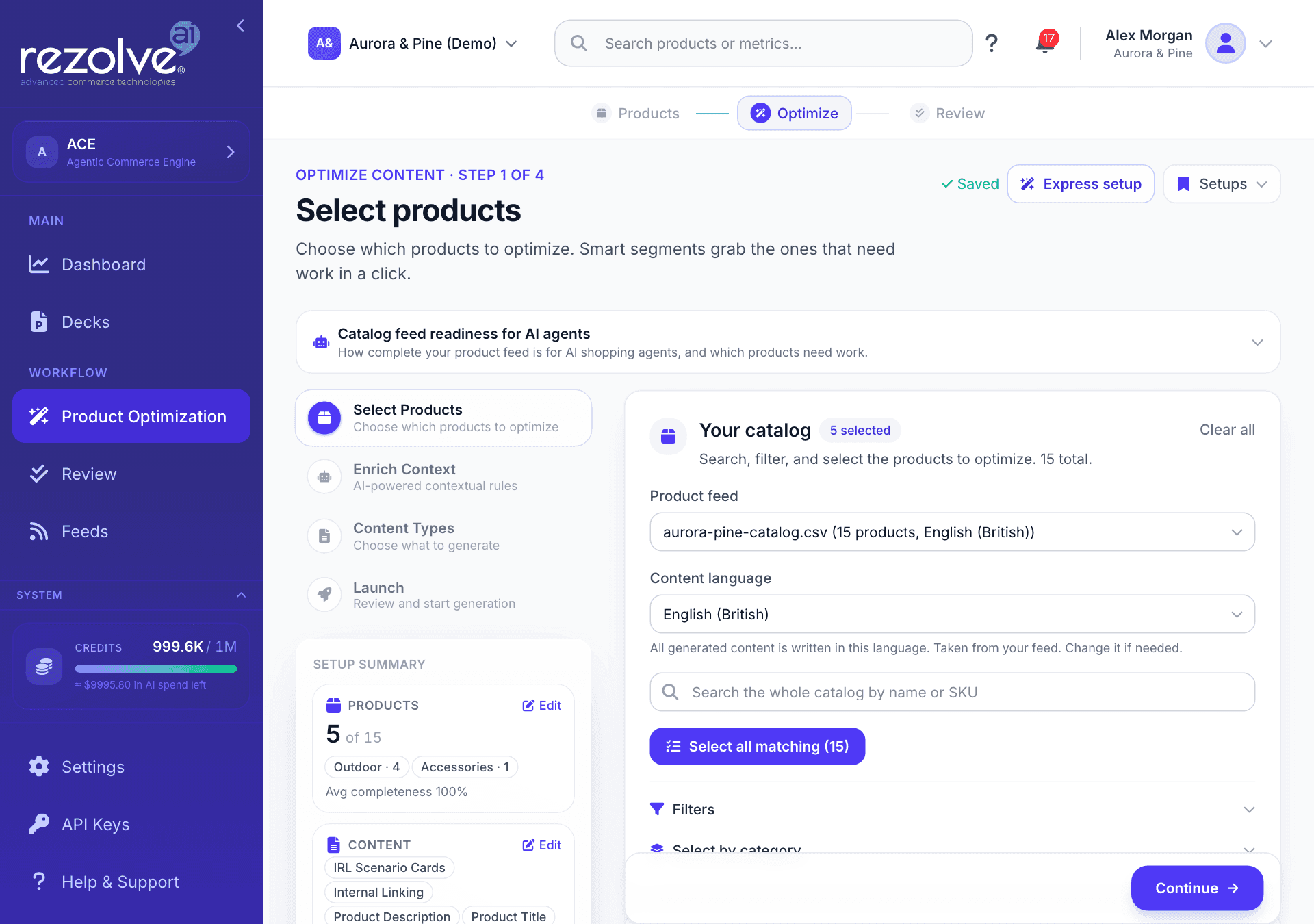
The setup summary
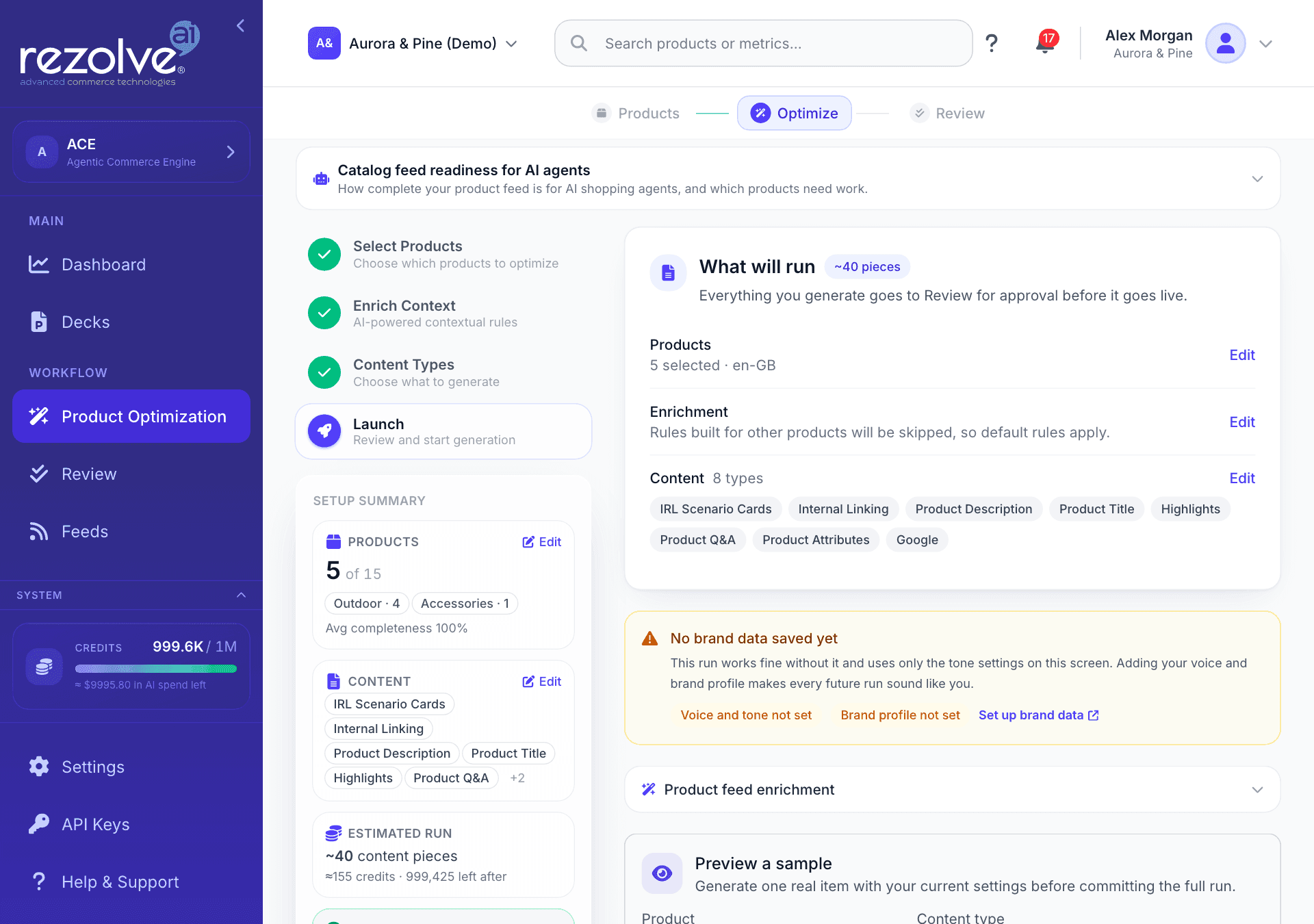
Under the step list, the Setup summary panel follows your choices as you make them:
- Products: how many are selected out of the feed total, the top categories in the selection, and the average completeness.
- Content: the content types chosen so far.
- Estimated run: roughly how many content pieces the run will produce and roughly how many credits it will use, with the balance you would have left.
- A status line that reads Ready to launch, Select products to launch, or a count of setup items to resolve, with a Fix now link.
- Preview a sample, once the selection includes at least one product page content type.
The credit figure is an estimate. Credits are charged for the work actually done as each item is written. See Credits.
Express setup
Express setup in the top right applies the recommended starting mix (IRL Scenario Cards and Enhanced JSON-LD Schema). If products are already selected, it takes you straight to Launch. If none are selected, it sends you back to Select Products to pick them.
Saved setups
The Setups menu stores a whole configuration under a name so you can reuse it.
- Select your products and make your choices.
- Open Setups, type a name under Save current setup, and click Save.
- Later, open Setups and click Load next to a saved setup. The wizard restores the feed, the product selection and every setting, and returns to the first step.
Saved setups belong to the project they were made in. Your work in progress is also saved automatically as a draft once at least one product is selected, so you can leave the page and come back.
Catalog feed readiness for AI agents
Above the wizard there is a collapsed card named Catalog feed readiness for AI agents. Open it to score a sample of your products on how complete their feed data is for AI shopping agents. It shows an average score, how many products are agent-ready, need work or are not ready, and a table of the least ready products with the feed fields each one is missing. Those are usually the products worth optimizing first.
Step 1: Select Products
The Your catalog card holds everything you need to build a selection.
- Product feed: the feed the products come from. Each option shows the product count and the feed's language. Switching feeds clears the current selection, and the wizard asks you to confirm first.
- Content language: every piece in the run is written in this language. It is taken from your feed, and you can change it. A change is saved to the feed, so later runs use it too.
- Search: find products by name or SKU across the whole catalog. While a search is active, the category and completeness filters do not combine with it.
- Content badges: a product that already has generated content shows how much is at each stage, such as 7 in review or 13 published. Click a badge to open that content in Review.
- Select all matching: selects every product that matches the current search or filters, up to 10,000 at a time.
- Filters: narrow the list by Category and by Data completeness (Complete, Good, or Needs Work). Reset filters clears them.
- Select by category: click a category to select all of its products in one go.
- Select page: tick the checkbox above the list to select the products on the current page, or tick products one by one.
Each row shows the product image, name, SKU, category, a completeness percentage and the price. The chip at the top of the card counts what is selected, and Clear all, beside Select page above the list, empties the selection. A cleared selection stays cleared the next time you open the wizard.
On a feed that already holds optimized products, the picker lists those products and offers Smart segments in place of Select all matching, plus a Select all button above the list that selects every product your search and filters match, on every page. Each segment is a chip with a count, and one click selects every matching product:
| Smart segment | Selects |
|---|---|
| No images | Products with no image at all. |
| Low completeness | Products with data completeness below 70 percent. |
| Out of stock | Products currently unavailable. |
| Top by price | Your highest priced products. |
A segment only appears when at least one product matches it. On these feeds the Filters panel also offers Price range and Stock status.
Step 2: Enrich Context
This step gives the AI the context it needs to write about your products the way you sell them. You can skip it, in which case the run uses default rules.
Build the content strategy
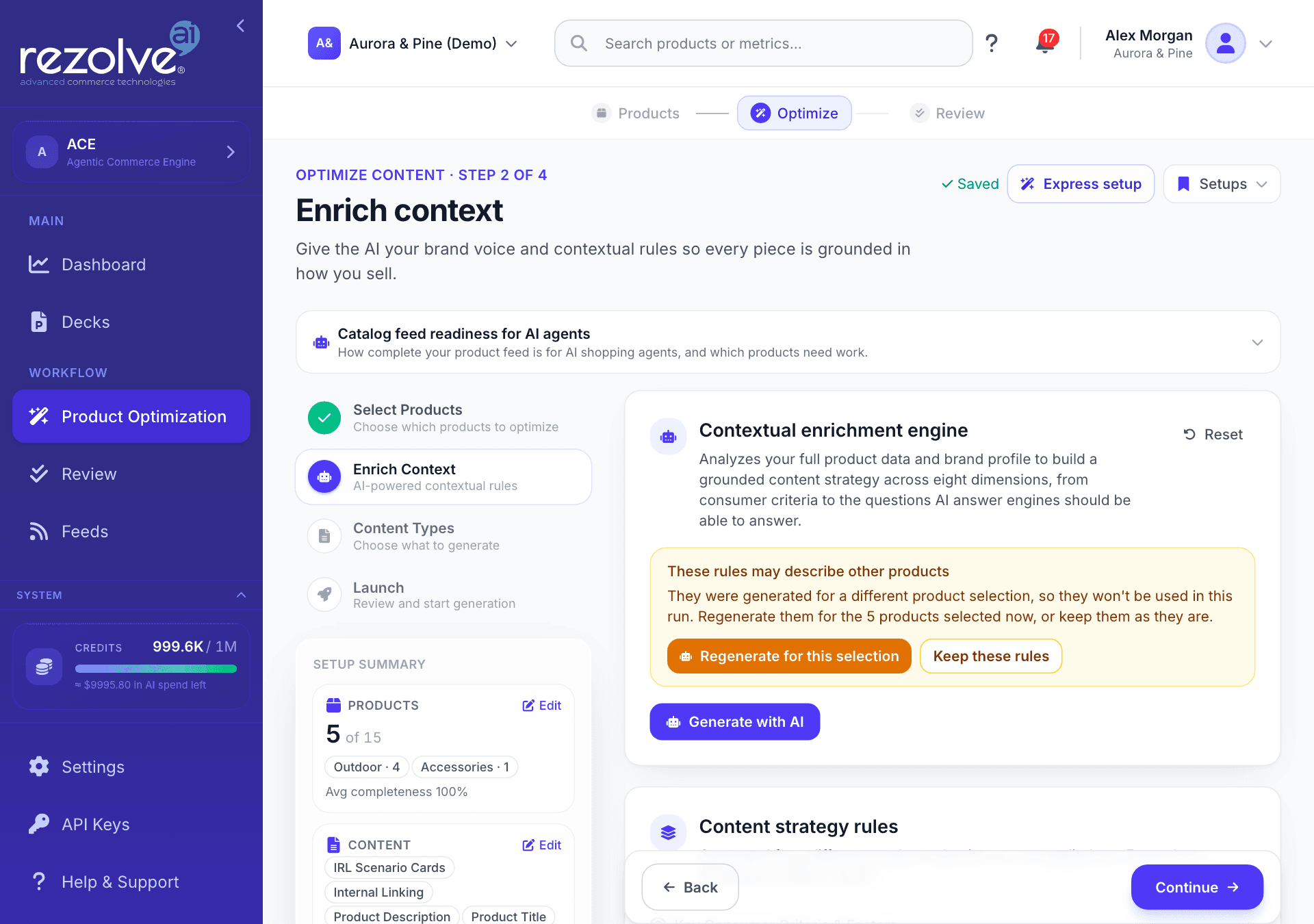
The Contextual enrichment engine reads your product data and your brand profile and builds a content strategy across eight dimensions:
- Key Consumer Criteria & Factors
- Product Context & Applications
- Use Cases & Scenarios
- Purchase Occasions & Timing
- Key Entities & Attributes
- Target Questions & Queries
- Competitive Differentiators
- Objections & Reassurances
To build it:
- Click Generate with AI. The button needs products selected in the first step.
- When it finishes, open any dimension under Content strategy rules to read it.
- Click Edit to change a rule by hand, or Regenerate to rewrite one dimension.
- Click Preview from these rules to generate a real sample for one product using the rules.
Regenerate all with AI rebuilds every dimension, and Reset returns to the defaults. A dimension marked Fallback could not be built from your catalog and holds a standard rule instead.
The rules are built for the products you selected. If you change the selection afterwards, the wizard warns that the rules may describe other products and leaves them out of the run until you choose Regenerate for this selection or Keep these rules.
Advanced generation settings
Open Advanced generation settings for brand voice and generation parameters.
Brand voice. If you have saved a voice on the Brand view of the Dashboard, every piece in the run follows it and this section says so. Click Override for this run to set a different voice for this run only, using Tone of voice, Content style, Target audience level and Language complexity. If no voice is saved, those four fields are shown directly.
Generation parameters.
| Setting | What it controls |
|---|---|
| IRL scenarios per product | How many scenario cards to write for each product, from 3 to 8. |
| Content length | A slider from Short to Long. |
| Creativity level | A slider from Conservative to Creative. |
| Include competitor comparisons | Compare with similar products where relevant. |
| Generate FAQ sections | Add frequently asked questions. |
| Include technical specifications | Add detailed technical information. |
Step 3: Content Types
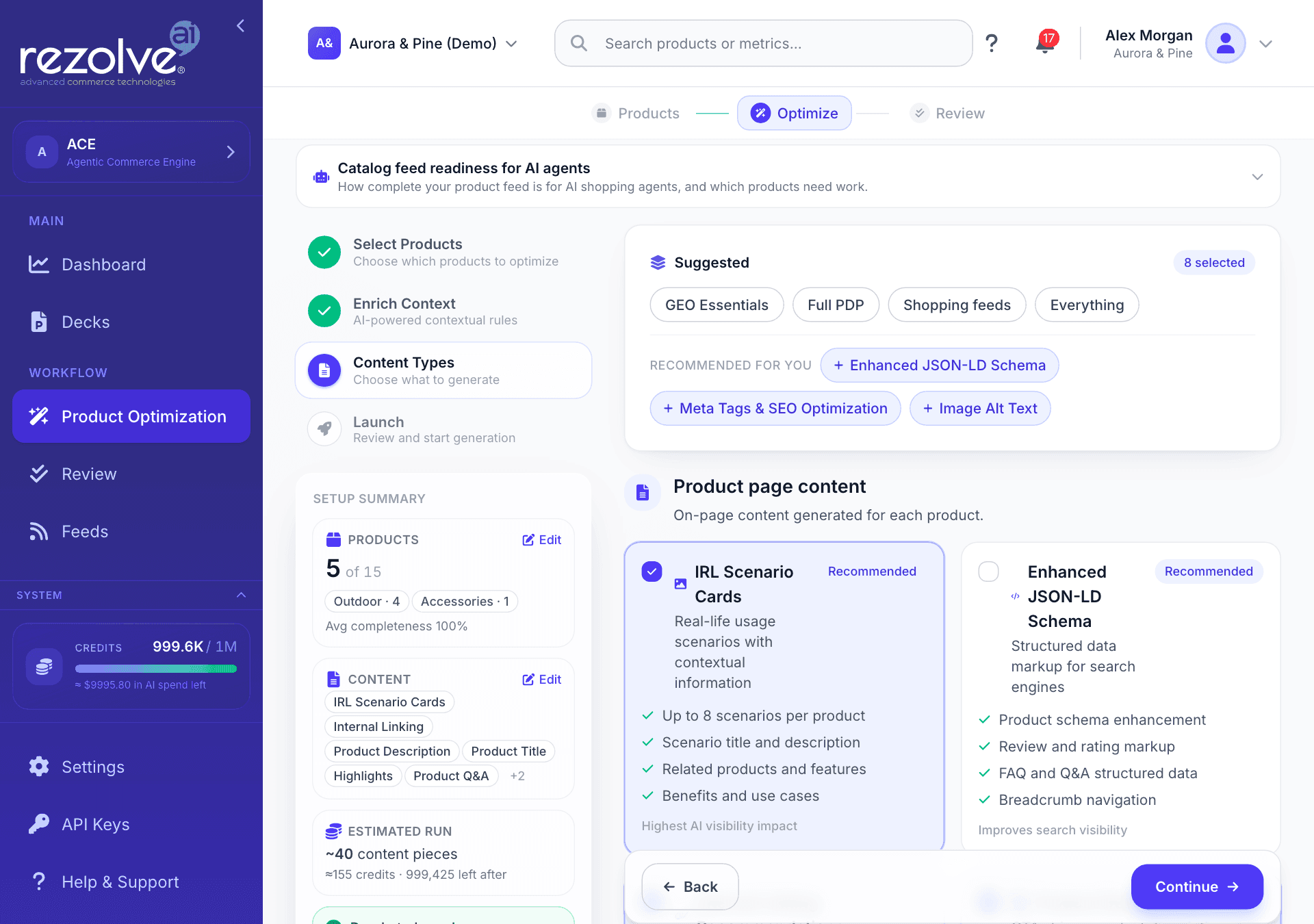
Choose what the run generates. The page has a Suggested strip at the top and two groups of cards below it.
Suggested bundles
The Suggested strip applies a whole bundle in one click.
| Bundle | Selects |
|---|---|
| GEO Essentials | Product title, structured data, meta tags, product description and IRL scenario cards. |
| Full PDP | Every card in Product page content. |
| Shopping feeds | Every card in Channel feeds. |
| Everything | Every card in both groups. |
Under the bundles, Recommended for you suggests individual types based on gaps in the products you selected, for example thin descriptions or images with no alt text. Hover a suggestion to see the reason, and click it to add it.
Product page content
On-page content generated for each product.
| Content type | What it generates |
|---|---|
| IRL Scenario Cards | Real-life usage scenarios, each with a title, a description, related features and benefits. |
| Enhanced JSON-LD Schema | Structured data markup for search engines, covering product, review and rating, FAQ and breadcrumb data. |
| Internal Linking Recommendations | Link suggestions to related products and category pages, with anchor text. |
| Product Description | A product description with attributes, specifications and a call to action. |
| Meta Tags & SEO Optimization | Title tag, meta description, Open Graph tags and Twitter Card markup. |
| Product Title Optimization | A rewritten product name and feed title, separate from the meta title, with a short variant and alternatives. |
| Highlights & Bullet Points | Three to six short benefit bullets for the product page, feeds and AI answers. |
| Product Q&A | Buyer-style questions with grounded answers, which also feed FAQ structured data. |
| Product Attributes | Structured specifications such as color, material, gender, age group and size. |
| Image Alt Text | One concise description for each product image. |
Two of these have conditions:
- Internal Linking Recommendations needs a product description to place links in. Selecting it also selects Product Description, and removing Product Description removes it.
- Enhanced JSON-LD Schema needs real product page URLs. If your project has no website URL or no usable product links, a banner at the top of the wizard lists what to fix, and Start optimization stays disabled until you fix it or deselect the card.
Internal linking for blog and listicle content is set up separately. See the Internal Linking guide.
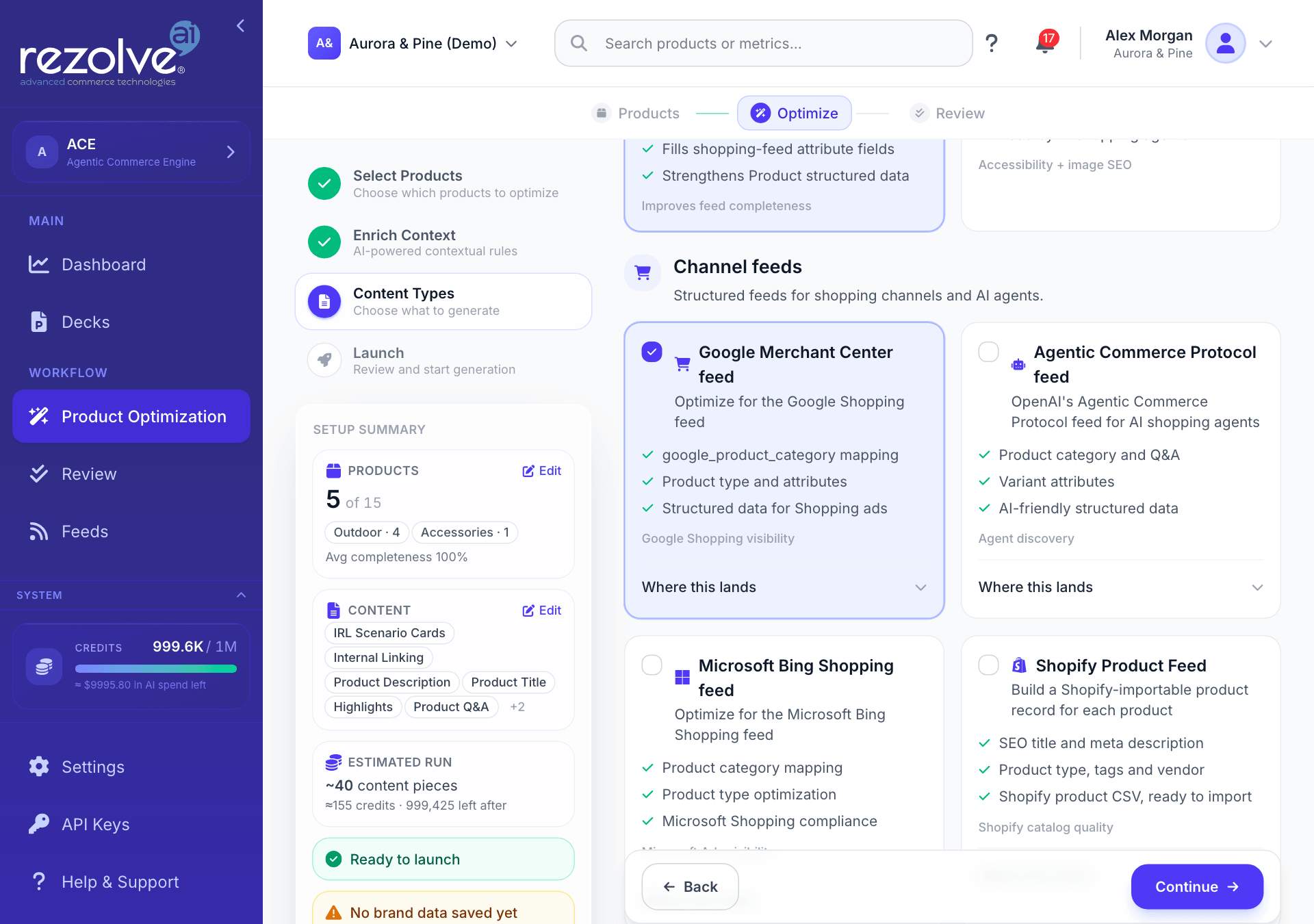
Channel feeds
Structured feeds for shopping channels and AI agents. Each card enriches a product record for one channel, and the result appears on the Product feed tab in Review.
| Content type | What it builds |
|---|---|
| Google Merchant Center feed | A Google Shopping record for each product, including category mapping, product type and attributes. |
| Agentic Commerce Protocol feed | A record for AI shopping agents, including product category, Q&A and variant attributes. |
| Microsoft Bing Shopping feed | A Microsoft Shopping record for each product. |
| Shopify Product Feed | A Shopify product record with SEO title, meta description, product type, tags and vendor. |
| WooCommerce Product Feed | A WooCommerce product record with SEO title, meta description, tags and specification attributes. |
| Amazon Listing Content | Amazon listing attributes: title, description, key feature bullets and backend search terms. |
Every channel card has a Where this lands link. Open it to read exactly where the approved content goes for your project.
The two store cards behave differently depending on your platform:
- On a Shopify project, the Shopify Product Feed card writes to the live product through the Rezolve Ai app: SEO title, meta description and product tags. On any other project it builds a product CSV that you download and import.
- On a WooCommerce project, the WooCommerce Product Feed card writes to the live product through the Rezolve Ai plugin. The SEO title and meta description need Yoast, Rank Math or All in One SEO installed. The card is locked until the plugin on your store is version 4.9.0 or later. On any other project it builds a product CSV.
Step 4: Launch
The last step shows the whole plan and starts the run.
What will run
The first card lists the Products, the Enrichment rules and the Content types in the run, with an approximate number of pieces. Click Edit on any row to go back to that step.
Preview a sample
Preview a sample generates one real item with your current settings, so you can read the output before paying for the full run.
- Pick a Product and a Content type.
- Click Generate sample.
- Read the result in the Sample output window.
The sample is a real generation, so it uses credits like any other. It is available for product page content types, not for channel feeds.
Credits
The Credits card shows your balance and roughly what will remain after the run. If the estimate is higher than your balance, the card warns that the run may not finish. You need a positive balance to start. With no credits left, Start optimization is disabled.
Write more than one version
When the run includes product descriptions or meta tags, you can ask for up to four Versions of each. Each version takes a different angle: house style, specification-led, use-case-led or story-led. You compare them in Review and publish the one you prefer.
Each version is written separately, so the card shows how many more credits the run will use. Only descriptions and meta titles are written more than once. Everything else is written once and shared.
Run this as an experiment
Run this as an experiment is ticked by default when the run is large enough to measure. With it on:
- Part of your selection becomes the test group, which gets the new content. The card shows how many products that is.
- The rest becomes the control group and stays unchanged for four weeks.
- Everything is written now and charged once. The card shows the date the control group is released, and releasing it costs nothing more.
Comparing the two groups is how Experiments can tell what your content changed, separately from seasonality or a sale. With the box unticked there is no control group, so Experiments can show what happened but not what caused it.
Internal links are never held back. They change how products across your catalog link to each other, so they go to every product, including the control group.
If the selection is too small, has too little traffic, or holds only content types that affect the whole catalog, the card says This run is too small to test and explains why. Your optimization still runs as normal.
Start the run
Click Start optimization. The button is disabled when you have no credits, when schema setup is still to finish, or when another enrichment run is already in progress for this project. For the last two, a note beside the button explains the reason. Only one run can be in progress per project at a time, including runs started from the Shopify app or by Autopilot.
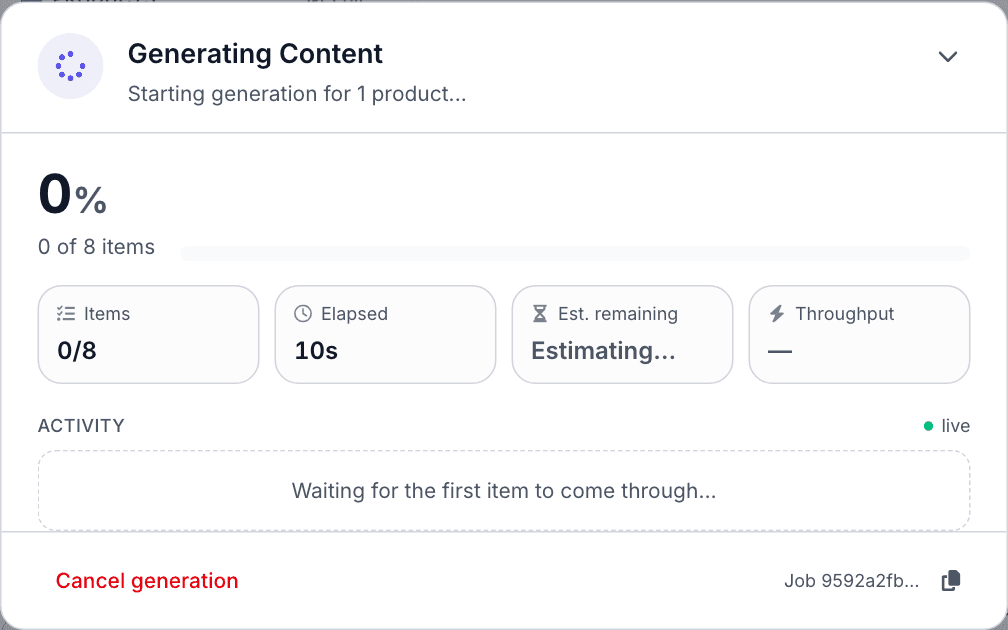
While the run is in progress
A progress window opens as soon as the run starts. It shows items completed, time elapsed, estimated time remaining, progress by content type and a live activity list.
- Minimize shrinks the window to the corner so you can keep working.
- Cancel generation stops the run. Anything already written is kept, and View partial results opens it in Review.
- Your browser warns you if you try to close the tab while a run is in progress.
After the run
When the run finishes, click View in Review & Approval. Every piece is waiting in the In Review stage of Review, next to the value your feed carries today. From there you approve, edit or reject each one.
What happens after approval depends on your platform:
- Shopify and WooCommerce projects: approved content reaches your product pages through the Rezolve Ai app or plugin. Track it on Sync.
- Feeds and files projects: approved content leaves through Feeds, as a file you download or a hosted feed URL.
To apply the same settings to new products as they arrive in a feed, follow the Set up Autopilot link on the Launch step. See Feeds.
Tips
- Start with a small selection and read the sample before a large run.
- Save your brand voice on the Dashboard's Brand view once, so every run follows it without extra setup.
- Regenerate the strategy rules whenever you change the product selection. Rules built for other products are skipped.
- Save a setup you are happy with, then load it for the next batch.
Related guides
Decks
Build presentations from your project's own figures, rework them by hand or with the assistant, then present them or download them in your own PowerPoint template.
Review and Approval
Approve newly written content before it goes live, with a side-by-side comparison against your feed, quality scores, smart views, team assignment and version history.