
Team and Roles
Invite teammates to a project, choose what each person can do, require a separate approver, and follow who did what.
A project can be shared with other people. Each person has a role that decides what they can do, and the project keeps a record of approvals, publishing and team changes.
Teams are set per project. Someone you invite to one project does not see your other projects.
Invite a teammate
Only an owner can invite people, change roles or remove members.
- Go to Settings, Team, or open it directly.
- Type the person's email address under Invite by email.
- Choose a Role. A short description of the chosen role appears under the menu.
- Click Send invite.
The invitation is emailed to that address and listed under Pending invitations until it is accepted. Click Revoke beside an invitation to cancel it.
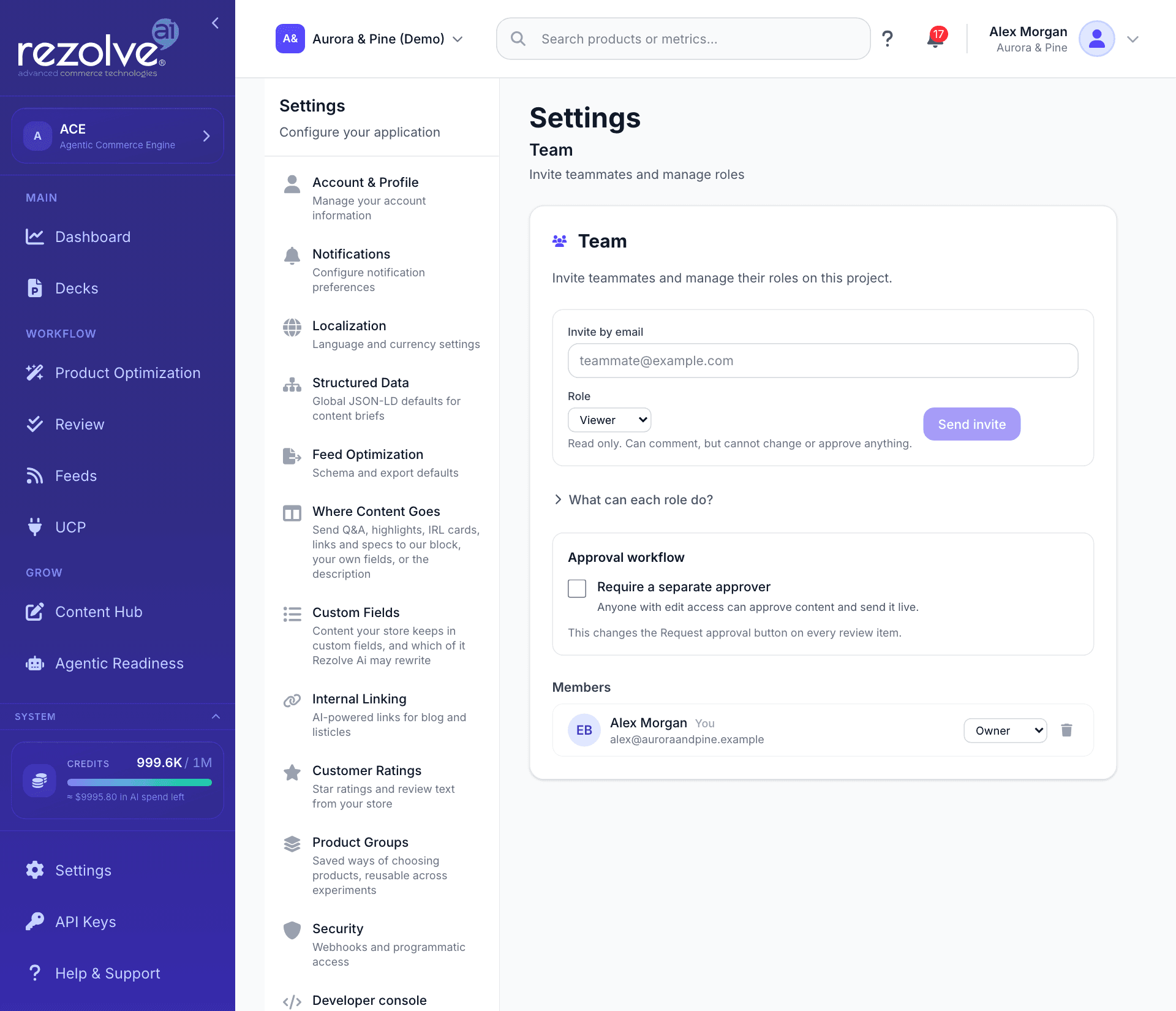
If you are not an owner, the Team screen shows the member list and each person's role, without the invite form or the role menus.
Accept an invitation
- Open the email and click Accept the invitation. The link works for 7 days.
- If you are not signed in, the page reads Sign in to accept this invitation. Choose Sign in, or Create an account if you do not have one yet, and use the email address the invitation was sent to. You come straight back to the invitation afterwards.
- When the page reads You are in, click Go to dashboard.
If something is wrong, the page reads Invitation problem and gives the reason:
| Message | What to do |
|---|---|
| Invite expired | Ask the owner to send a new invitation. |
| Invite already accepted | You already have access. Go to the dashboard. |
| This invite is for a different email address | Sign in with the address the invitation was sent to, or ask for an invitation to the address you use. |
| Invite not found | The invitation was revoked, or the link is incomplete. Ask for a new one. |
Roles
There are four roles. On the Team screen, What can each role do? opens the same summary.
| Role | In short |
|---|---|
| Owner | Full control. Manages the team, changes project settings, and approves content. |
| Approver | Reviews and approves content, and can see the audit trail. Cannot manage the team. |
| Editor | Generates and edits content, and can assign work. Cannot give final approval. |
| Viewer | Read only. Can comment, but cannot change or approve anything. |
What each role can do:
| Owner | Approver | Editor | Viewer | |
|---|---|---|---|---|
| View the project | Yes | Yes | Yes | Yes |
| Comment and request approval | Yes | Yes | Yes | Yes |
| Assign review items | Yes | Yes | Yes | No |
| Generate and edit content, change project settings | Yes | No | Yes | No |
| Use the assistant | Yes | No | Yes | No |
| Approve and reject content | Yes | Yes | No | No |
| See the Activity log | Yes | Yes | No | No |
| Delete other people's comments | Yes | Yes | No | No |
| Invite, change roles, remove members | Yes | No | No | No |
The person who created the project is its owner.
Change a role or remove someone
On the Members list, an owner can pick a new role from the menu on a person's row, or click the bin icon to remove them. Your own row is marked You.
Require a separate approver
By default, anyone with approval rights (an owner or an approver) can approve any item in Review, including content they generated themselves.
To make approval a two-person step:
- Go to Settings, Team.
- In the Approval workflow card, tick Require a separate approver.
From then on, nobody can approve content they generated or sent for approval. A different owner or approver has to sign it off. If you try, Review tells you the project requires a separate approver. When you approve a batch, the items you are allowed to approve go through and the rest are left waiting, with a count of how many still need someone else.
This needs at least two people who can approve. If you are the only owner or approver, content you generate cannot be approved by anyone, and the card warns you. Invite another owner or approver before turning it on.
Request approval
Any member can ask the approvers to look at an item, including people who cannot approve.
- Open a pending item in Review.
- In the box headed Need a separate approver?, click Request approval.
The project's owners and approvers are notified in the app and by email, and the button changes to Approval requested with the date. When the item is approved or rejected, the person who asked is told the outcome.
If nobody else on the project can approve yet, a notice says so and links to Open Team settings.
Working together in Review
Once a project has more than one member, Review shows who is doing what.
In the queue, each item can carry small labels:
- A comment count, highlighted when someone has mentioned you.
- The person it is assigned to. Owners, approvers and editors can click Assign to pick someone.
- Due today, Due in N days or Overdue, when a due date is within the next week or has passed.
- The priority, when it is high or urgent.
Use the assignee filter to show items for Anyone, Unassigned items, or one person's items. The Assigned to me view lists your own pending items, oldest first.
On an item's own page, a panel beside the content holds:
- Who else is here. A line such as "2 teammates are here", and a warning if someone is editing the item at the same time, because your changes could overwrite theirs.
- Assigned to. Pick a person, then set a Due date and a Priority (low, medium, high or urgent).
- Comments. Write a comment and click Comment. Type @ to mention a teammate, who is then notified. You can Reply to a comment and Edit your own. Deleting a comment removes it for everyone, and replies to it stay.
- Activity. What has happened to this one item.
- Versions. Earlier versions of its content.
Mentions, assignments, approval requests and approval outcomes arrive as notifications in the app. They are also emailed, unless Email Notifications or Content Approval is turned off for the project. See Notifications.
The Activity log
Settings, Activity (open it) is the project's audit trail. Owners and approvers can see it. Other roles see a note that Activity is visible to project owners and approvers.
Each row shows the action, who did it, what it applied to, and when. It records:
- Approving, rejecting, publishing and deleting content, and sending content back to pending
- Requesting approval
- Inviting a teammate, adding or removing a member, and changing a member's role
- Changing the approval workflow