Sync
Check that your store connection is healthy, see how much content is waiting for review, and audit what has happened to your catalogue and content.
Sync is where you check the connection between Rezolve Ai and your store, and where you look back at what has happened. Open Sync in the sidebar, under Workflow. It is part of Shopify and WooCommerce projects.
Sync does not approve or send content itself. You approve content in Review, and the Rezolve Ai Shopify app or WordPress plugin applies approved content to your store. Sync shows the state of that connection and keeps the record.
What the screen shows
The screen has four sections, from top to bottom:
| Section | What it shows |
|---|---|
| Review summary | How much generated content the project holds and where it stands. |
| Checks | Each store connected to the project, with its platform and when it last sent its catalogue. |
| Informs | Anything about the connection that needs your attention. |
| Audit trail | A record of catalogue syncs and of actions taken on your content. |
Review summary
Four cards count the project's review items: Total Items, then Approved, Pending Review and Rejected, each with its share of the total. Nothing reaches your store until it is approved, so pending items are not live. Review and approve content opens Review.
Checks before you push
Checks lists every store connected to the project, whether it runs the Rezolve Ai Shopify app or the WordPress plugin, and whoever on your team connected it. Each store shows its name, its platform and its address, and is marked Connected. Under that is the time of its last catalogue sync, or No catalog sync yet. A store you have disconnected is not listed.
Look here before you approve a large batch. Approved content can only reach a store whose connection is working.
If no store is listed, the section reads "No stores connected." and Connect a store opens Data sources on the Dashboard. See Data sources.
If the list of stores cannot be loaded, the section reads "Could not load store status" with a Retry button, and Informs says the same. That is a problem loading the page, and it does not mean your store is disconnected.
What "Informs" means
Informs is the screen's list of notices: things Rezolve Ai wants to tell you about the connection before you rely on it. Each notice is coloured by how serious it is (information, warning or error), and a notice you can act on has a Fix link that opens Data sources.
When there is nothing to report, the section reads "No warnings. Connection status looks good."
Audit trail
The Audit trail lists the most recent 50 entries, newest first. Refresh reloads it.
| Column | What it shows |
|---|---|
| Time | When it happened. |
| Action | What happened, for example "Catalog sync" or "Review item approve". |
| Resource | What it happened to: the store for a catalogue sync, or the kind of item and the start of its reference for a content action. |
| Status | Whether it succeeded. |
| Details | For a catalogue sync, how many products were received, how many were new and how many were updated. |
Two kinds of entry appear:
- Catalogue syncs. One entry each time a connected store sends its products to Rezolve Ai. These come from Shopify and WooCommerce stores alike.
- Actions on your content and project. Approving, rejecting, exporting, deleting and sending an item back to pending in Review, items approved automatically, changes to the team and to the approval policy, and saved changes to Google conversational content.
The second kind is only shown to team members who are allowed to approve content. Other members see the catalogue syncs. See Team.
Until something has happened, the section reads "Nothing recorded yet." Sync your catalogue, or approve content in Review, and entries appear.
Rolling back
Sync has no rollback button of its own. You undo a decision in Review, and the audit trail records it:
- Rollback on an approved item sends it back to pending, so it can be edited and approved again. It appears in the audit trail as "Review item restore".
- Version history on an item lets you return its content to an earlier version. The earlier content replaces the current content and is saved as a new version, so nothing is lost.
See Review and Approval.
Projects that import a feed
A "Feeds and files" project has no Sync. It is not in the sidebar, and opening the page shows Sync is not part of a Feeds and files project with this explanation:
Sync pushes approved content back to a connected store. This project imports a product feed, so there is no storefront to push to. Your enriched data leaves through Feeds instead.
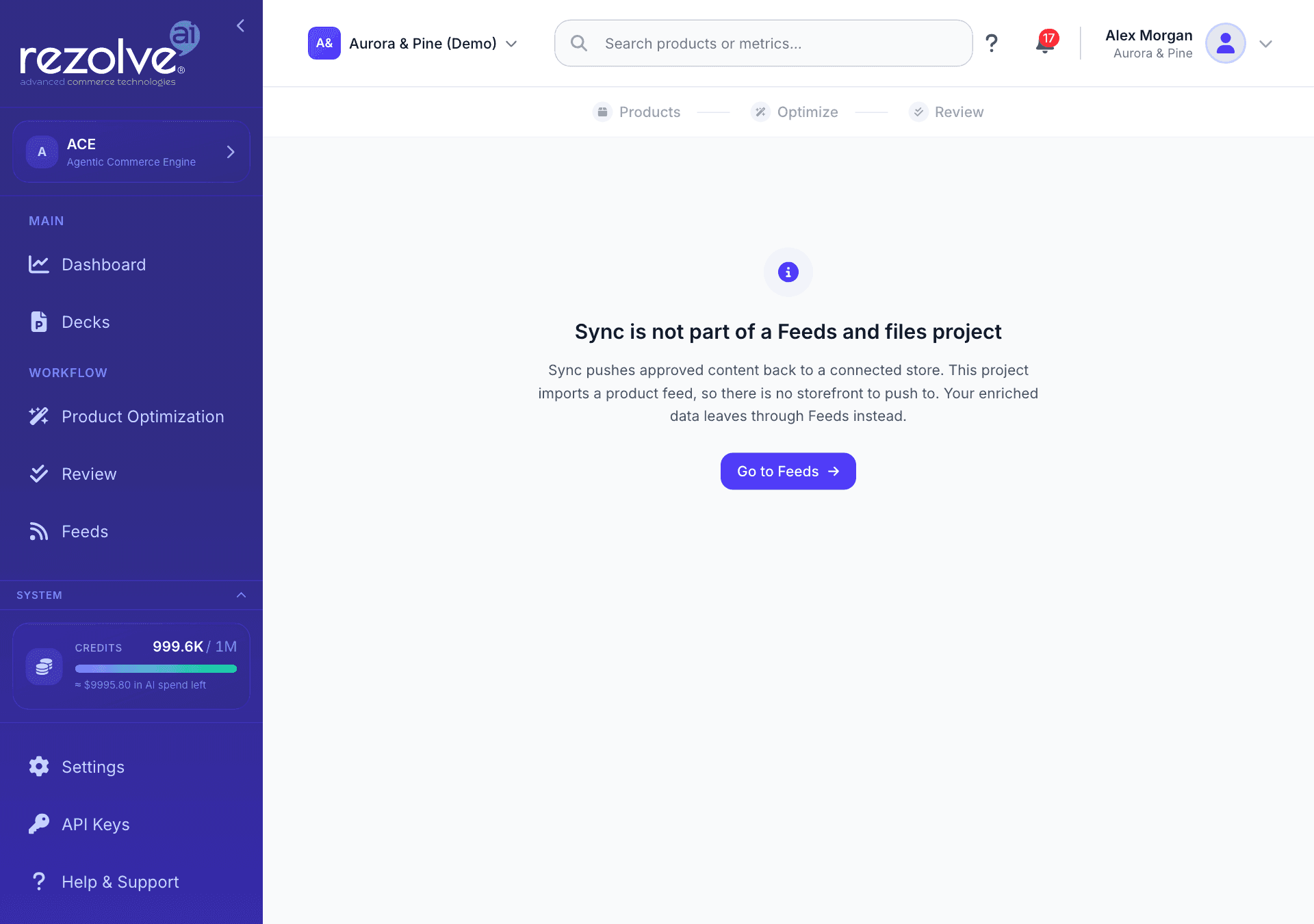
Go to Feeds takes you to Feeds, where approved content is published to a hosted feed URL, exported as a file, or sent to Google Merchant Center or Amazon.
Older links to a Deployment page open Sync, and follow the same rule.
Quick links
Review and Approval
Approve AI-generated content before it goes live, with a side-by-side comparison against your feed, quality scores, smart views, team assignment and version history.
Feeds
Enrich your product feeds, publish them to a URL each channel can fetch, and work with Google Merchant Center and Amazon from one place.