Internal Linking
Add AI-suggested internal links to Content Hub articles and product pages, place them inside your copy, and choose where product links appear.
Internal links help shoppers and search engines move between related pages on your site. Rezolve Ai suggests them in two places: inside the articles you write in Content Hub, and on your product pages.
What internal linking covers
| Where | What you get | How it is controlled |
|---|---|---|
| Content Hub articles and listicles | Links placed inside the article text, pointing to relevant products, articles and pages | The Internal Linking settings described below |
| Product pages | Up to five links per product to related products in the same catalog | Choosing Internal Linking Recommendations when you generate content, then approving the result in Review |
The two are independent. The settings switch affects articles only. Product link recommendations run whenever you choose that content type.
Settings for articles
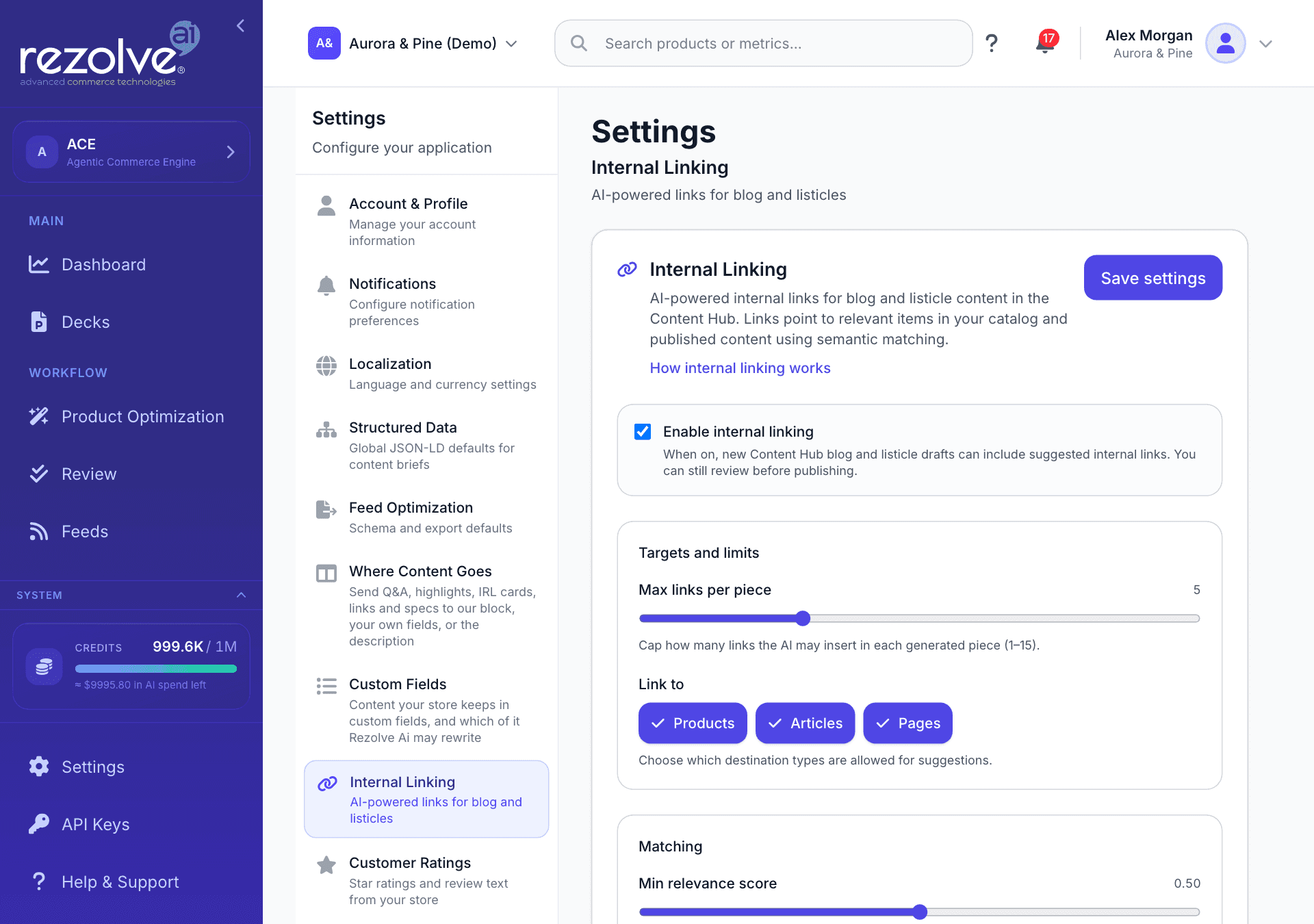
Go to Settings, Internal Linking, or open it directly.
| Setting | What it does |
|---|---|
| Enable internal linking | When on, new Content Hub blog and listicle drafts can include suggested internal links. It is on by default. |
| Max links per piece | The most links the AI may add to one piece, from 1 to 15. |
| Link to | The kinds of page a link may point to: Products, Articles and Pages. Click one to switch it on or off. |
| Min relevance score | How closely a target has to match the content, from 0 to 1. A higher value means fewer, tighter matches. |
| Anchor style | Inline text puts links inside sentences. CTA block uses a short call-to-action style link block. |
Click Save settings when you are done. Changes apply to content generated from then on. Turning the switch off greys out the other controls.
Links are added where the article already mentions the page being linked to. The AI does not rewrite a sentence to fit a link, and each target is linked once. You can review and edit the links in the article before you publish it.
Links on product pages
Generate the recommendations
- In Product Optimization, choose the content type Internal Linking Recommendations along with anything else you want.
- Launch the run. Each product gets up to five suggested links to related products.
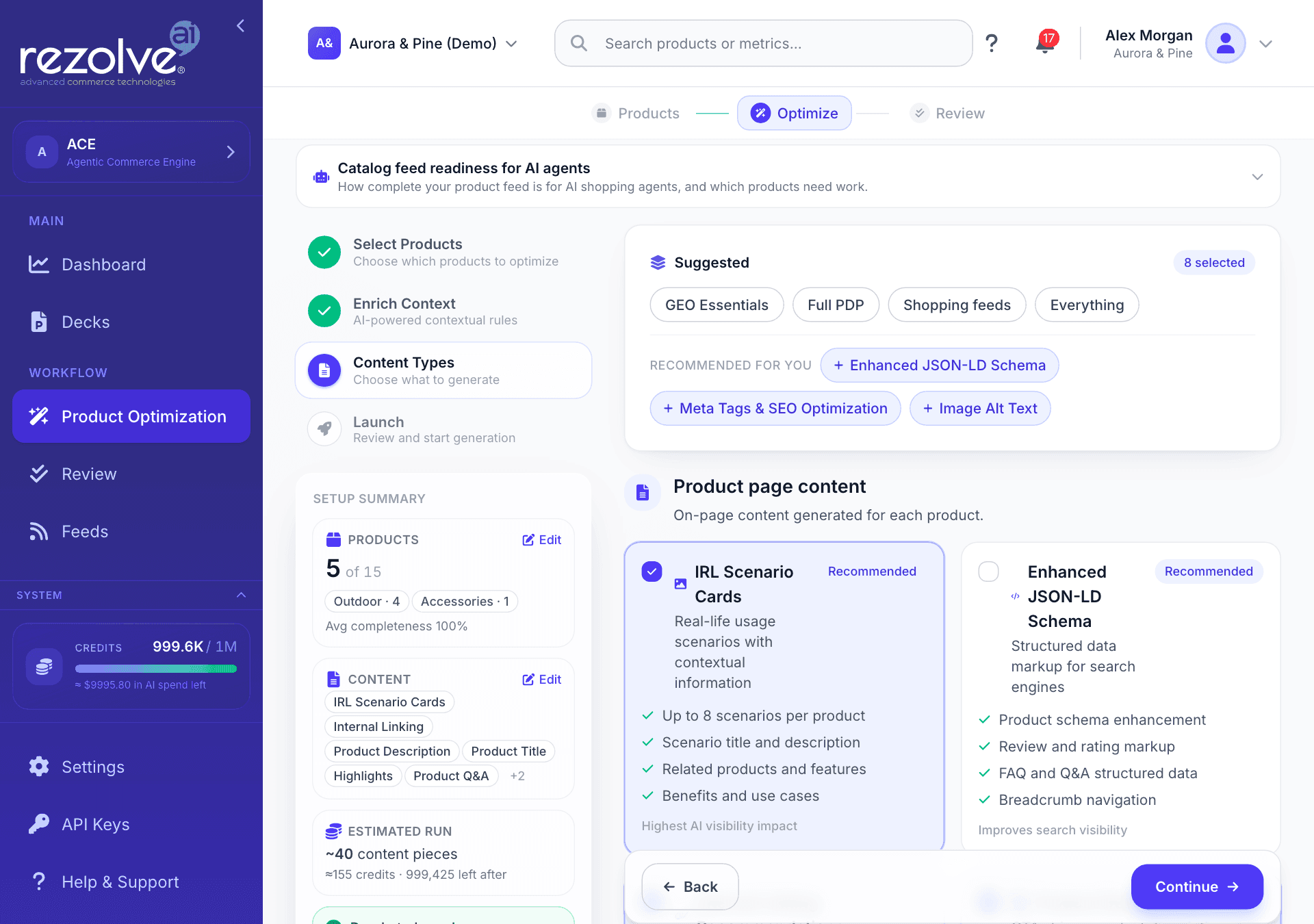
In the Shopify app and the WordPress plugin, the same content type is in the enrichment picker.
A link can only point to a product that has a real page address. If your feed gives no product links, the run reports that there is nothing to link to. Set your website on the Brand page or map a link column on your feed, then try again.
Approve them in Review
Suggested links appear in Review on the Internal links tab. They are new content, so there is no existing feed value to compare them with. Approve or reject them like any other item. Once approved, they are published to your store with the rest of your content. On Shopify, a link to a product that is not published on your online store is left out when the links are written.
Where the links appear
By default the links are shown by the Rezolve Ai block, below the product description. On Shopify the block is part of the storefront app embed, so it only appears once the embed is switched on (see Set up on Shopify). To change where the links go, go to Settings, Where Content Goes (open it) and find Internal links. You can:
- Keep the Rezolve Ai block and move it above the description, to the bottom of the page, into a product tab (WooCommerce), or hide it from the page.
- Send the links to One of my custom fields. The field has to hold rich or formatted text, because plain text cannot carry a link.
- Put them Inside the product description, as a section at its start or end, with an optional heading.
See Custom Fields and Where Content Goes for the details.
Links inside the description (Shopify)
A link inside a sentence is more useful than a list of related products under the page, because the words around it say why it is there. On Shopify, Rezolve Ai places approved links inside the product description as well as in its block.
It works like this:
- When a product description is applied to your store, up to three of the product's approved internal links are added inside it.
- A link is only placed where the description already contains the words of that link. Nothing is rewritten to make a link fit, so a description that does not mention a related product gets no link to it.
- Descriptions are written with the names of related products to hand, which is what gives the links somewhere to go.
- Links are never placed inside headings or inside another link, and each page is linked once.
- If you approve links and a description together, those links are used. If you approve a description later, the links already on the product are used.
The links still appear in the Rezolve Ai block as well, unless you have hidden it or sent the links somewhere else.
To have links inside the description on WooCommerce, use Inside the product description in Where Content Goes, which adds them as their own section.
Credits
Generating link recommendations uses credits, like other generated content. Changing the settings, moving the block and approving links cost nothing. See Credits and Usage.