
Credits and Usage
What a credit is, where to see your balance, what uses credits and what is free, and how billing works for stores installed through Shopify.
Rezolve Ai measures AI work in credits. This page explains what they are, where to check them, and what to expect when they run low. Developers using the API should read the developer guide to credits instead.
What a credit is
A credit is a unit of AI work. You spend credits when the AI writes, rewrites, translates, reads images or researches something for you.
Credits are not a flat fee per item. Each piece of work is charged for the amount of work the AI did, which depends on how much it had to read (your product data, your brand voice, your strategy rules) and how much it wrote. A short meta description costs less than a long description with a set of rules behind it.
Outside Shopify, your balance belongs to your account, not to one project.
Where to see your balance
The meter in the sidebar
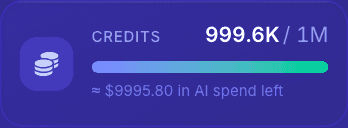
The credit meter sits at the bottom of the left sidebar, above Settings. It shows how many credits you have left, your limit, and a bar. Hover over it for the exact figures.
- The bar and the number turn amber when you are below a tenth of your limit.
- When the sidebar is collapsed, a coin icon carries a dot: green, amber when low, red when empty.
- If the balance could not be loaded, the meter says so and offers Try again. It never shows zero for a balance it could not read.
- The System bar above the meter folds the meter and the links below it into a single line.
For a project billed through Shopify, the meter changes its label:
| Label | Meaning |
|---|---|
| Free tier | You are still inside the credits included with your plan this cycle. The line underneath shows when they reset. |
| Usage | You have used the included credits. Further use is billed on your Shopify invoice. |
| Pending | The plan has not been approved in Shopify yet, so AI work is paused. Click Approve plan in Shopify. |
Under the meter, Usage history opens the list of charges, and Manage in Shopify opens your plan in the Shopify admin.
Before you launch a run
The last step of the Product Optimization wizard has a Credits card. It shows your balance and roughly how many credits you will have left after the run. If the run looks larger than your balance, it warns that the run may not finish.
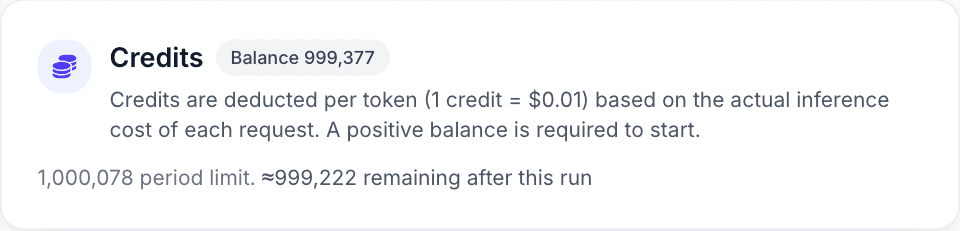
The figure is an estimate, set slightly high on purpose so that a run rarely costs more than it was quoted. The real charge is counted as each item is written.
Usage history (Shopify projects)
Usage history lists every charge sent to Shopify for the project, with the date, a description, the credits, the amount, the status and the operation. Choose a Range, and use Export CSV to download the list for your accounts.
This screen is only available for projects connected to a Shopify store. In a WooCommerce or feed project, the link is hidden and the page explains that the project is not billed through Shopify.
Developer console
Settings, Developer console, Usage (open it) shows your Credit balance and the total number of jobs you have run. The rest of that tab is about test keys, which matter only if you use the API.
In the Shopify app and the WordPress plugin
- Shopify app: the Dashboard shows Cycle credits, and the Usage screen has the full breakdown. See Billing through Shopify below.
- WordPress plugin: the Dashboard has a Credits card showing how much of your balance is used.
What uses credits
Anything where the AI does the work:
- Product content. Titles, descriptions, meta tags, highlights, Q&A, IRL scenario cards, internal links, attributes and image alt text.
- Rewriting your custom fields. See Custom Fields.
- Channel feed content. Most of a feed row is rebuilt from your own data. The charge is for reading product images to fill in attributes.
- Articles, listicles and content briefs in Content Hub.
- Translations.
- AI Search writing. Prompts generated for you, playbooks, channel recommendations, and briefs filled in from research. See what uses credits in AI Search.
- The assistant. Each message you send, and any charged action you approve. See The Assistant.
- Requests to the assistant inside the deck builder.
How much product content costs
The cost of enriching a product depends on how many kinds of content you ask for. These are averages measured across real runs:
| Depth | What is written | Credits per product |
|---|---|---|
| Metadata only | A meta title and description, nothing else rewritten | About 3 |
| Core enrichment | Product description, meta tags, real-life scenarios and internal links | About 26 |
| Full enrichment | Everything in core, plus title, attributes, highlights, FAQs, JSON-LD schema and image attributes | About 56 |
Your own figure will differ. Two things move it most:
- Strategy rules. A run that carries your content strategy into every prompt costs roughly twice as much per item as a run without rules.
- Versions for an experiment. Each extra version of a piece of content is written separately, so two versions cost about twice as much as one.
What is free
Credits are only spent when the AI does work. These cost nothing:
- Syncing your store's catalog
- Reading your custom fields, and choosing which to leave out
- Structured data (JSON-LD schema), which is built from your product data without the AI
- Reviewing, editing by hand, approving and rejecting
- Changing settings, and viewing dashboards, reports and usage
- The lookups the assistant runs to answer a question (the message itself is charged)
When credits run out
You need a positive balance to start AI work.
- In the Product Optimization wizard, the Credits card shows No credits available and the run cannot start.
- The assistant will not answer.
- The sidebar meter turns amber and reads Ask your Rezolve Ai contact to add more.
Nothing you have already generated is lost. Content waiting in Review stays there, and you can still review and approve it.
Credits are added to your account by the Rezolve Ai team. There is nothing to buy in the app, so to get more, ask your Rezolve Ai contact.
Stores billed through Shopify do not have a balance that runs out. See the next section for what can pause work there.
Work that fails or is not delivered
Credits follow the AI work that was done. If the AI wrote something and a later step failed, that work has usually been charged.
Two kinds of request are held until Rezolve Ai knows you received the result, and are not charged if you did not:
- AI Search playbooks. You are charged only when playbooks are saved to your project. If none could be written, or they were written and could not be saved, the request costs nothing.
- Product lookups that search the web. You pay for a search that returned an answer, including a genuine "not found". You do not pay for a search whose result was lost through a fault on our side.
Cancelling a job stops the work that has not started. Work already completed is kept and still charged.
Billing through Shopify
If you installed Rezolve Ai from the Shopify App Store, your AI usage is billed by Shopify on your normal Shopify invoice. It does not draw on a Rezolve Ai balance, and the two are separate.
- 1,000 AI credits are included in every 30-day billing cycle.
- After that, each credit costs 0.01 USD, added to your Shopify invoice.
- Nothing is charged until you approve the plan on Shopify's own pricing page. Until then you can open every screen, and AI work stays paused.
Set a monthly budget
To cap what you can be charged beyond the included credits:
- In the Shopify app, open Settings.
- Under Plan and budget, enter an amount in Monthly budget and save. A budget of 25 USD covers 2,500 extra credits.
When your estimated spend for the cycle reaches the budget, AI work stops until you raise or remove it. Leave the field empty for no cap. The included credits are always available, even with a budget of zero.
See what you have used
The Usage screen in the Shopify app shows:
- This billing cycle: credits used, included credits remaining, and estimated overage, with your monthly budget underneath.
- Granted credits, if your store has been given any. They are used after the included credits each cycle, before anything is billed.
- Plan: your plan and a Manage plan button that opens Shopify's pricing page.
- Usage over time and Usage by operation, for the last 7, 30 or 90 days.
- Recent usage events: the latest 50, newest first. Rejected events and events covered by granted credits are shown but never billed.
To change or cancel your plan, use Manage plan in the app or your Shopify admin. Plan changes are made in Shopify, not in Rezolve Ai.
See Set up on Shopify for choosing a plan during setup.
Quick links
- Usage history (Shopify projects)
- Developer console, Usage
- Developer guide to credits
- The Assistant