Alexa for Shopping
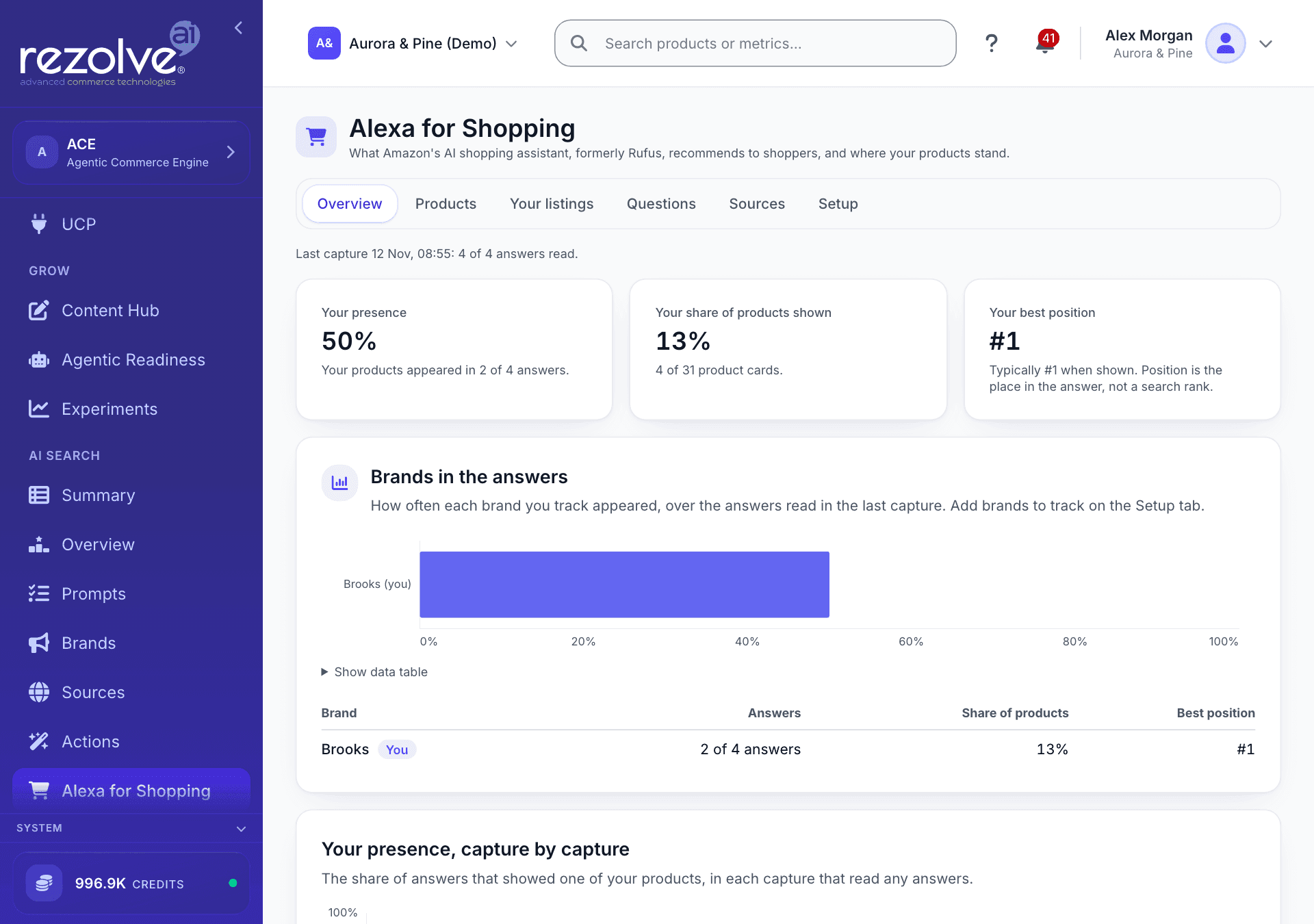
See which products Amazon's AI shopping assistant recommends to shoppers, where yours stand, and what your listings need to say to be picked.
Alexa for Shopping, formerly Rufus, is the AI shopping assistant in Amazon's search bar. Shoppers ask it questions ("best running shoes for flat feet under $150") and it answers with a few products, a reason for each, and the sites it read. This page shows what it recommends for the questions your shoppers ask, how often your products are among them, and what your listings are missing.
Alexa for Shopping is in private beta. If you do not see it under AI Search in the left menu, ask your Rezolve Ai contact to switch it on for your project.
How a capture works
Rezolve Ai asks each of your questions in a real, signed-in Amazon shopping session, the way a shopper would, each in a fresh chat. Answers vary from one ask to the next, so every question is asked more than once (three times unless you change it).
Every figure on the page counts only answers that were read in full. An answer that could not be read is left out of every figure and listed with its reason, so it never counts as your product not being recommended. Sponsored products are counted apart and never count toward your share. Position means the product's place in the assistant's answer, not a search rank.
Set it up
Open the Setup tab.
- Under What to track, add Your brands, Your ASINs and Competitor brands, then click Save. A product is yours when it has one of your ASINs or a title that starts with your brand.
- Under Shopper questions, write the questions your shoppers ask, one per line, and click Add questions.
- Under Capture, click Start a capture. It takes about half a minute per answer, and uses up to 8 credits per answer (see Credits below). The Overview tab fills in as answers come back.
If Capture offers a Marketplace, choose the Amazon store your shoppers use. Questions are kept for each marketplace, so add them again after you change it.
To capture every week, set Capture automatically to Every week. After each capture, Rezolve Ai compares it with the one before and alerts you if your products slipped: in the app, by email if your alert emails are on, and in your Slack channel if you connected one.
What each tab shows
| Tab | What it shows |
|---|---|
| Overview | Your presence (the share of answers that showed one of your products), Your share of products shown, Your best position, the brands you track side by side, and your presence capture by capture. |
| Products | Every product the assistant recommended, most often shown first, with its photo, how often and where it appeared, its price, rating, and the assistant's own reason for picking it. |
| Your listings | Each of your product pages as Amazon shows it, and which shopper questions it answers. See below. |
| Questions | For each question, whether your products were shown and where, the products the assistant recommended most, what it said, and the sites it cited. Questions where your products were not shown come first. |
| Sources | The sites the assistant cited, by how many answers cited them, with the pages it linked. |
| Setup | Your brands, ASINs and competitors, how many times each question is asked, your questions, and captures. |
Your listings
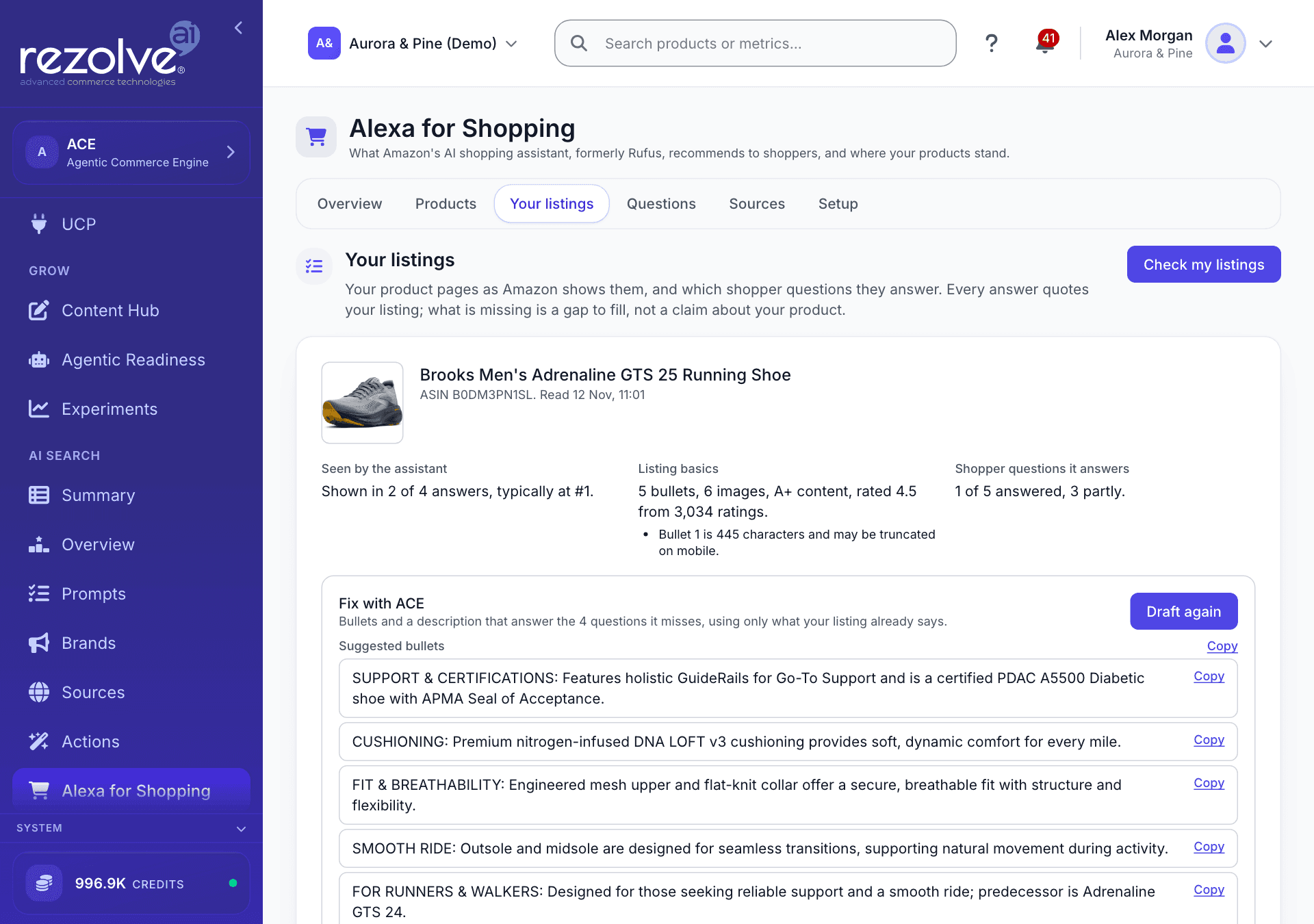
After every capture, Rezolve Ai reads your product pages on Amazon and checks each one in three parts, kept apart rather than blended into one score:
- Seen by the assistant: how often it was shown in the last capture, and where.
- Listing basics: your bullets, images, A+ content and rating, checked against Amazon's content rules.
- Shopper questions it answers: your questions, and the ones Amazon suggests on that product's page. Each is Answered, Partly or Not answered, with the words from your listing that answer it. A question your listing does not answer lists what is missing.
Click See each question for the detail, or Check my listings to read them again now.
Fix with ACE
For a listing that misses questions, click Draft a fix. Rezolve Ai writes up to five bullets and a description that answer those questions, using only what your listing already says. Often the answer is already on your page, in your A+ content or the product details, but not in the bullets where shoppers and the assistant look first.
- Every sentence is checked against your listing. A sentence your listing does not support is left out, and the draft says so.
- Facts we need from you lists what no part of your listing says. Add those facts to your product data and click Draft again.
- Each bullet and the description has a Copy button. A draft is never sent to Amazon by Rezolve Ai.
If the product is in an Amazon store you connected to Rezolve Ai, the draft is replaced by Open the listing in your store. Fix it from that listing's page, where changes go through review and only what you approve is sent to Amazon.
Get into the next answer
The assistant recommends what it can read about. Two ways to give it more:
- Write an article for your site, on the Questions tab, for a question where your products were not shown. It creates a brief in Content Hub for a guide on your own site that answers the question, from what the assistant said, the products it recommended and the sites it read. Generate the article from the brief as usual.
- Create a pitch, on the Sources tab, for a site the assistant cites. It creates a brief in Content Hub, in the PR agency briefing format, aimed at that site: the pages the assistant cited there and the questions it cited them for. Take it to the site yourself or hand it to your agency.
Rezolve Ai never contacts or posts to other sites. Each brief opens with Open the brief, and links back to this page.
Credits
A capture uses 8 credits for each answer read in full, including an answer where the assistant recommended no products. An answer that could not be read is free. Before you start, Setup shows how many answers the capture reads and the most it can use, and a capture only starts when you hold enough credits for every answer.
A capture is charged to whoever started it. A weekly capture is charged to whoever set Capture automatically to Every week, and is skipped that week if they do not hold enough credits. If credits run out partway, the capture stops and keeps the answers read so far.
Checking your listings, drafting a fix and creating a brief use AI and are charged to whoever started them, like other AI work. See Credits.