AI Search
Measure how often AI engines name and cite your brand, see where competitors win, and turn the findings into content.
AI Search asks a set of prompts to the AI engines you choose, stores every answer, and shows how often those answers name your brand, cite your site and name your competitors. Use it to find the questions you are missing from, then act on them with playbooks and content briefs.
Where to find it
AI Search has its own section in the sidebar, with four entries:
| Entry | What it is for |
|---|---|
| AI Search | Set up a flow and run it, in five steps. |
| Summary | The whole project: runs in progress, every flow, and AI crawler activity. |
| Results | The charts for one flow. |
| Analysis | A written list of findings for one flow. |
The section is available on Shopify, WooCommerce and "Feeds and files" projects. The only difference is in the Prompts step, where a store project can pull products straight from the store.
The words used here
- Flow: one piece of research. It holds your brands and sites, the competitors you compare against, a list of prompts, a market and language, and the AI engines to ask.
- Prompt: a question a shopper might ask an AI engine, such as "best running shoes for flat feet".
- AI engine: an AI assistant or AI search result that answers the prompts.
- Run: one pass of every prompt through every chosen engine. Charts are built from completed runs.
Set up and run a flow
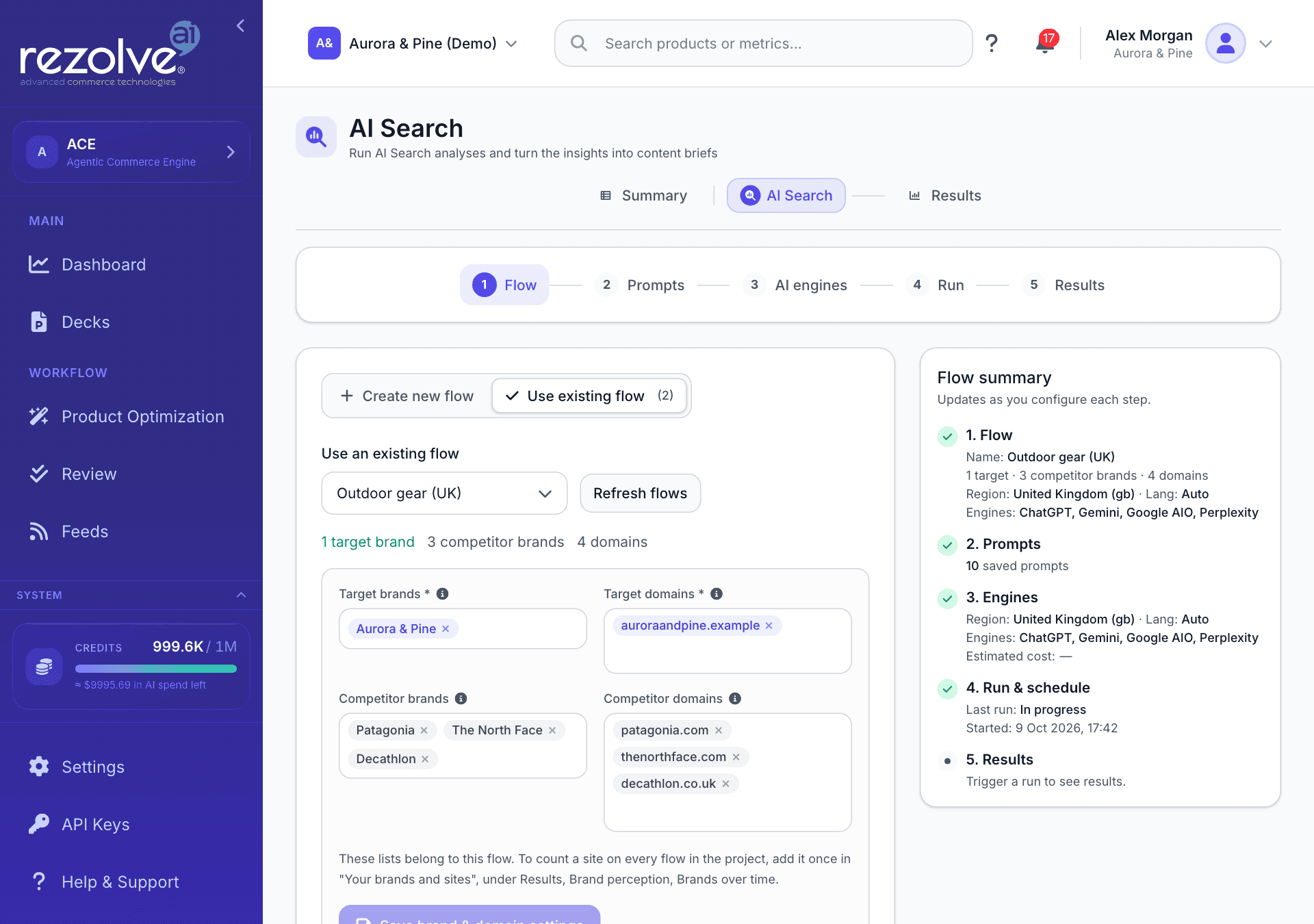
Open AI Search in the sidebar. The page walks through five steps, shown as a numbered bar at the top: Flow, Prompts, AI engines, Run and Results. A Flow summary panel on the right fills in as you complete each step.
Step 1: Flow
Choose Create new flow or Use existing flow.
To create a flow:
- Enter a flow name. A description is optional.
- Under Analysis scope, choose Brands & organizations only or Full market map. The full map also tracks products, people and roles, and locations named in the answers. You can tick the box below it to have name variants merged automatically.
- Add at least one entry to Target brands and one to Target domains. Both are required.
- Add Competitor brands and Competitor domains if you want comparisons. Both are optional.
- Under Market & language, pick a Country / Region and a Language, or leave them on Global (all markets) and Auto-detect. Choose the market first, because the language list depends on it.
- Choose Create flow.
What to put in each list:
| List | What to enter |
|---|---|
| Target brands | The names customers and AI engines actually use for you. These drive the mention, share and sentiment figures. |
| Target domains | Your real website hosts, such as example.com. These are matched against the links AI answers cite. |
| Competitor brands | Competitor names, for brand comparisons. |
| Competitor domains | Competitor hosts, for citation comparisons. |
To work on a flow you already have, choose Use existing flow and pick it from the list. You can then:
- Edit the four brand and domain lists, then choose Save brand & domain settings.
- Change the market and language. This saves by itself and applies to prompt suggestions and to every later run.
- Rename the flow with the pencil beside its name.
- Open the tabs under the flow name: Overview (with Clone flow, which makes a copy), Tracking (which kinds of names the flow tracks), Aliases & merging (see Merge brand names) and Danger zone (Delete flow, which cannot be undone).
Without a target brand the mention, share and sentiment charts stay empty, and a results summary cannot be built. Set at least one before you run.
Step 2: Prompts
This step lists the prompts saved to the flow and lets you add more. The saved list can be filtered by tag, downloaded with Download CSV, and trimmed by ticking prompts and choosing the delete button, which shows how many are selected. Deleting a prompt stops it running again. Answers already collected stay in your charts.
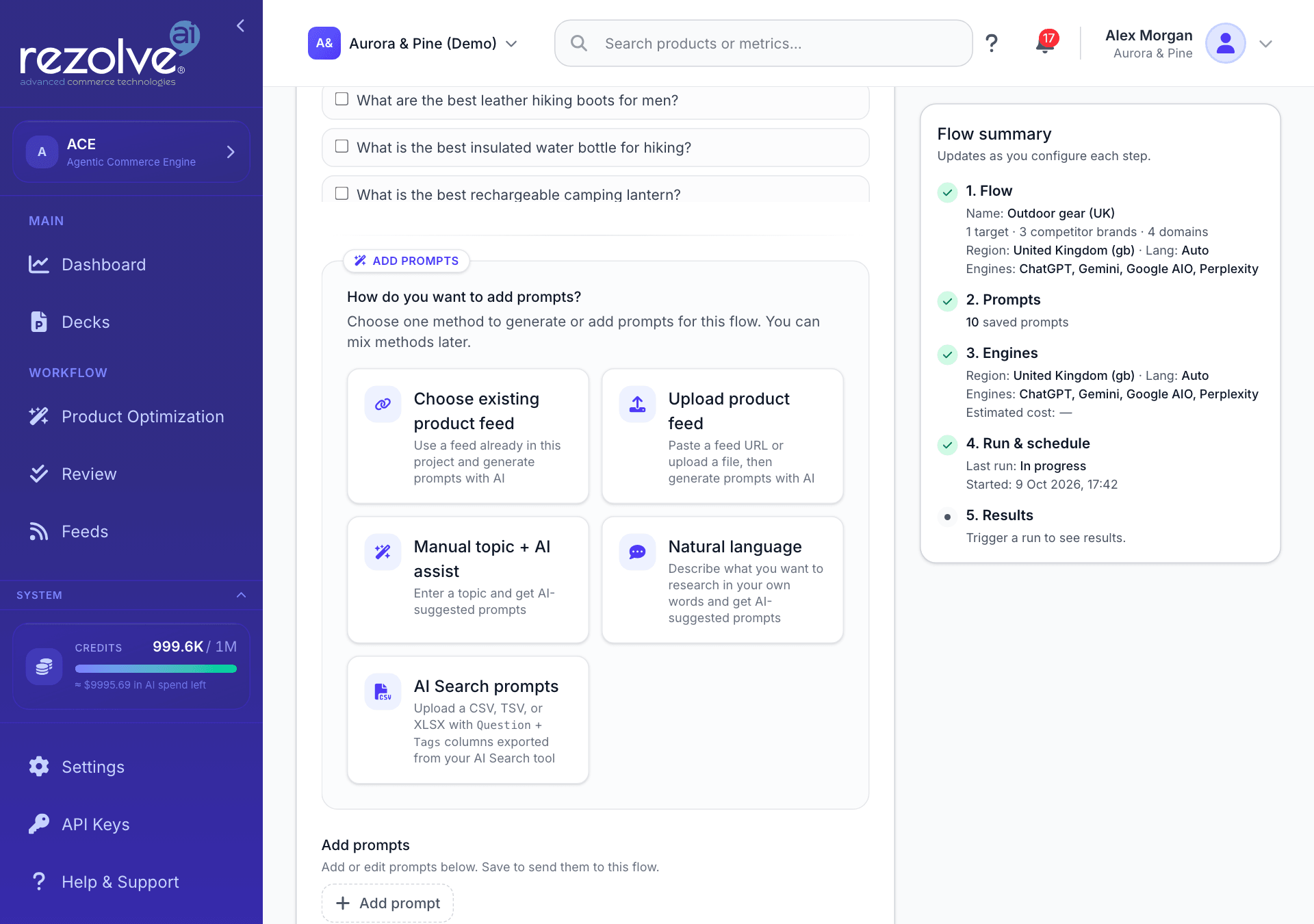
Under How do you want to add prompts? choose one method. You can use another afterwards.
| Method | What it does |
|---|---|
| Choose existing product feed | Picks a feed already in the project and writes prompts from its products. |
| Upload product feed | Reads a feed from a URL or a file (CSV, TSV, XML, JSON or Excel) and writes prompts from it. |
| Pull from Shopify | Uses the products synced from your store. Shopify projects only. |
| Pull from WooCommerce | Uses the products synced from your store. WooCommerce projects only. |
| Manual topic + AI assist | You type a topic and get suggested prompts. |
| Natural language | You describe what you want to research in your own words and get suggested prompts. |
| AI Search prompts | Imports a CSV, TSV or XLSX file of prompts and their tags. |
For every method except the import, set the Prompt style first:
- Unbranded: generic category and need-based prompts with no brand names. These show whether you appear when a shopper has not chosen a brand yet.
- Branded: prompts that may name your brand and product lines, and can compare you with the competitors on the flow.
When you generate from a feed already in the project or from a store, you can narrow the products the prompts are written about with the Categories picker. Shopify projects also get a Collections picker. Leave them empty to sample across the whole catalogue. Suggestions are written for the flow's market and language.
Generated prompts are added to the Add prompts list at the bottom of the step, where you can edit, remove or add your own with Add prompt. Open Tag this prompt on any row to label it with a category, entity, buyer persona, buyer journey stage, key factor or free tag. Tags let you filter and split the charts later.
Nothing reaches the flow until you choose Save prompts. If the flow already has prompts, a note tells you the new total and reminds you that every later run, scheduled runs included, will ask all of them.
To import a file, choose AI Search prompts, pick an Import mode, and drop in one or more files of up to 10 MB each. Create only adds every row as a new prompt. Upsert by question text matches rows to prompts already on the flow and merges their tags. Use the Column mapper to say which column holds the question and which hold tags, then start the import.
Step 3: AI engines
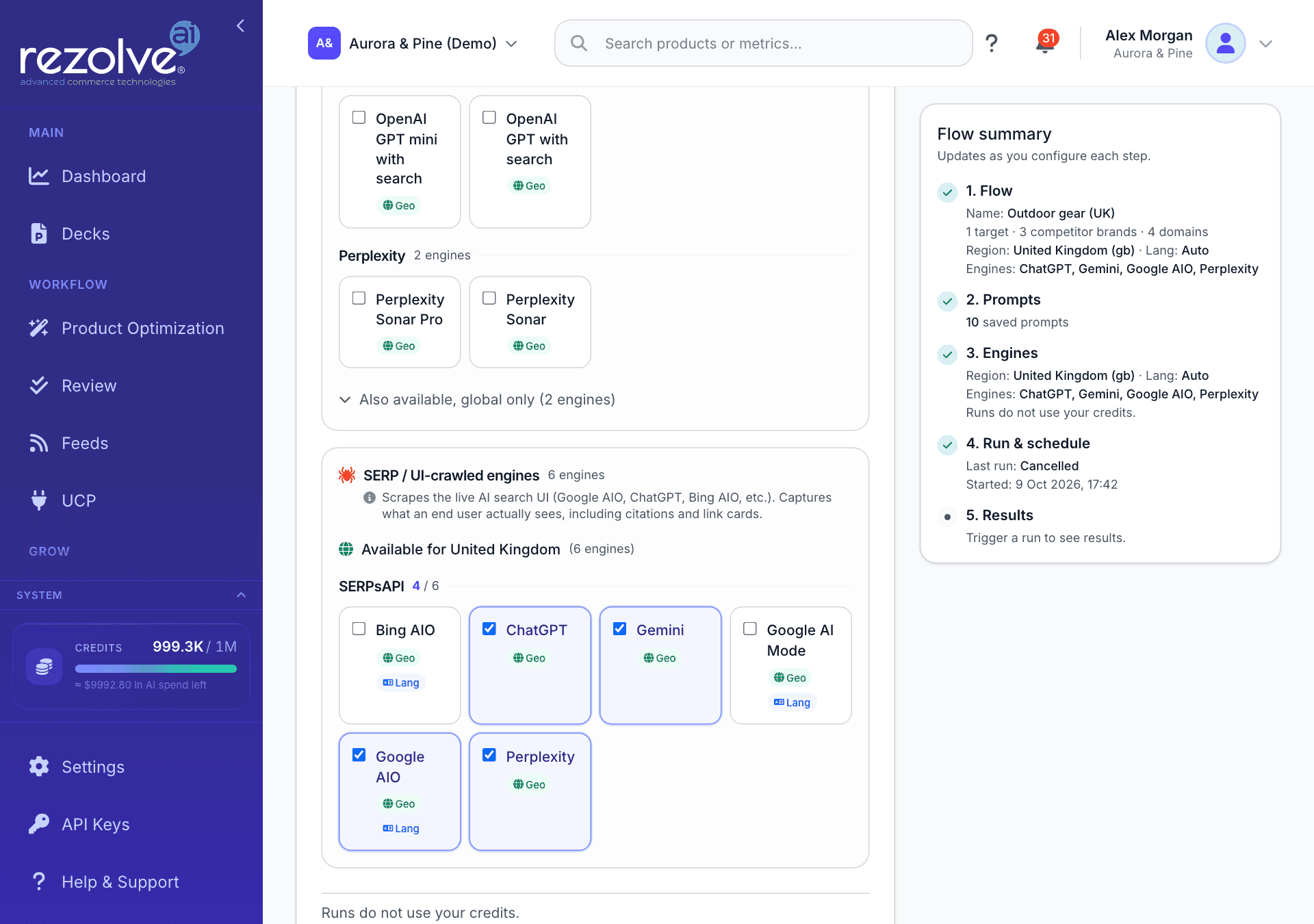
Confirm the market and language, then tick the engines to ask. Engines are listed in two groups:
- API engines ask each model directly and return what the model itself says.
- SERP / UI-crawled engines read the live AI search screen a shopper would see, including its citations and link cards.
When a market is set, each group shows the engines available for that market first. Engines that do not cover the market, and engines that only answer globally, are folded away below with a note on what picking them means. Each engine card shows Geo when it can target a region and Lang when it can target a language.
Pick at least one engine that uses web search if you want cited links and domains in your results. The step warns you when none of your picks does.
Your selection is saved as the flow's defaults and is used for every later run. Running a flow does not use your credits, and the step says so.
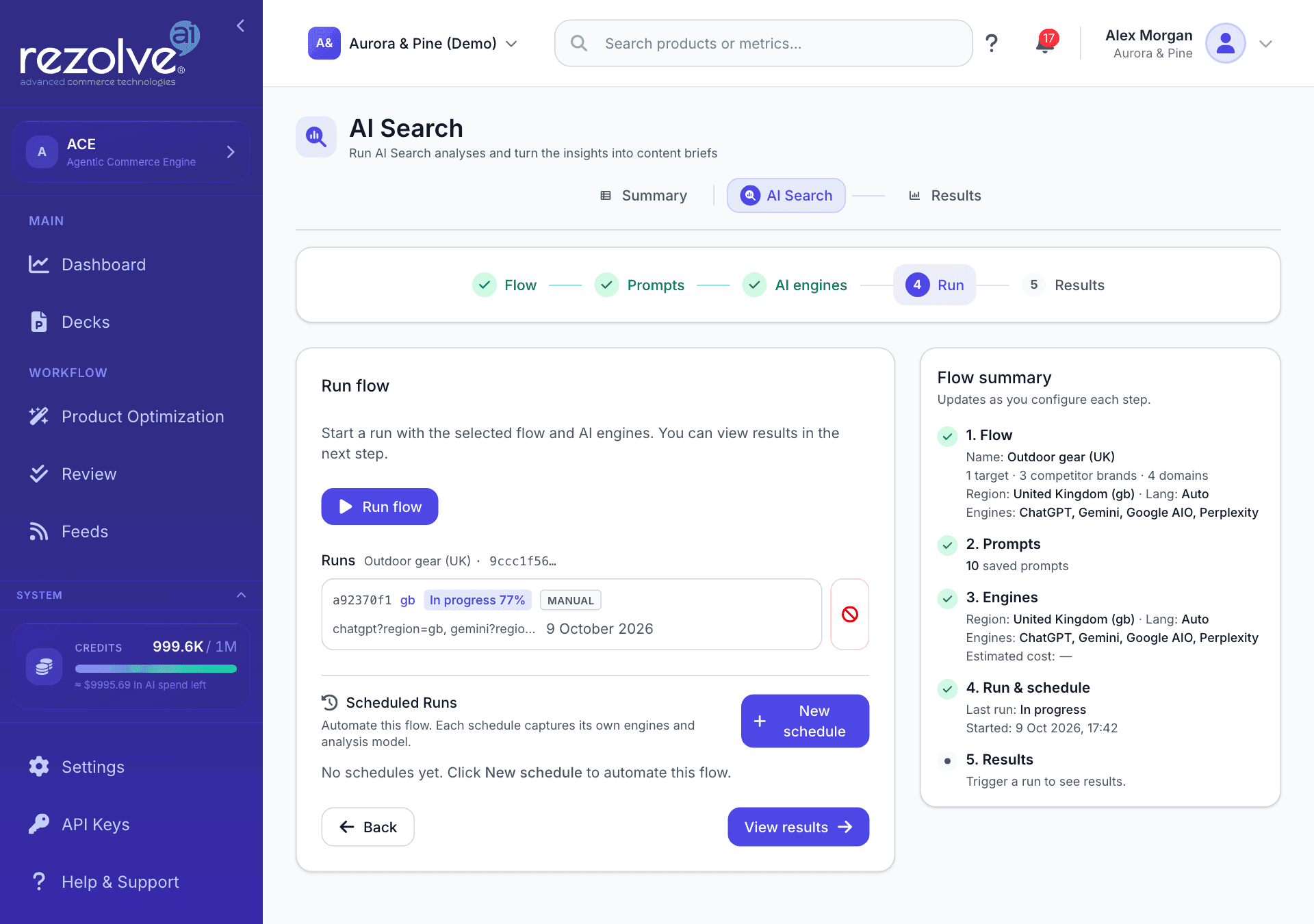
Step 4: Run
- Choose Run flow.
- Check the market, language and engines in Confirm run settings, then choose Run flow again. Edit defaults (Step 3) takes you back to change them.
- The button shows the progress. Cancel run stops a run in progress.
The step warns you before you start if the flow has no prompts, no target brand, or no engine that uses web search.
The Runs list under the button shows every run of the flow with its market, status, engines and date. Choose a completed run to open its results.
Schedule runs
Under Scheduled Runs, choose New schedule to run the flow automatically.
- Pick how often: every day, weekdays, specific days, every hour, or a custom schedule. Set the time of day and the timezone.
- Leave the schedule Locked to flow defaults to use the flow's market, language and engines, or tick Override for this schedule to give it its own.
- Check how often it will run. The form shows the number of runs per month.
- Choose Create schedule.
Each schedule in the list shows whether it is Active or Disabled, when it runs next, and how its last run ended. Choose Edit to change it or switch it off, or the bin to delete it.
Step 5: Results
Choose View results to open the Results page for the flow.
Results
Open Results in the sidebar. The page shows one flow at a time. At the top are Refresh, Results summary (see Results summary) and Back to Run.
Choose what the charts cover
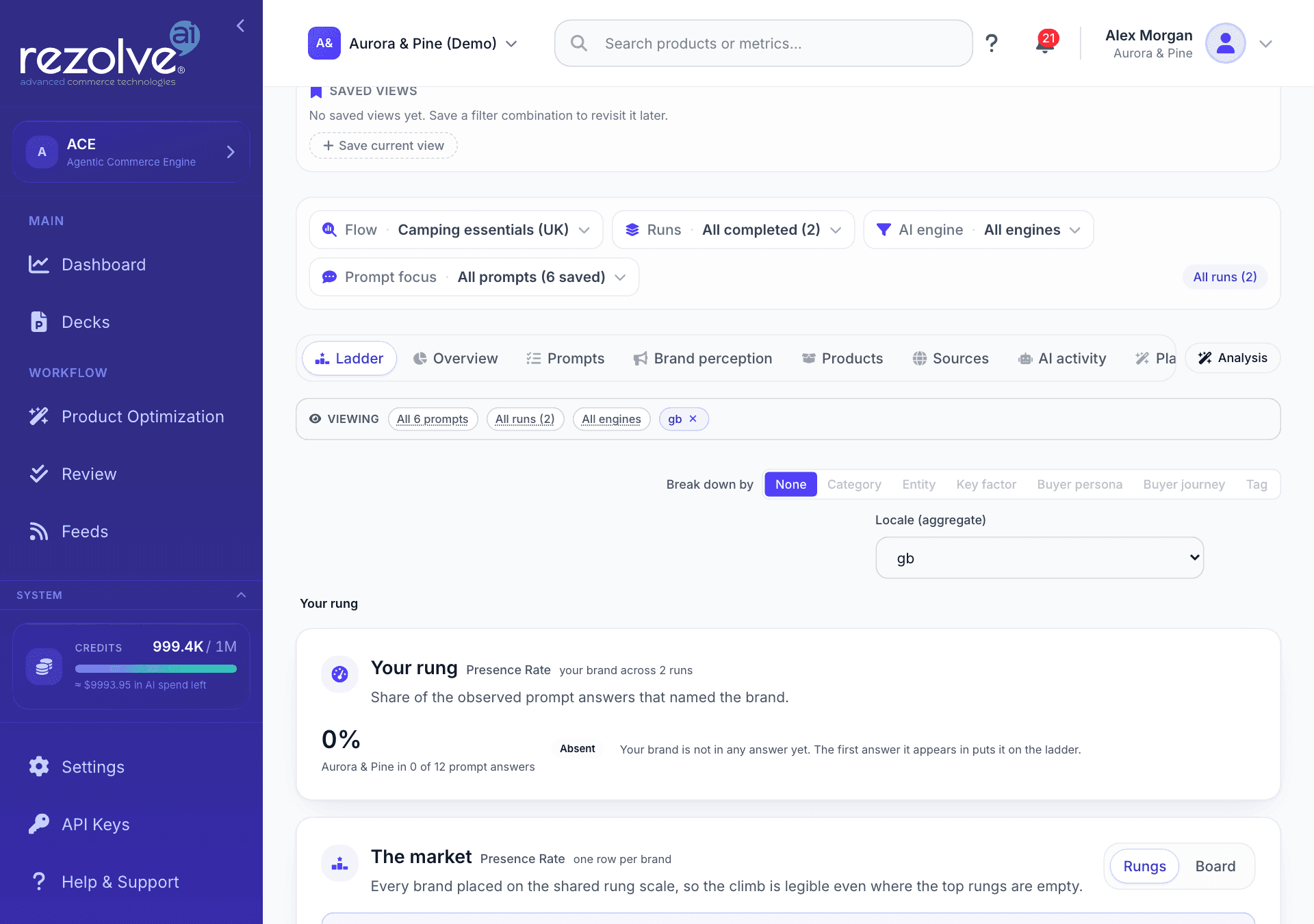
The filter bar sets the scope of every chart on the page:
- Flow: the flow to look at.
- Runs: all completed runs, a Research window of the last 7, 14 or 28 days, or individual runs to compare.
- AI engine: one or more engines. Leave it empty for all of them.
- Prompt focus: selected prompts, or prompts carrying selected tags. Leave it empty for all prompts.
A banner under the tabs always states the runs, engines and prompts the charts are over. Where a view supports it, Break down by splits the figures by a prompt tag: category, entity, key factor, buyer persona, buyer journey or tag.
The page reopens with the filters you last used in this project.
Saved views
A saved view stores the current flow, runs, engines, prompts and chart filters under a name. Choose Save current view, name it, and choose Save view. Saved views are shared with everyone on the project and are applied with one click.
Active runs
When the flow has a run in progress, an Active runs strip appears above the filters. Each run can be given priority with Bump priority, paused, resumed, cancelled or opened. If other flows are running too, a line links to View all in Summary.
The result groups
Results are organised into eight groups. Some groups hold more than one view, shown as a second row of tabs.
| Group | Views | What you see |
|---|---|---|
| Ladder | Where your brand stands, from one headline rung down to single answers. See The ladder. | |
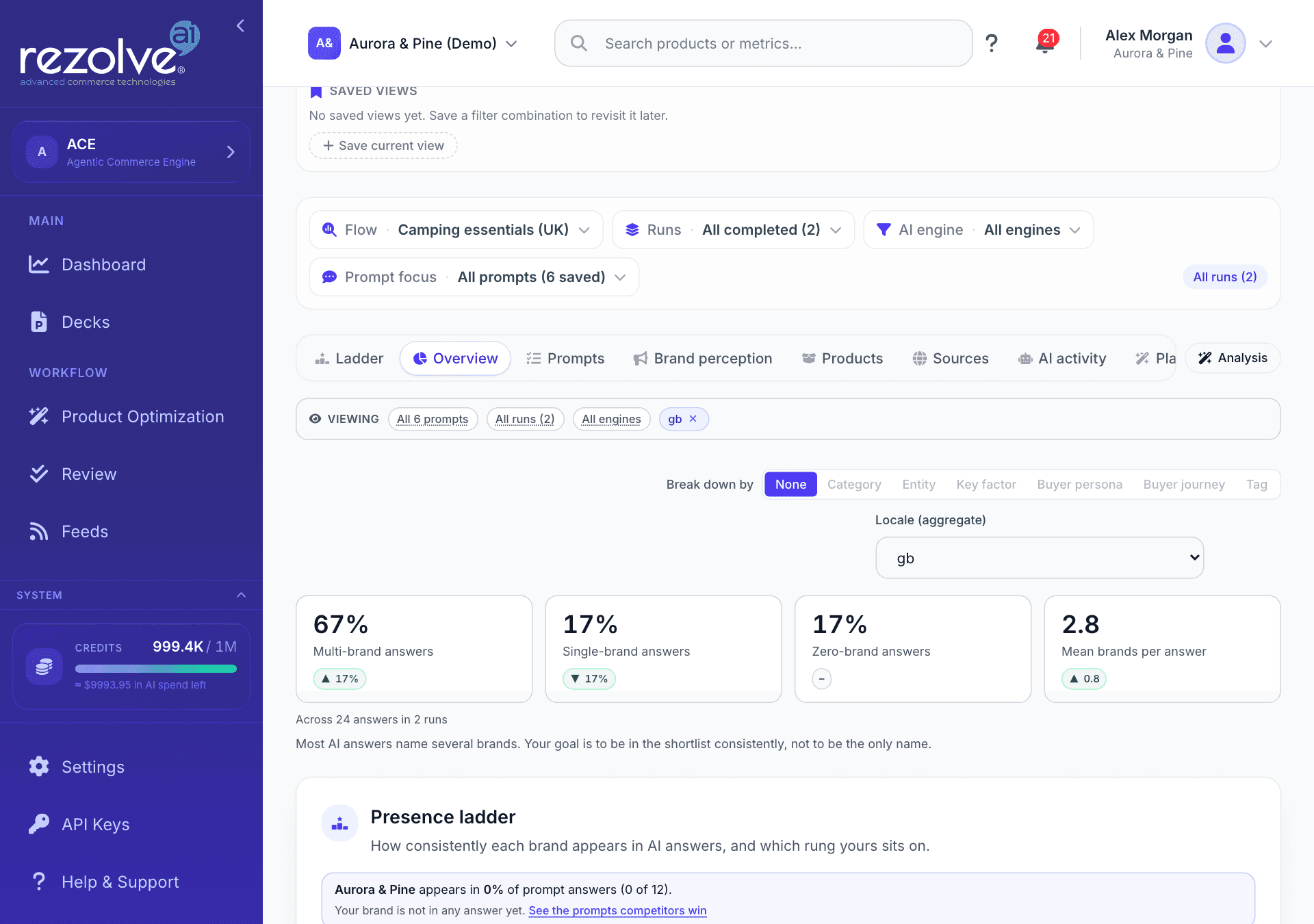
| Overview | The presence ladder, the visibility trend, where competitors win, a per-engine breakdown, mentioned compared with cited, and share of voice. Explore the analysis links to every other view. | |
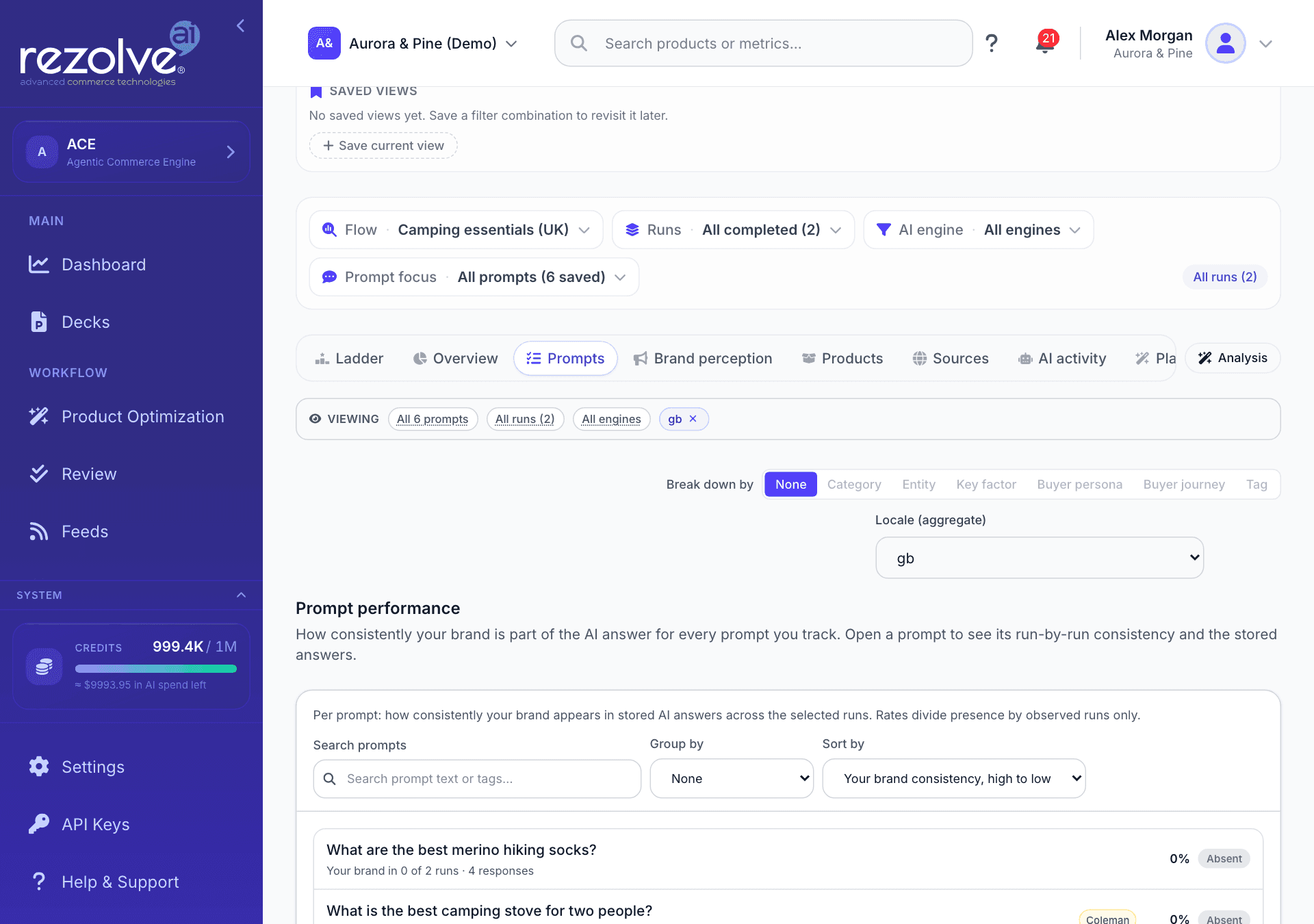
| Prompts | Every prompt ranked by how consistently your brand is in its answer, and the prompts where competitors appear and you do not. Open a prompt to read its stored answers run by run. | |
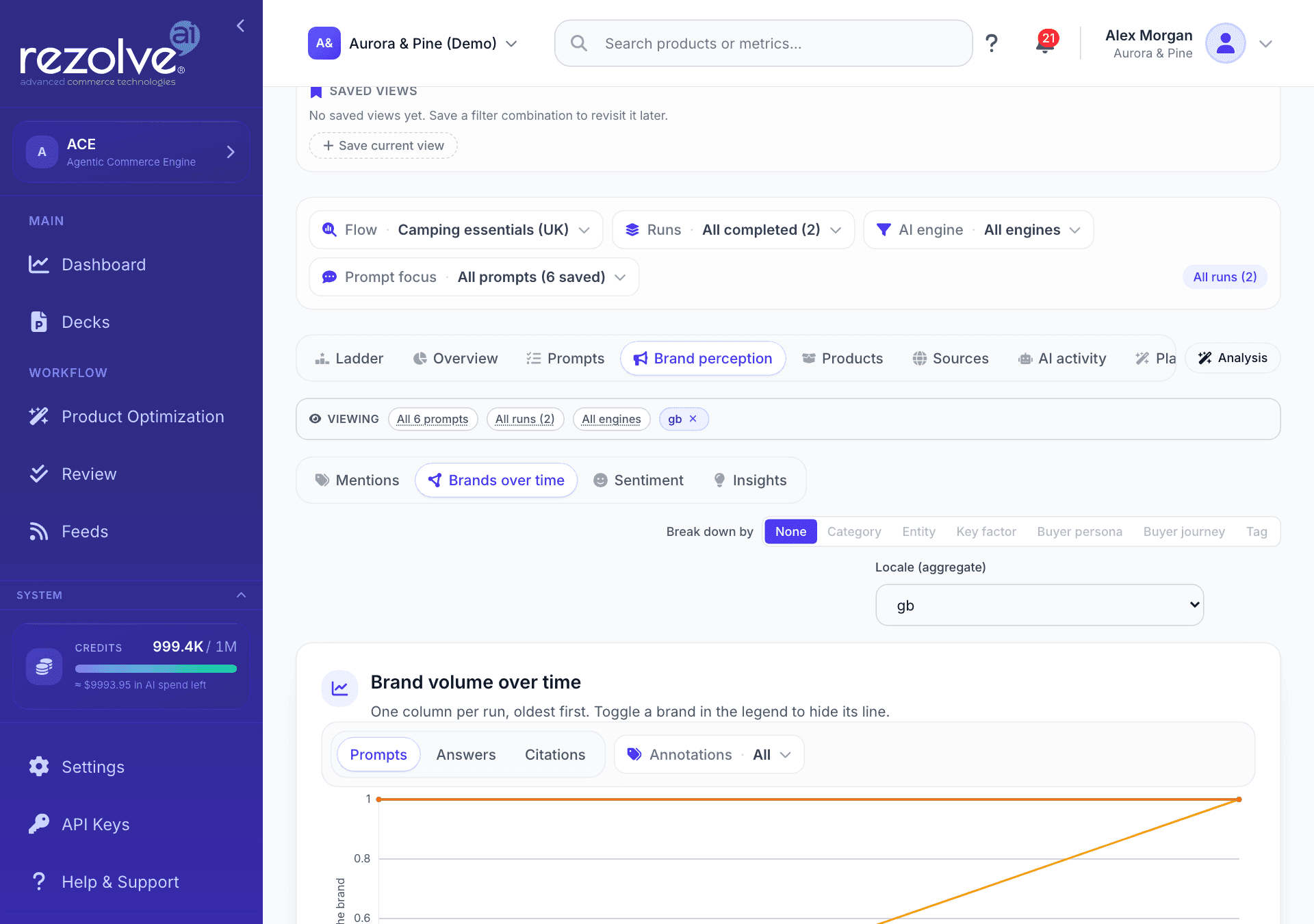
| Brand perception | Mentions, Brands over time, Sentiment, Insights | How often each brand is named, how that moves across runs, which brands appear together, the share of mentions that are positive, and a written summary of how brands appeared in a run. |
| Products | Products in AI answers | Which of your products surface in AI answers and which moved. This view uses the latest completed run, so the run, prompt and engine filters do not apply to it. |
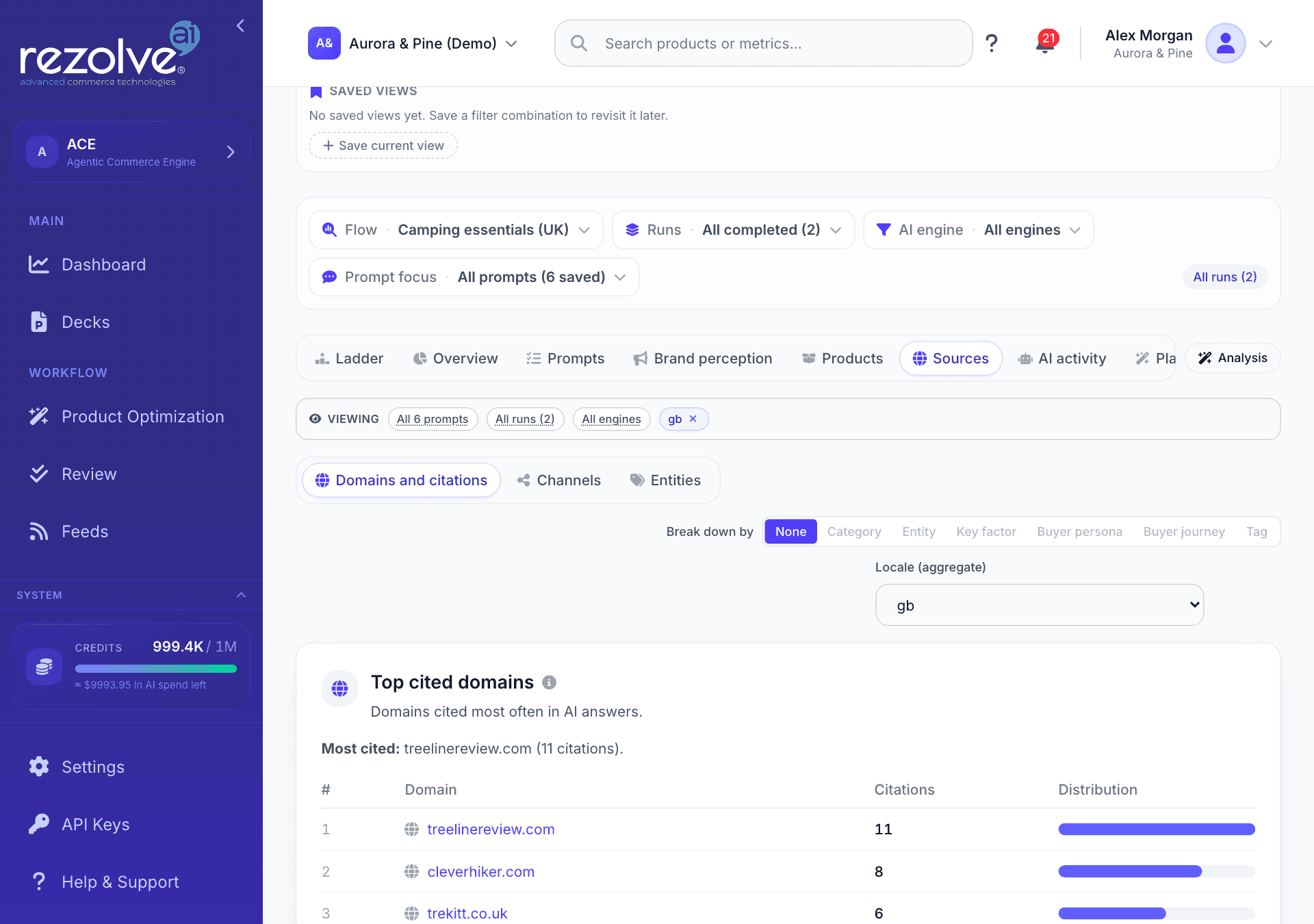
| Sources | Domains and citations, Channels, Entities | The sites AI cites most, every citation, the mix of source types, citations grouped by channel (for example YouTube or Reddit), and the names and sites found in answers. |
| AI activity | Tracked content, Trends | The pages this flow tracks and where they are cited, and how the metrics move over time. |
| Playbooks | Content ideas built from the research. See Playbooks. |
In Channels you can generate recommendations for a channel and send the brief on: copy or download it, download the cited URLs, email it, or create a share link.
The Overview group opens with how many answers name more than one brand, then the presence ladder:
Prompts lists every prompt with how consistently your brand is in its answer:
Brand perception, Brands over time charts each brand run by run:
Sources, Domains and citations ranks the sites AI cites most:
The ladder
The ladder places every brand on a rung by its presence rate: the share of observed prompt answers that mention it. A prompt a run never asked is not counted against a brand.
| Rung | Presence rate |
|---|---|
| Absent | 0% |
| Minimal Presence | Above 0% and below 30% |
| Emerging | 30% to below 50% |
| Established | 50% to below 70% |
| Challenger | 70% to below 90% |
| Leadership | 90% to below 100% |
| Default Choice | 100% |
The Ladder group reads top down through six steps: Your rung, The market, Segments, Prompts, Runs and Answer. Choose a grouping in Break down by to compare segments, and widen the run selection to see how steady a position is, because a rung describes a position held over several runs.
Your brands and sites
The brand and domain lists in step 1 belong to one flow. To have a brand or a site recognised on every flow in the project, open Brand perception, Brands over time and expand Your brands and sites. Add a brand or a site, mark it as Ours or Competitor, and give a brand and a site the same group name to tie them together. Tick the box to apply an entry to this flow only.
Merge brand names
AI answers often spell one brand several ways. Merging tells AI Search to count them as one.
- In step 1, select the flow and open the Aliases & merging tab.
- Under Brand canonical names, review the Suggested merges. They are drawn from the latest completed run when it lists names that look like the same brand.
- Edit any row, then save rows one at a time or choose Save all.
- To add your own, fill in Canonical name (the name to keep) and Variant spelling (the name to fold into it), then choose Add mapping.
- Choose Apply to stored results so that runs you already have, and their trend and heatmap charts, pick up the new names. This can take a while.
The same tab has Brand mappings and Entity mappings, which store aliases on the flow. Saving those does not rewrite results you already have. Use Apply to stored results for that.
Analysis
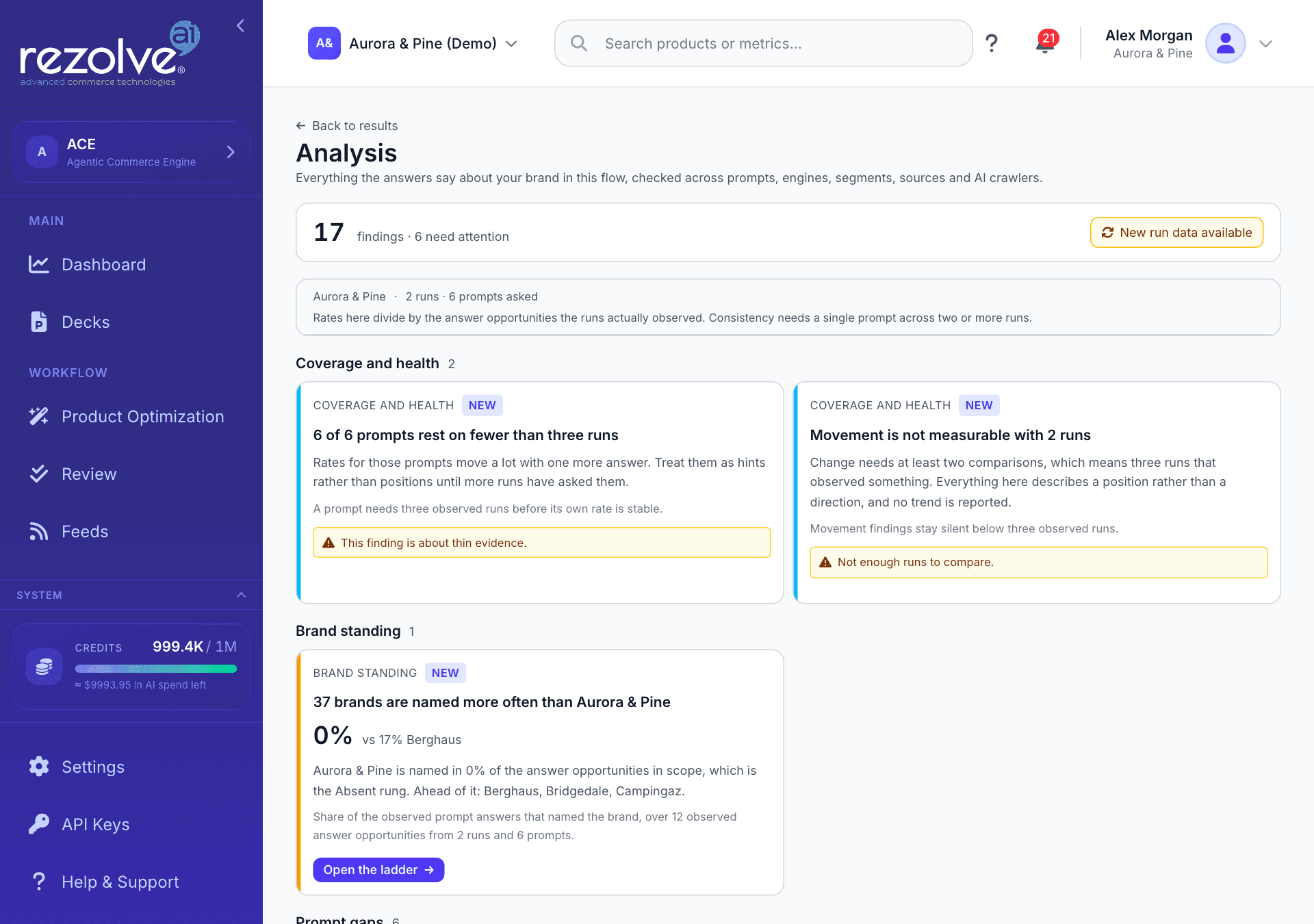
Open Analysis in the sidebar for a written read of one flow: what the answers say about your brand, checked across prompts, engines, segments, sources and AI crawlers.
- The header counts the findings, how many need attention and how many are going well.
- Findings are grouped by theme, such as Brand standing, Engine divergence, Prompt gaps, Citations and sources and Volatility.
- Each finding states its number and what that number is measured over.
- Show me opens Results filtered to exactly what the finding measured.
- Refresh rebuilds the findings. It reads New run data available when a newer run has finished since they were last built.
The same findings are available without leaving Results. Choose Analysis beside the group tabs to open a side panel with two tabs. Findings can be filtered to Needs attention or Wins and by theme, and each finding can be pinned or dismissed. Ask is an assistant that answers questions about the findings, and every number it gives comes from the analysis itself. Asking uses credits.
The findings are rebuilt after each scheduled run and whenever you choose Refresh. Opening Analysis for a flow that has no stored findings builds them there and then. A flow with no completed run has nothing to analyse yet.
Playbooks
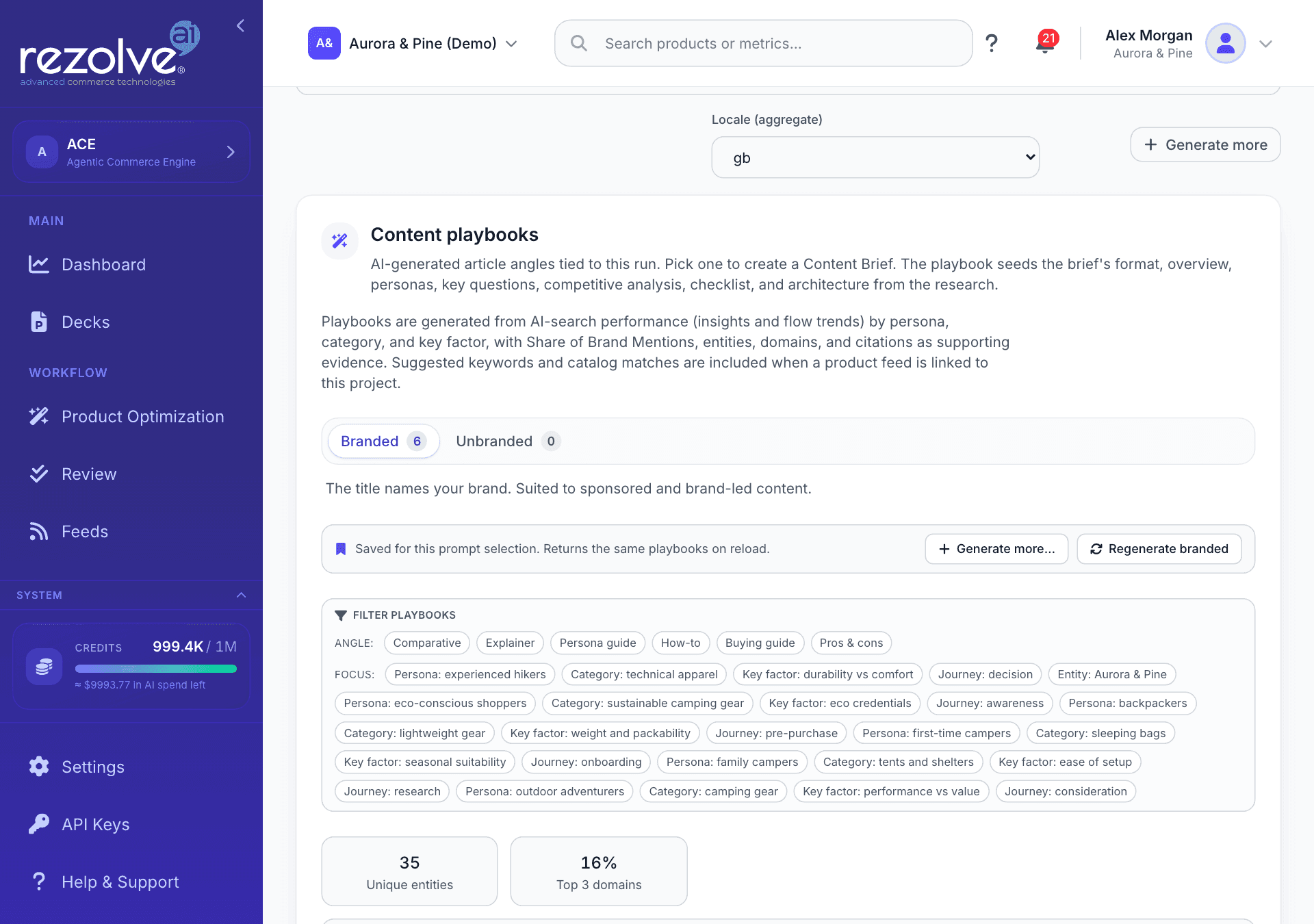
A playbook is a content idea built from a flow's research: an article angle with a suggested format, the reasons for it, key entities and, when the project has a product feed, suggested keywords and matching products. Open Results and choose the Playbooks group.
- Branded and Unbranded lists are kept apart when the flow has a target brand. A branded title names your brand and suits sponsored and brand-led content. An unbranded title never names it and suits neutral editorial content.
- Playbooks are saved for each combination of prompts, runs and market. Returning to the same filters brings back the same playbooks.
- The first set for a flow is generated when you open the tab. For any other selection the tab shows Generate playbooks and waits for you.
- Generate more adds to the saved set. Choose how many (1 to 6), the brand focus, where the piece will be published, an angle, and an optional focus on a persona, category, key factor, journey or entity.
- Regenerate all replaces the saved set for the current selection with a fresh one, after a confirmation. When the lists are split, the button reads Regenerate branded or Regenerate unbranded and replaces that list only.
- Filter playbooks narrows the list by where a piece would be published, by angle and by focus.
Generating playbooks uses credits, including the first set. If a set cannot be generated or saved, you are not charged for it.
To act on a playbook, set Create as to Brief or Outline and choose Create brief or Create outline. The playbook fills in the brief's format, overview, personas, key questions, competitive analysis, checklist and architecture. The new brief opens in the Content Hub.
Summary
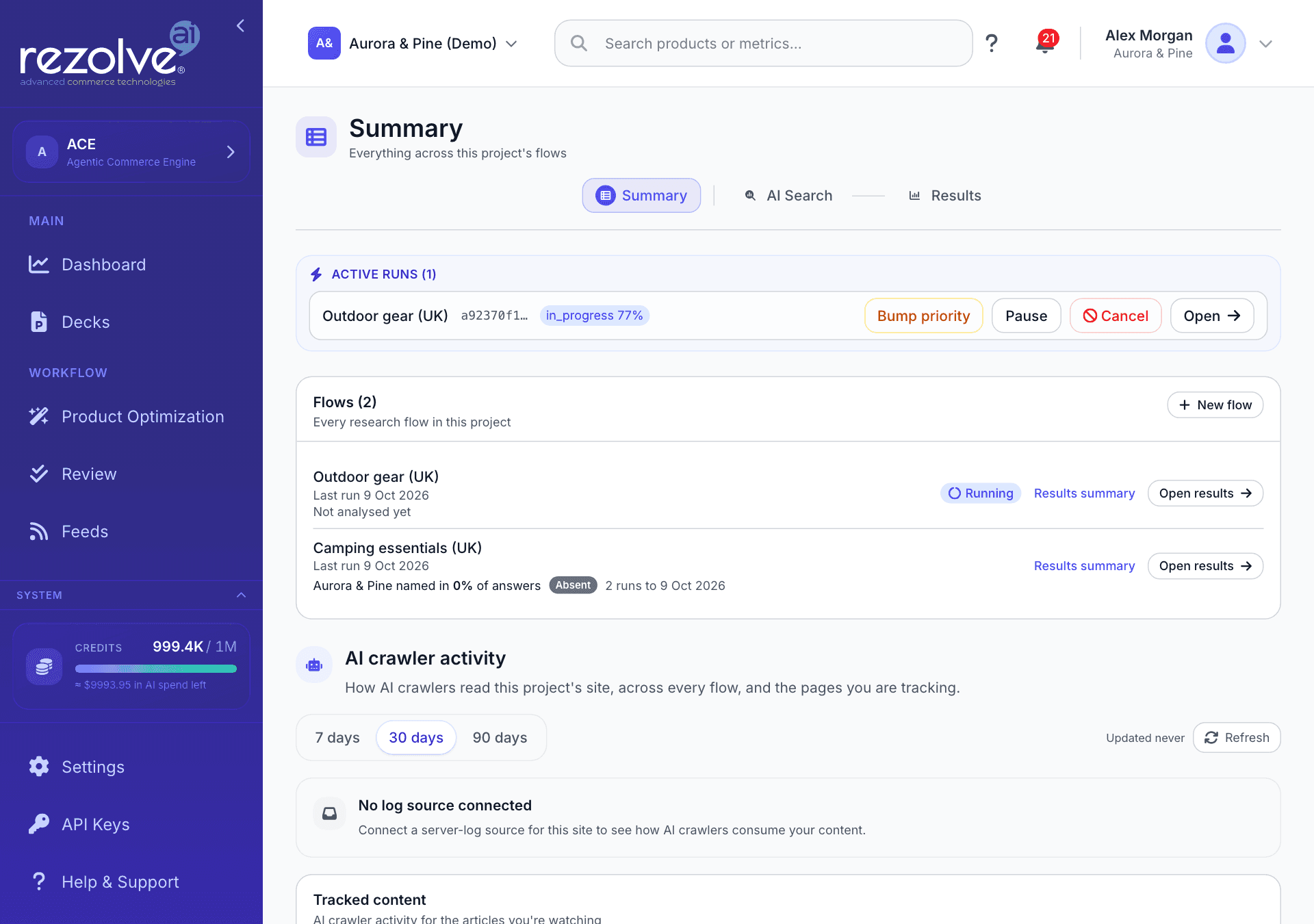
Summary covers the whole project instead of one flow. It shows:
- Active runs: every run in progress across all of the project's flows, with controls to raise its priority, pause, resume, cancel or open it.
- Flows: every flow in the project with the date of its last run, a New flow button, and links to Open results and Results summary for each one.
- AI crawler activity: how AI crawlers read your site, in four tabs: Consumption, Content, Tracked and Security. This needs a server log source connected for the site. Until one is connected the section says so.
Results summary
Every flow has a Results summary: a short deck of its standing that you can present, save as a PDF, or download as a PowerPoint file. Open it from Results summary at the top of a flow's Results page, or from the flow's row on the Summary page.
The deck covers where your brand stands (how often AI answers name it, its rung, and its rank among the most present brands), how often it is named compared with how often your own site is cited, how each AI engine differs, and which sources AI cites most. When the project has a crawler log connected, a last slide shows how many requests AI crawlers made to your site in the past 30 days and which crawlers made them.
Every slide states the runs and dates its numbers are over. The deck is built from the flow's stored analysis, so opening it runs nothing and costs no credits. A flow that has not been analysed yet says so and links to Analysis. A slide is left out when it does not apply to the flow, for example the citation slide when no target domain is set.
- Print or save as PDF opens the print dialog. Pick "Save as PDF" as the destination. Each slide prints as one landscape page.
- Download PowerPoint gives you the same slides as editable slides, drawn in your project's deck template.
- Build a deck starts a deck of your own from this flow. See Decks.
Tracked URLs and flows
Tracked URLs belong to the project, and each one can belong to any number of flows. A URL belongs to a flow in one of two ways, and every row says which:
- Assigned: someone added the URL to the flow. Use this for a page you are watching in the hope it gets cited.
- Cited: the flow's own runs have cited the URL. This appears automatically, with the number of runs that cited it.
On the Summary page, AI crawler activity, Tracked lists every tracked URL in the project. Each row shows the flows it belongs to, and you can filter the list by flow or to URLs that are not in any flow. Choose a row's flows to assign it to more flows or remove an assignment.
Inside a flow, Results, AI activity, Tracked content lists only that flow's URLs, and its citation figures count only that flow's runs. Adding a URL there assigns it to the flow. Removing one takes it out of the flow and leaves it tracked for the project.
What uses credits
| Action | Credits |
|---|---|
| Generating prompts with AI in step 2 | Uses credits |
| Generating playbooks, including a flow's first set | Uses credits |
| Creating a brief or an outline from a playbook, which fills in its sections | Uses credits |
| Generating channel recommendations | Uses credits |
| Asking the assistant in the Analysis panel | Uses credits |
| Running a flow, by hand or on a schedule | No credits |
| Opening Results, Summary or Analysis, and refreshing the findings | No credits |
| Opening, printing or downloading a results summary | No credits |
A run does not use your credits, whether you start it or a schedule does. If a run cannot start because AI Search is at capacity, the message says so and your credits are not affected.
Why results are empty
- No completed run. Charts are built from completed runs. A run still in progress is listed under Active runs, and its figures appear when it finishes.
- No target brand. Mentions, share and sentiment need a target brand on the flow. Add one in step 1.
- No citations or domains. Pick at least one engine that uses web search in step 3.
- A prompt shows nothing. A prompt added after a run finished was not asked by that run. It counts from the next run.
- Filters are too narrow. Check the banner under the tabs, then widen Runs, AI engine or Prompt focus.