
Review and Approval
Approve newly written content before it goes live, with a side-by-side comparison against your feed, quality scores, smart views, team assignment and version history.
Review is where you approve newly written content before it goes live on your store and product feeds. Every item is shown next to the value your ingested feed carries today, so you can see exactly what an approval would change.
Open Review
In the left menu, go to Workflow, Review, or open it directly at Review. The number beside the menu item is how many items are waiting for you.
The page collects everything a Product Optimization run generated. Nothing reaches your store or your feeds until you approve it here.
Long-form articles and listicles are reviewed in Content Hub, not on this page.
Stages
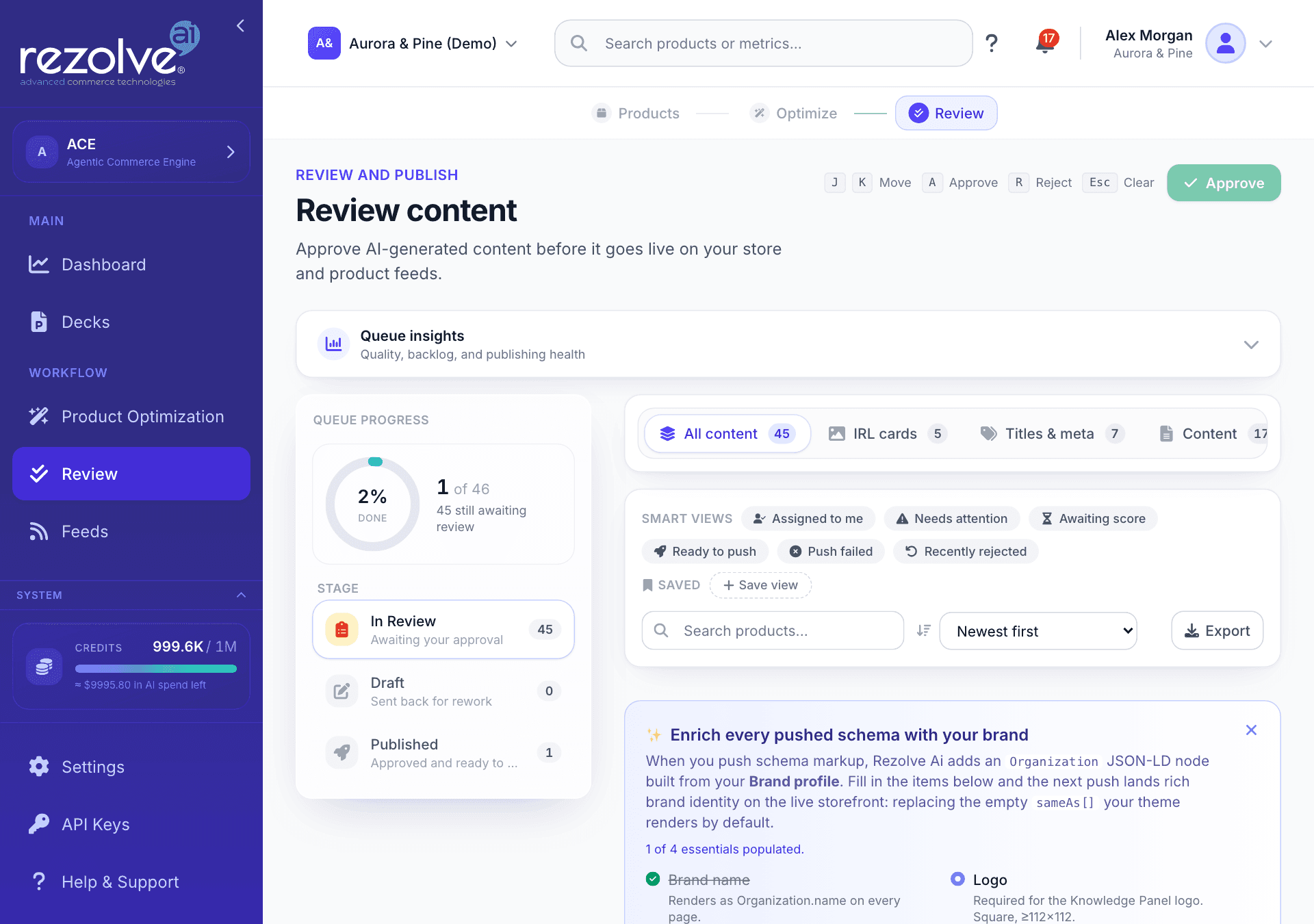
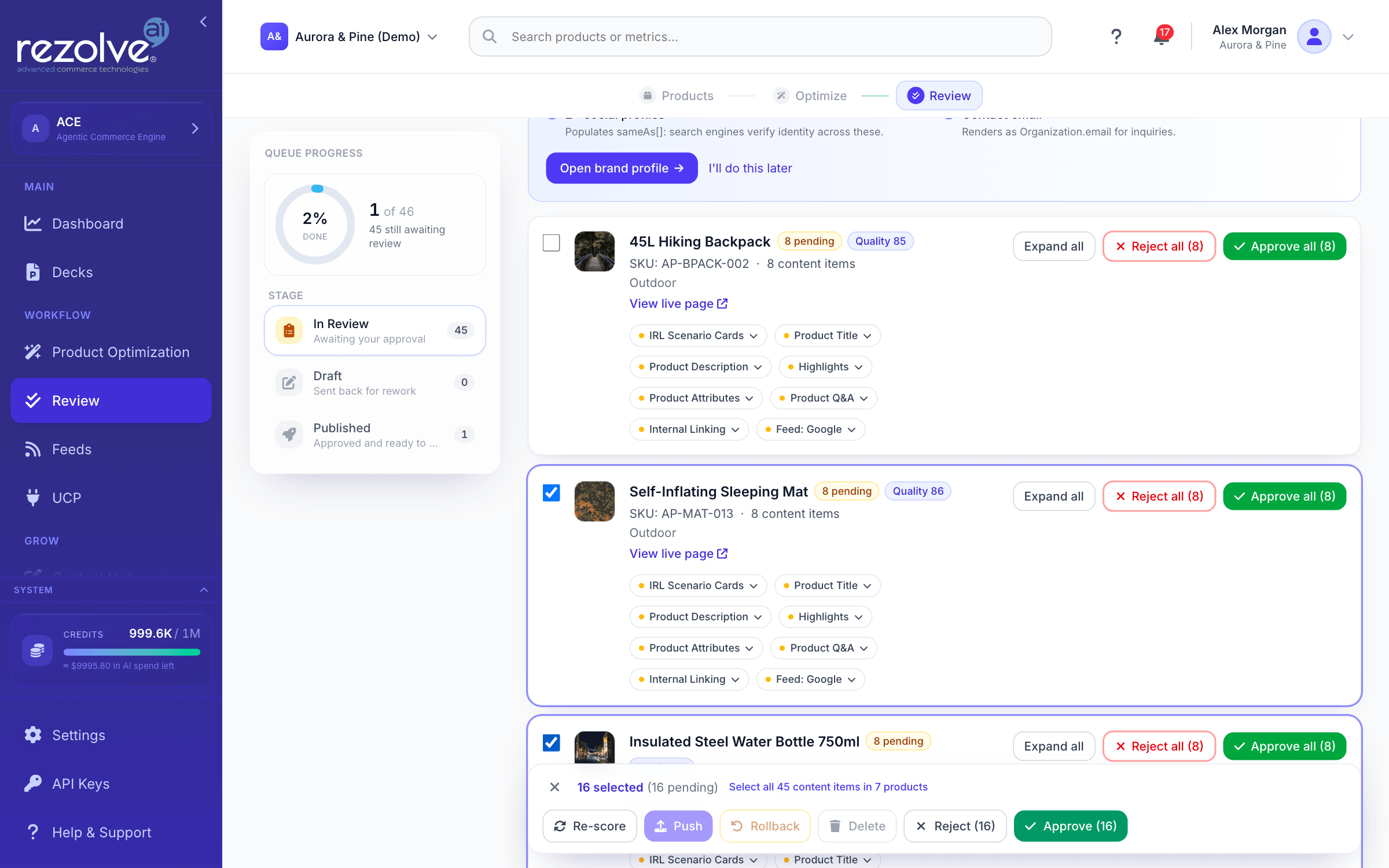
The Queue progress rail on the left shows how much of the queue has been reviewed and lists the three stages, each with a live count. Click a stage to see its items.
| Stage | Meaning |
|---|---|
| In Review | Awaiting your approval. This is where new content lands. |
| Draft | Sent back for rework. Rejected items sit here until you restore or delete them. |
| Published | Approved and ready to push. |
Queue insights
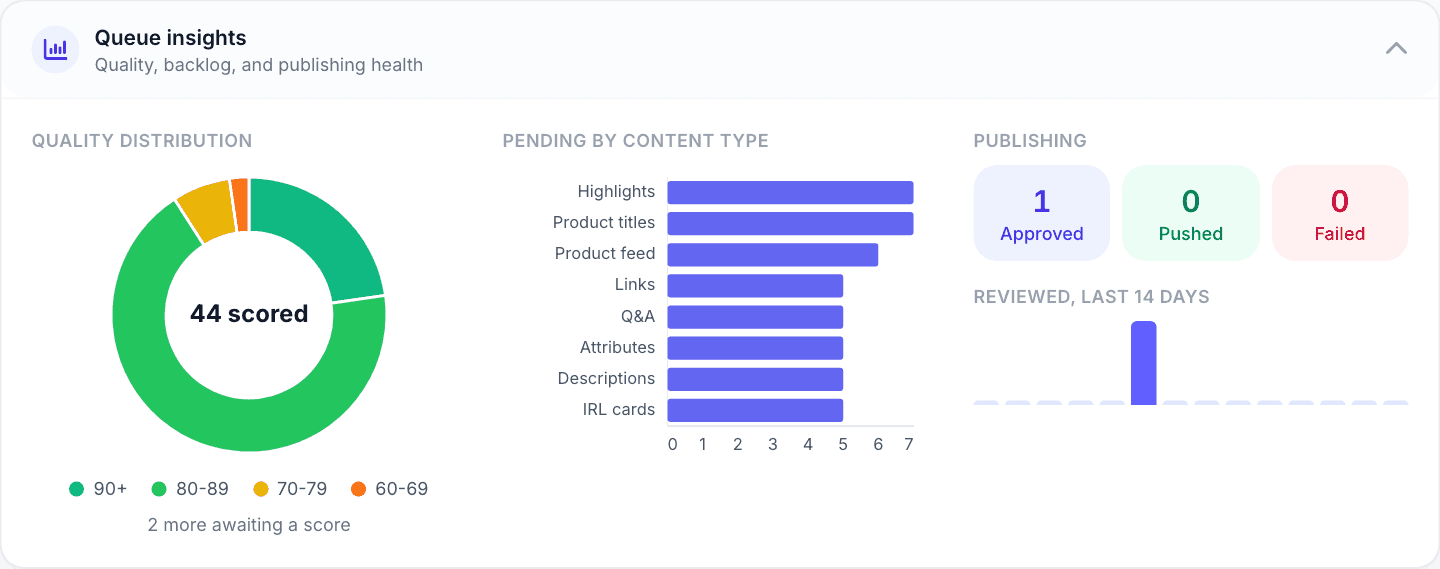
The Queue insights panel at the top is collapsed until you open it. It summarizes the whole queue in four parts:
- Quality distribution: how the scored items spread across score bands, with a count of items still awaiting a score.
- Pending by content type: where the backlog is.
- Publishing: how many items are approved, pushed and failed.
- Reviewed, last 14 days: how much was approved and rejected each day.
Use it to decide where to spend your review time.
Content tabs
Items are grouped into tabs. Each tab shows a count for the stage you are in.
| Tab | What it covers |
|---|---|
| All content | Every generated field, grouped by product. This is the default. |
| IRL cards | Real-life usage scenarios. |
| Titles & meta | Product title, SEO title tag, meta description, OG and Twitter tags. |
| Content | Descriptions, highlight bullets, attributes and custom fields. |
| Media & alt text | Image alt text for accessibility and AI. |
| Structured data & Q&A | JSON-LD schema and product questions and answers. |
| Internal links | Semantic link suggestions. |
| Product feed | Enhanced feed fields, per channel. |
| Guides | Product refreshes waiting on a guide. |
The product you are reviewing
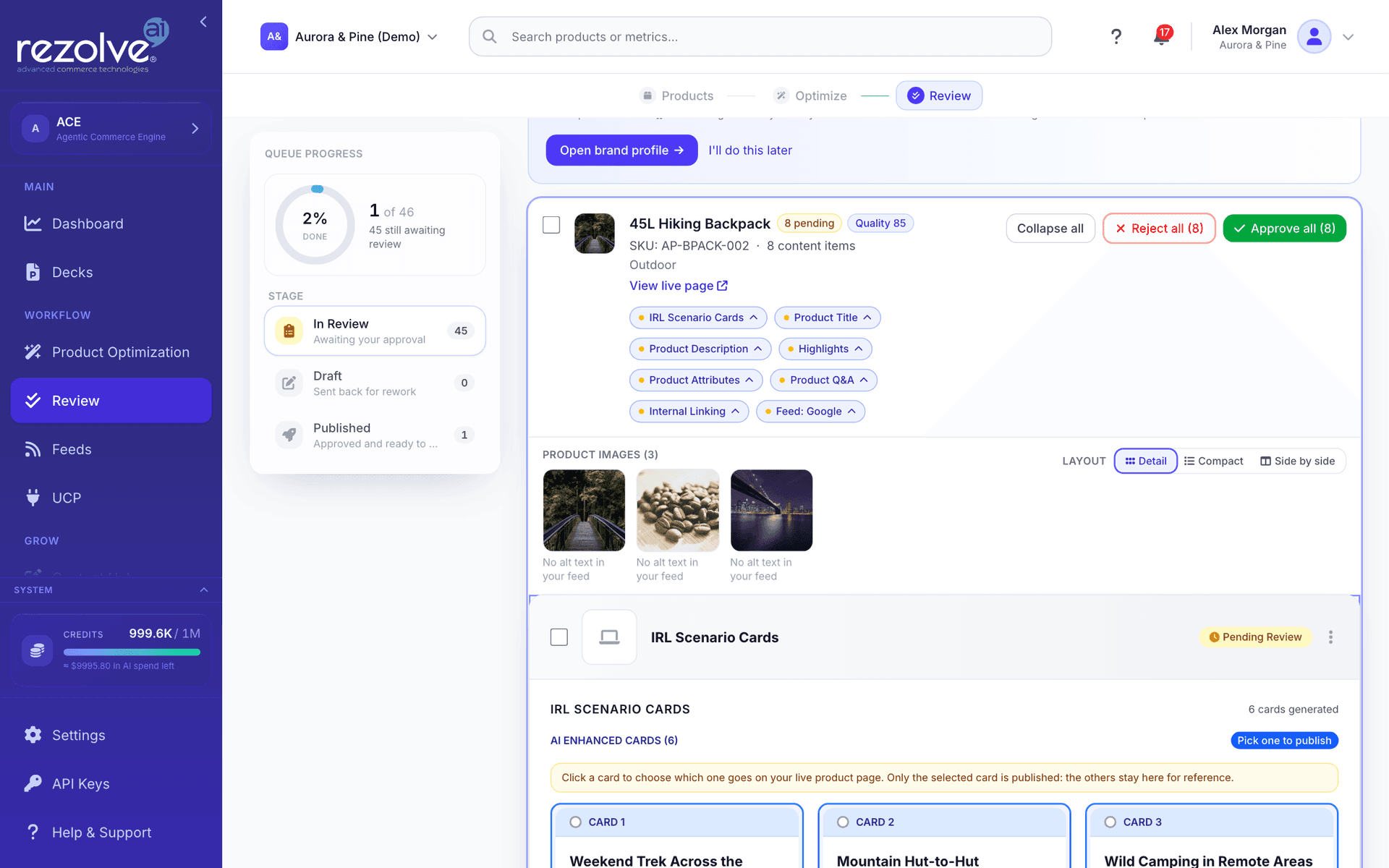
The queue shows one card per product. A card starts collapsed, with a chip for each generated field and a colored dot for that field's status. The card header shows how many of the product's items are pending, approved or rejected, and an average quality score when one exists.
Each card shows the product's main image beside its name and a View live page link, which opens the product's page on your store in a new tab. Open any field on the card to see every image your catalog holds for the product, each with the alt text it carries today, so you can judge the copy against the real product.
Image alt text suggestions appear beside the image they describe, with that image's current alt text underneath when it can be matched. In the Compact layout, each alt text row also shows small thumbnails of the images it covers.
The link and the images come from your ingested catalog. If your feed gives product pages as paths such as /p/linen-shirt rather than full addresses, the link is built from the website on your Brand view, so set it there if your links are missing. A product whose feed carries no link or no images shows neither.
The buttons on the card act on all of the product's items in the current stage:
| Stage | Card actions |
|---|---|
| In Review | Expand all, Reject all, Approve all, Export content |
| Draft | Expand all, Restore all, Delete all, Export content |
| Published | Expand all, Export all, Roll back all |
Export content and Export all open the Export content dialog for that product. Its content spreadsheet takes everything generated for the product, whichever stage each piece is in. See Export.
Before and after
Every content type shows two columns:
- From your feed: the value currently in your ingested product data. This is what an approval would overwrite.
- Generated: the new value written for that field.
Where your feed carries nothing for a field, the row still appears, marked Empty in feed. That distinction matters: it tells you whether you are replacing an existing value or filling a gap.
A few content types have no equivalent in a product feed. IRL scenario cards and internal links are net-new, and the panel says so and leaves the comparison out.
Structured data is a special case. Product feeds do not carry JSON-LD, so the "From your feed" column shows the Product schema your feed data supports on its own. The +N fields badge counts what the generated schema adds on top of that baseline, and Included beyond your feed names each one. They are already written into the generated schema, so there is nothing to brief separately: the Organization, WebSite, WebPage and BreadcrumbList sections go onto the page with the Product.
Once approved, your store's Rezolve Ai app or plugin adds the schema to the product page. Without one, copy it as a script tag from the generated pane and paste it into the page's head, or export every approved product's schema at once (see Export).
Some generated fields carry a Why we changed this note under the Generated box. It explains the reasoning and is not published.
Note: The comparison is read from your feed each time you open the page, so it always reflects your current catalog. If you re-ingest a feed, the "From your feed" column updates with it.
Layouts
Open a field, or choose Expand all, and a Layout control appears at the top of the opened card. It sets how opened fields are shown:
- Detail: the full content, quality scores and suggestions, with the feed values in a collapsible "From your feed" panel.
- Compact: dense rows with a one-line preview. Best for working through a large queue. This is the layout the page starts in.
- Side by side: the feed value and the generated value in two columns.
The layout applies to every open card on the page and is remembered in your browser, so the queue opens the same way next time.
On the Product feed tab, the View control in the toolbar switches between Products (the cards described above) and Table, which compares the original and enhanced value of each feed field row by row. The Feed type filter beside it narrows the tab to one channel.
Quality scores
Each item carries four scores, shown under Quality Metrics:
- Content Quality: whether the information is complete and well-structured.
- SEO Score: how well the content is optimized for search.
- AI Readability: how easily AI assistants can parse and cite it.
- Brand Voice: how closely it matches your brand voice. If the project has no voice saved, the tile says No brand voice set and links to where you set one.
Scoring happens in the background after content is saved, so a new item may read Not scored yet for a few minutes. Click Score now to skip the wait, or Re-score to measure an item again. Why these scores opens the reasoning, and View Trend shows how the item's score has moved over time.
If you edit an item after it was scored, a banner says the scores may be out of date and that a new score is on its way.
Note: Scores are guidance, not a gate. Always read the content itself before approving.
Checks before you approve
Claims your product data cannot support
On an item's detail page, a notice headed Check this before you approve appears when the copy states something that your product data cannot support. It quotes the phrases in question. The notice covers review counts, star ratings, awards or industry recognition, a warranty or guarantee, a certification, sales or popularity claims, endorsements, and delivery or shipping promises.
The notice does not block your approval, and it does not mean the claim is false. If the claim is true for your product, approve as normal. If it is not, edit the copy or reject the item. Autopilot never approves an item with this notice, so it always waits here for you.
IRL scenario cards
A run writes several scenario cards for each product, but only one is published. Open the IRL cards row and click the card you want on the product page. Approve stays disabled on that row until a card is picked.
Custom field suggestions
If you let Rezolve Ai rewrite content your store keeps in custom fields (under Settings, Custom Fields), those suggestions appear on the Content tab. Each field is listed under its own name, with the suggested value and the Current value below it. See Custom Fields.
Schema markup and your brand profile
On the Structured data & Q&A and All content tabs, a notice may ask you to complete your Brand profile. Generated schema includes an Organization section built from that profile, so filling it in makes the markup more complete. Open brand profile takes you there.
Review workflow
1. Compare against your feed
Read the "From your feed" column first. It tells you whether the generated content is an improvement on something real or is filling an empty field.
2. Open the detail page if you need more room
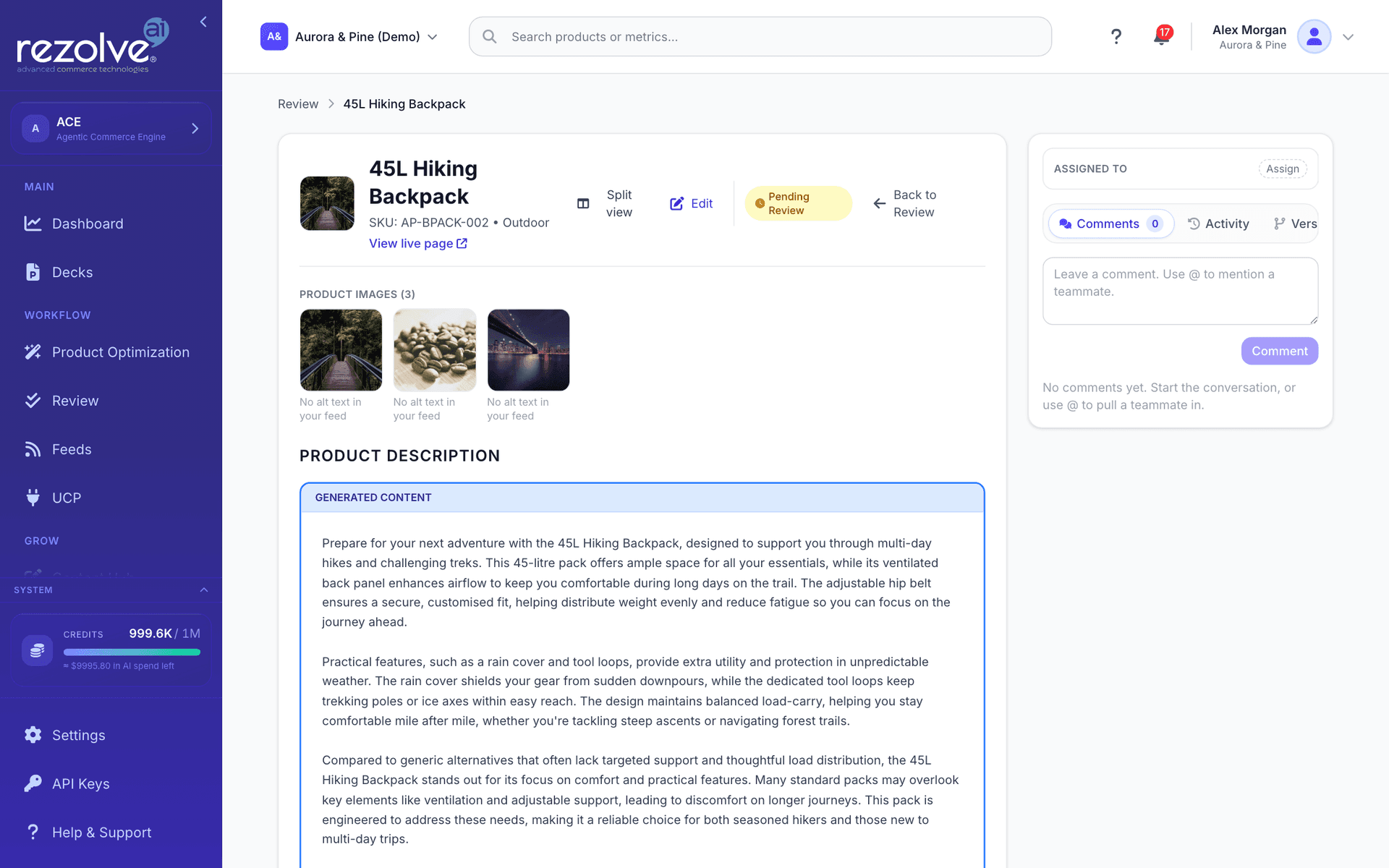
Click Preview on a row to open the item on its own page, or Edit Content to open it ready to edit. The detail page has a Split view button that puts your feed value beside the generated one, and Back to Review returns you to the queue where you left it.
3. Edit if needed
Click Edit on the detail page. Changes save automatically as you type, and a status pill moves from Unsaved changes to Saving to Saved. If a save fails, the pill offers Retry.
4. Approve or reject
- Approve: the item moves to Published. A message says so, and View in Published takes you there.
- Reject: the item moves to Draft. The dialog lets you attach a reason (Off-brand, Inaccurate, Low quality, Formatting, or Other) and a note, which guide the next revision. Both are optional.
In the Draft stage, Restore to Review sends an item back to In Review, and Delete removes it for good.
5. Send it live
What happens after approval depends on your project. See After approval below.
Working as a team
Assign items
In a project with more than one member, items can be assigned.
- On the detail page, the Assigned to card sets the assignee, a Due date and a Priority (low, medium, high or urgent).
- In the Compact layout, each row shows the assignee, a comment count, a due date when it is close or overdue, and the priority when it is high or urgent. You can assign from the row.
- The assignee filter in the toolbar narrows the queue to Anyone, Unassigned or one member. The Assigned to me smart view shows your own pending items, oldest first.
Owners, approvers and editors can assign. Viewers cannot.
Comment and mention
The detail page has a rail with three tabs:
- Comments: a discussion thread for the item. Type
@to mention a teammate. You can reply to, edit and delete comments. - Activity: what has happened to the item.
- Versions: the item's version history.
The rail also shows which teammates have the item open.
Who can approve
Approving and rejecting need the Owner or Approver role. Editors can generate and edit content but cannot give final approval, and Viewers can only read and comment. Roles are set in Settings, Team. See Team.
Require a separate approver
For a two-person sign-off, open Settings, Team and tick Require a separate approver under Approval workflow. With it on, nobody can approve content they created or submitted for approval themselves.
- On a pending item's detail page, click Request approval to notify the project's owners and approvers that it is ready.
- If you try to approve your own submission, the item stays in review and a message says it still needs a separate approver. In a bulk approval, the items you may approve go through and the rest are reported.
Turn this on only when the project has at least two people who can approve. Otherwise submissions have nobody to sign them off.
Version history
A version is saved each time an item is approved, so you can compare revisions and go back.
- Open a field in the Detail layout and click Version History, or open the Versions tab on the detail page.
- Click Compare on a version to see what changed from the one before it.
- Click Rollback on an earlier version to restore it. You can add a reason.
Rolling back replaces the current content with the selected version and records the rollback as a new version, so nothing is lost.
Smart views
One click applies a stage, a sort order and a filter together:
| Smart view | Shows |
|---|---|
| Assigned to me | Pending items assigned to you, oldest first. |
| Needs attention | Pending items scoring below 70 overall, worst first. |
| Awaiting score | Pending items that have not been scored yet. |
| Ready to push | Approved items that have not been pushed yet. |
| Push failed | Approved items whose last push attempt errored. |
| Recently rejected | Rejected items, most recently updated first. |
Click the active smart view again to remove its filter.
Saved views
To keep your own combination, set the stage, sort and filters you want, click Save view, and give it a name. Saved views appear beside the built-in ones under Saved, and the small cross on a view deletes it. They are private to you, and you can keep up to 30 per project.
Sorting, filtering and export
- Sort by Newest first, Oldest first, Recently updated, Quality: high to low, Quality: low to high, or Most pushed.
- Search narrows by product name, SKU or product ID, within the stage you are in. If nothing matches there but something does in another stage, the empty result says how many and offers a button to show them.
- Product feed narrows the queue, the stage counts and the tab counts to one feed. It defaults to All feeds, and it only appears when the project has more than one feed.
- Feed type (Product feed tab only) narrows to Google Shopping, Agentic Commerce, Microsoft Shopping, Shopify or WooCommerce.
- The page shows 10, 25 or 50 products at a time.
Export in the toolbar opens the Export content dialog for everything matching your stage and filters, not only the page you are looking at. See Export.
Bulk actions
Select items to act on several at once. Ticking a product card selects all of its items. The bar at the bottom of the page shows how many are selected, split by status, and offers:
| Action | Applies to |
|---|---|
| Approve | Pending items in your selection |
| Reject | Pending items in your selection |
| Export | Any items in your selection. Opens the Export content dialog. |
| Rollback | Approved items in your selection. Moves them back to In Review. |
| Re-score | Any selected item, up to 25 per press |
| Delete | Rejected items in your selection, after a confirmation |
The Select all link in the bar covers every item matching your current filters, not only the page you can see. The Approve button in the page header approves the current selection too.
Bulk actions pair well with smart views: open Needs attention, work down the list, and reject the batch that misses the mark with a single shared reason.
Keyboard shortcuts
| Key | Action | What it does |
|---|---|---|
| J | Next | Move focus to the next product card. |
| K | Previous | Move focus to the previous product card. |
| Enter | Open | Expand or collapse the focused product card. |
| A | Approve | Approve every selected item. |
| R | Reject | Reject the selected items. Opens the reject dialog. |
| D | Delete | Delete the rejected items in your selection. Opens a confirmation. |
| Esc | Clear | Clear the current selection. |
A, R, and D act on your current selection, so check what is selected before pressing them. While a dialog is open or you are typing in a field, the shortcuts are suspended, so a stray keypress cannot act on the queue behind it.
If you use speech input or press keys by accident, turn the letter shortcuts off: click Turn off beside the hints at the top of Review, or clear Single-key shortcuts under Settings, Account & Profile. Esc and Enter keep working, and every action is still on its button.
Warning: Deleting is permanent. Deleted content only comes back by running the optimization again. To limit the damage a mistake can do, deletion is restricted to items you have already rejected: it never touches anything still in review or already published, from either the button or the shortcut. Reject first, delete second.
Export
The Export content dialog is where everything leaves Review as a file. Open it from Export in the toolbar, Export in the bulk bar, Export content or Export all on a product card, or Export on an approved row. Tick what you want, or Select all, and click Export selected.
Content
- Content spreadsheet (Excel): every generated field for each SKU, in two sheets. By product has one row per product with a column per field, such as Title, Description, SEO title, Highlights and each feed channel. By field has one row per field, with each highlight, question, answer and image on a row of its own, and its stage, approval date and export date beside it.
- Include the current value from your feed: adds a From your feed column to the By field sheet, so each generated value sits next to the value it would replace. The cell is blank where your feed holds nothing, and says Not in your feed when the product is no longer in your catalog.
- Schema markup for your pages: every approved product schema, ready to install. A CSV holds each page's URL beside the script tag for its head, and a JSON file holds the same schema keyed by page URL. Prices and stock are as of generation, so keep them in step with the page.
- Scores (CSV): one row per item with its quality scores and export history. Offered from the toolbar.
Product feeds (export file)
- Google Shopping
- Agentic Commerce
- Microsoft Shopping
- Shopify feed
- WooCommerce feed
Feed files carry approved content only, so these are offered when the export includes approved items.
What you get
One file downloads as itself. Two or more arrive together in a single zip, so your browser never holds one back. A message names the file and what is in it, and warns you when rows in the Agentic Commerce file would be rejected on upload or when products in a running experiment were left out of the feeds.
Exporting a feed file does not change an item's stage. It does take the item out of the Ready to push smart view, and the message offers View in Published to find it again.
After approval
Shopify and WooCommerce projects
On a store connected through the Shopify app or the WordPress plugin, approved content reaches your product pages through the app or plugin. You do not push it from this page. Check progress and the audit trail on Sync.
Once an item is live, its row shows a View live link to the product's page.
Feed files
Approved feed content leaves as a file. Click Export on an approved row, Export all on a product card, or Export in the bulk bar, and tick the feed files you want in the Export content dialog. After a first export the row offers Export again, and after a failed attempt it offers Retry export. See Export for everything the dialog offers.
On a Feeds and files project there is no store to write to, so this is how approved content leaves Rezolve Ai. A hosted feed URL is the other route: a channel collects the approved feed from the URL on its own schedule, with no download. See Feeds.
Moving an approved item back
Rollback on an approved row, or Rollback all on a product card, moves approved items back to In Review so you can change your decision.
Products in an experiment's control group
When a run is launched as an experiment, some products are held back as a control group. See Experiments.
Review keeps a control-group product's content off your store while the experiment holds it:
- Approving its items is refused, whether one at a time or with Approve all. They stay in In Review with a line such as Held back by "Spring copy" until 24 November 2026, or until it finishes when the experiment has no release date. The rest of your selection is approved, and a message says how many items were not approved and why.
- Editing its approved content is refused too, because a saved edit goes back out to your store. The message names the experiment and the date it releases the product. Items still in In Review can be edited as usual.
- Rollback in an approved item's version history is refused for the same reason: the earlier version would replace the content on your store. The message names the experiment and the release date, and the item keeps its current content. Items still in In Review can be rolled back as usual.
- If Rezolve Ai cannot check the experiment, nothing is approved, saved or rolled back, and the message asks you to try again in a minute.
Only the content the experiment measures is held. Other content for the same products can be approved, edited and rolled back as usual, and once the experiment releases the control group, its items can be approved, edited and rolled back like any others.
Content approved before the experiment began can still reach your store. If a control-group product's content goes live while the experiment is running, the push goes through and the product is taken out of the control group. The experiment then reports that control-group products were updated anyway, and its result is labeled Control group broken and shown without a measured effect.
Tips
- Use the Side by side layout when you are judging whether generated content beats what you already have. Use Compact when you are clearing a backlog you already trust.
- Fields marked "Empty in feed" are usually the easiest approvals: there is nothing to lose by filling them.
- Reject with a reason. Do not delete as a shortcut. The reason guides the next revision, and a deleted item takes a fresh run to recreate.
- Clear your selection with
Escwhen you step away.AandRfire on whatever is still selected. - Re-score after editing so the quality sort stays meaningful.
Quick links
Product Optimization
Choose products, give the AI your context, pick what to generate, and launch a run whose output waits in Review for your approval.
Sync
Check that your store connection is healthy, see how much content is waiting for review, and audit what has happened to your catalogue and content.