
Field Formats
Rezolve Ai writes new content the way your store already writes each field, or in a preset you choose, and can fill fields that are empty.
Every store writes its product copy its own way. One keeps a short list of details at the top of each description and a paragraph under it. Another writes one line with no full stop, or ends every story with the same link. Field Formats is where Rezolve Ai shows what it learned about how your store writes each field, and where you decide how new content is written into it.
Go to Settings, Field Formats, or open it directly. In the Shopify app, open Settings and click Manage field formats. In the WordPress plugin, it is the Field formats card in Settings. All three save the same choices.
How a format is learned
Rezolve Ai reads your own products and learns, for each field it writes:
- the parts a value is made of, and their order: a list of details, paragraphs, bullet points, headings, questions and answers;
- the labels your details use for each product type, in your order;
- the formatting: how lists, bold labels and links are written;
- the length, and small habits such as whether a one-line field ends with a full stop;
- a sentence most values repeat with one part changed, such as a closing link to a page about the product.
Learning reads your catalog only. It writes nothing to your store and costs no credits. It runs after each catalog sync and daily for any catalog that changed, and it never learns from content Rezolve Ai wrote itself, so applying our content does not change what your store's format is.
The fields listed are your product description, the custom fields Rezolve Ai reads (see Custom Fields), and fields you chose under Where Content Goes to hold generated content.
The table
Each row is one field.
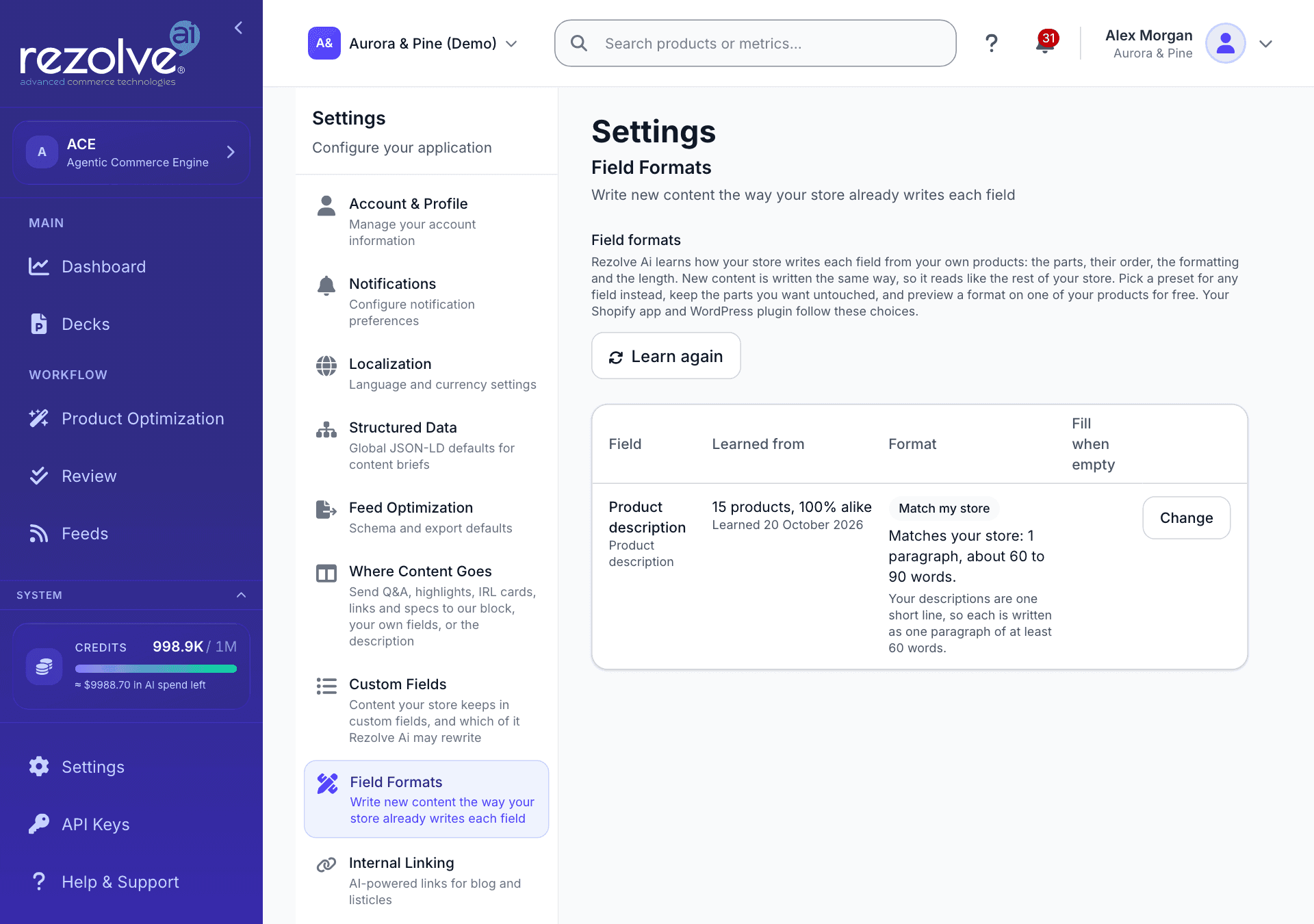
| Column | What it shows |
|---|---|
| Field | The field's name, and whether it is the product description, a custom field, a custom field with a list of values, or a field that holds content Rezolve Ai places there. |
| Learned from | How many of your products have a value, and how alike they are, for example "951 products, 97% alike", with the date it was learned. "Not alike enough to copy" means the values differ too much to learn one format, so Rezolve Ai's own layout is used. |
| Format | The choice in force (Match my store, a preset's name, Rezolve Ai default, or From its list), the format in one sentence, and why it is not your store's format when it is not. |
| Fill when empty | For custom fields: a switch, and how many products would be filled. |
Learn again learns every format from your products now instead of waiting for the next sync. It takes a minute or two; click Check again to see the result.
Change a field's format
Click Change on a row. The dialog shows what was learned, with the labels your details use for each product type and examples from your own products, and the parts of the format in order.
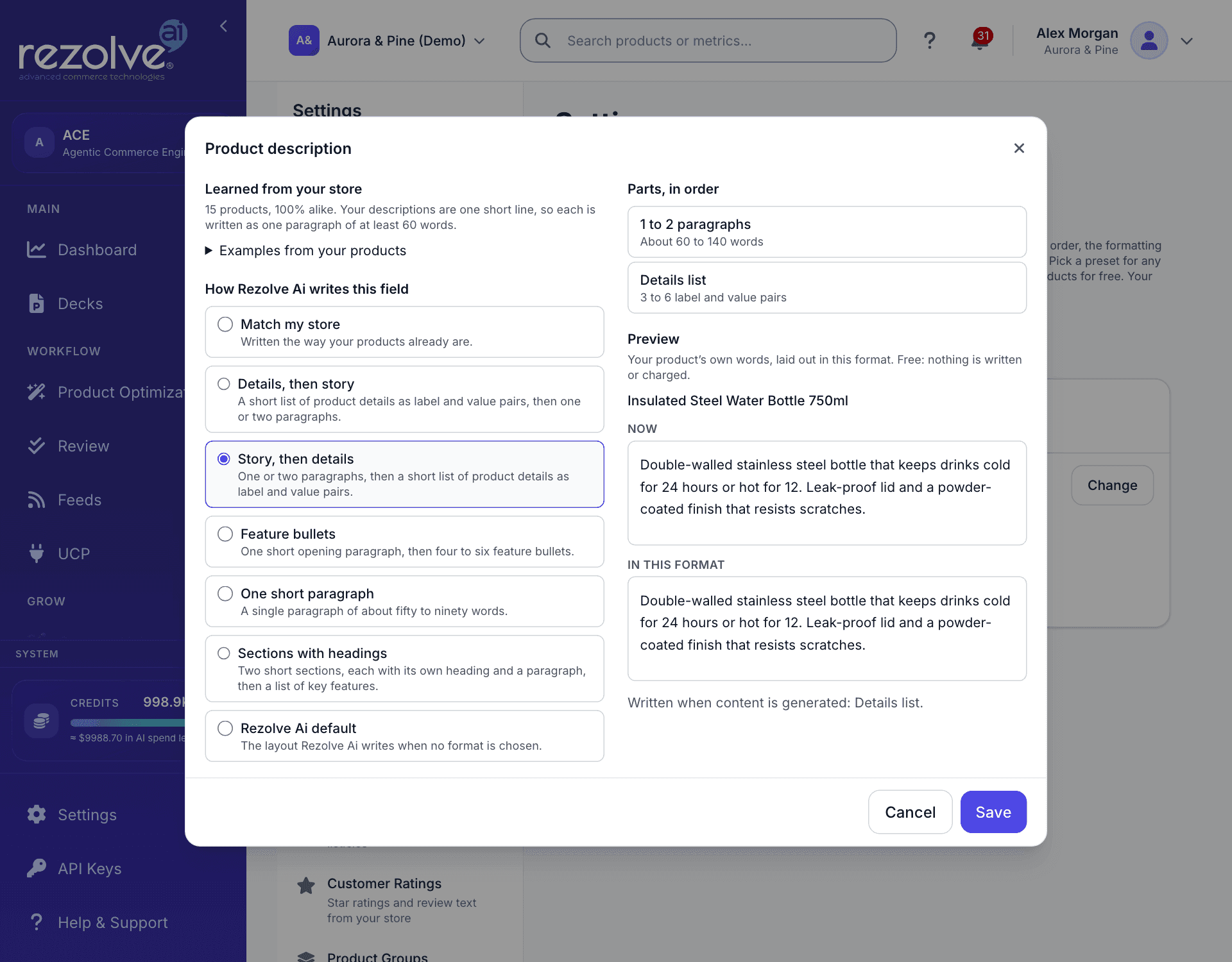
Under How Rezolve Ai writes this field, choose one:
- Match my store, the default: written the way your products already are.
- A preset, such as Details, then story, Story, then details, Feature bullets, One short paragraph or Sections with headings for descriptions, and the presets that suit a one-line field, a longer text field, questions and answers, highlights or specifications. A preset still uses your store's own detail labels and formatting where it has learned them.
- Rezolve Ai default: the layout Rezolve Ai writes when no format is chosen.
- Your own template: choose the parts and their order yourself (see below).
A field with a list of allowed values, such as a theme or a material picked from a list, is always written as one of its values, spelled as the list spells it, so it has no format to choose.
Under Keep exactly as they are, choose which parts of the current value a rewrite carries over untouched. All are on by default:
- Links: every link in the current text stays, word for word.
- Details list: the current list of details stays row for row. Rezolve Ai writes the paragraphs around it.
- Closing sentence: the sentence your values end with stays as it is.
Click Save to apply the choice. It is used for content generated from then on; content already waiting in Review keeps the format it was written in.
Your own template
Pick Your own template to build the format part by part. It starts like your store's current format, and the preview follows every change.
- Add a part offers a details list, paragraphs, bullet points, a heading, questions and answers, and, when your values end with a repeated sentence, that closing sentence. Click Add to put it at the end, before the closing sentence.
- Up and Down move a part, and Remove takes it out. The closing sentence always stays last.
- Each part has its own settings: Fewest and Most items, a details list Shown as a list or a table, bullet points Marked with bullets or numbers, a heading's Size and its text (leave the text empty for Rezolve Ai to write one), and how Questions shown look.
A template has up to 8 parts and needs at least one Rezolve Ai can write. It uses your store's own detail labels and formatting. One-line fields and fields with a list of values have a single part, so they have no template. If you pick another format later, the template is kept for when you come back to it.
Preview
The dialog previews the format on one of your products as you change it. It takes the product's current value and lays its own words out in the format you picked, so you can see where each part goes. The preview is free: nothing is written and no credits are used.
Under the preview, Left out in this format names any part of the current value the format has no place for, for example a details list under a preset without one. A rewrite in that format would drop it. Written when content is generated names parts the current value has nothing for yet, which Rezolve Ai writes when it generates.
Fill a field when it is empty
A custom field that most products of a type have, but some do not, can be filled for the products missing it. Each fill is written in the field's format and only from what your product data says. A field with a list of values gets one of its values, and only when the product data supports it.
- Turn on the switch in the Fill when empty column, or tick Write this field for products that do not have it in the field's dialog.
- Read the estimate: how many products would be filled, and about how many credits that costs. Credits are charged only as content is generated.
- Click Turn on filling (or Save and turn on filling in the dialog).
Fills are made when you next generate custom field content for those products, and they go to Review first. Nothing reaches your store until you approve it. Filled fields are labelled New: this field was empty in Review, and a field that tells a story or a meaning is also marked Check the facts, because what a symbol means is not a product fact. When your stories end with a link to a page, that link is added to a fill only if the page exists.
A field is filled only for product types that usually have it, so a story kept on charms is not written for necklaces that never had one. Filling is available for Shopify stores, and for WordPress with the Rezolve Ai plugin 4.28.0 or later, where it fills ACF fields and custom fields. When a field cannot be filled, the Fill when empty column says why.
Keeping Rezolve Ai's own layout
Field formats are on for every project, with Match my store as the default. To keep Rezolve Ai's own layout for a field instead, click Change on its row and pick Rezolve Ai default. Content already waiting in Review keeps the layout it was written in.
Related
Custom Fields and Where Content Goes
Choose which of your store's custom fields Rezolve Ai reads and rewrites, and where on the product page each kind of generated content is placed.
Content Hub
Plan, write and publish articles, listicles and other content from briefs, with AI generation grounded in your product catalog.