
The Assistant
Ask questions about your project in plain language, watch what the assistant looks up, and approve any change before it is made.
The assistant answers questions about your project and can prepare changes for you. It reads your data freely. Anything that would change your data is shown to you as a proposal first, and nothing happens until you approve it.
Open the assistant
Click Ask the assistant in the bottom right corner of any page in the app. A panel titled Assistant opens on the right, over the page you were on.
To close it, click the cross, click outside the panel, or press Escape.
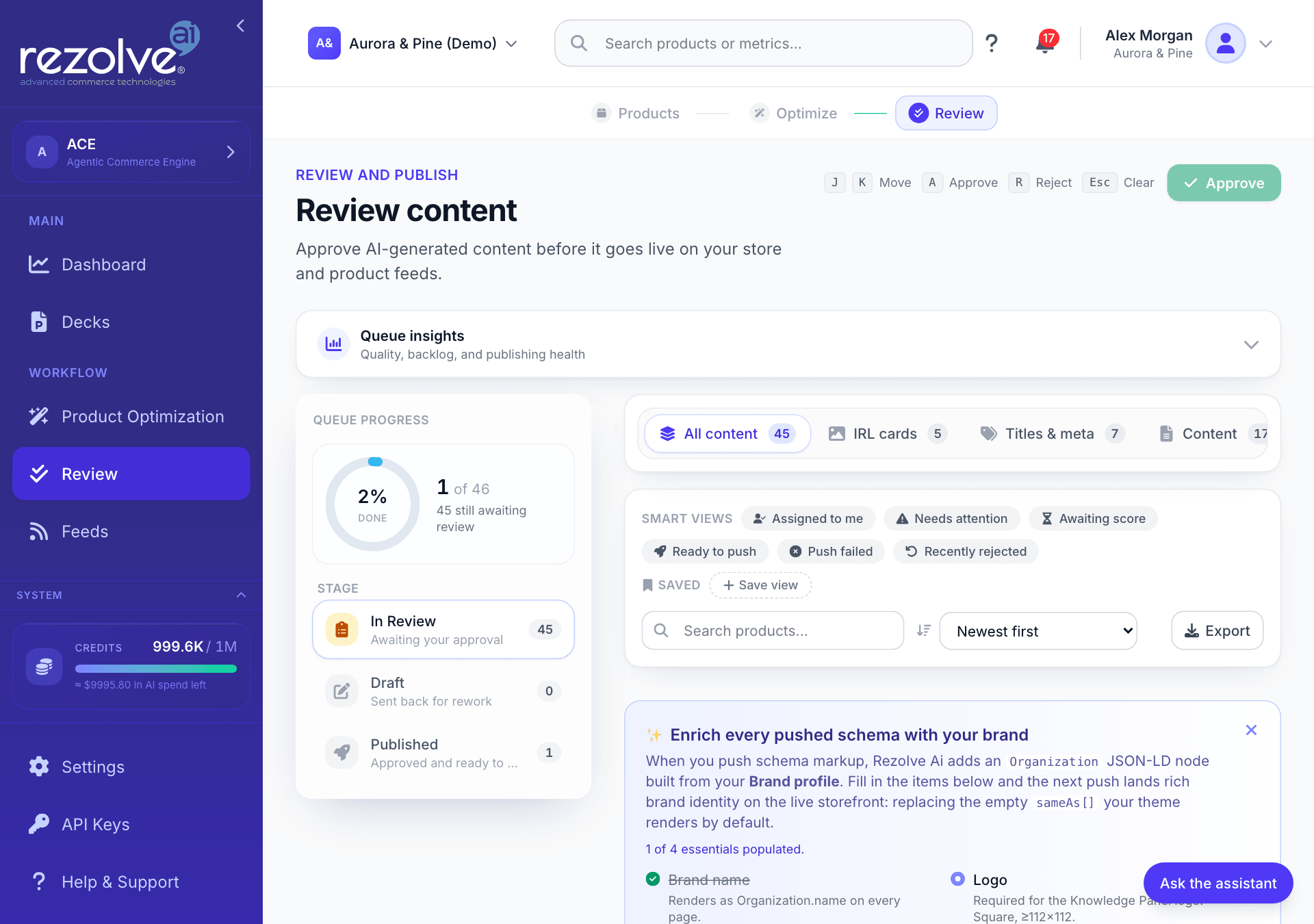
When there is no conversation yet, the panel offers three questions to start from:
- "What is stopping my products being found by AI assistants?"
- "Which feeds have synced, and how many products are in them?"
- "Find my weakest product descriptions and tell me why they are weak."
Click one, or type your own in the box at the bottom and press Enter. Use Shift and Enter for a new line. While the assistant is answering, the send button becomes a stop button.
What it knows
The assistant works on the project you have open, whichever page you start from. Name the product, feed or job you mean so it knows what to look up.
It is built to answer from what it looks up, not from guesses. If a search finds nothing, it should tell you the catalog has no match, and the figures it quotes should come from a lookup you can see in the conversation.
The conversation is not saved. Closing the panel or reloading the page clears it. To clear it without closing, use the Start over button (the curved arrow) at the top of the panel.
What it can read
Lookups run straight away, without asking, because they change nothing:
| Area | What it can look up |
|---|---|
| Products | Search your catalog in plain language, with a category or price range if you give one |
| Feeds | The feeds in the project, how many products each holds, and their status |
| AI readiness | How ready a set of products is for AI shopping agents, and what is missing |
| Jobs | Your content generation jobs, their status and their results |
| Credits | Your credit balance and how many jobs you have run |
| Google Merchant Center | Your connections, account issues, products, data sources and reports, when a Merchant Center account is connected |
| Help | These documentation pages |
Requests the assistant can answer from what it reads:
- "How many products are in my latest feed?"
- "Find the waterproof jackets under 100."
- "Which of my jackets are least ready for AI shopping agents, and why?"
- "Did any content jobs fail this week?"
- "How many credits do I have left?"
- "What issues is Google Merchant Center reporting?"
How it shows its working
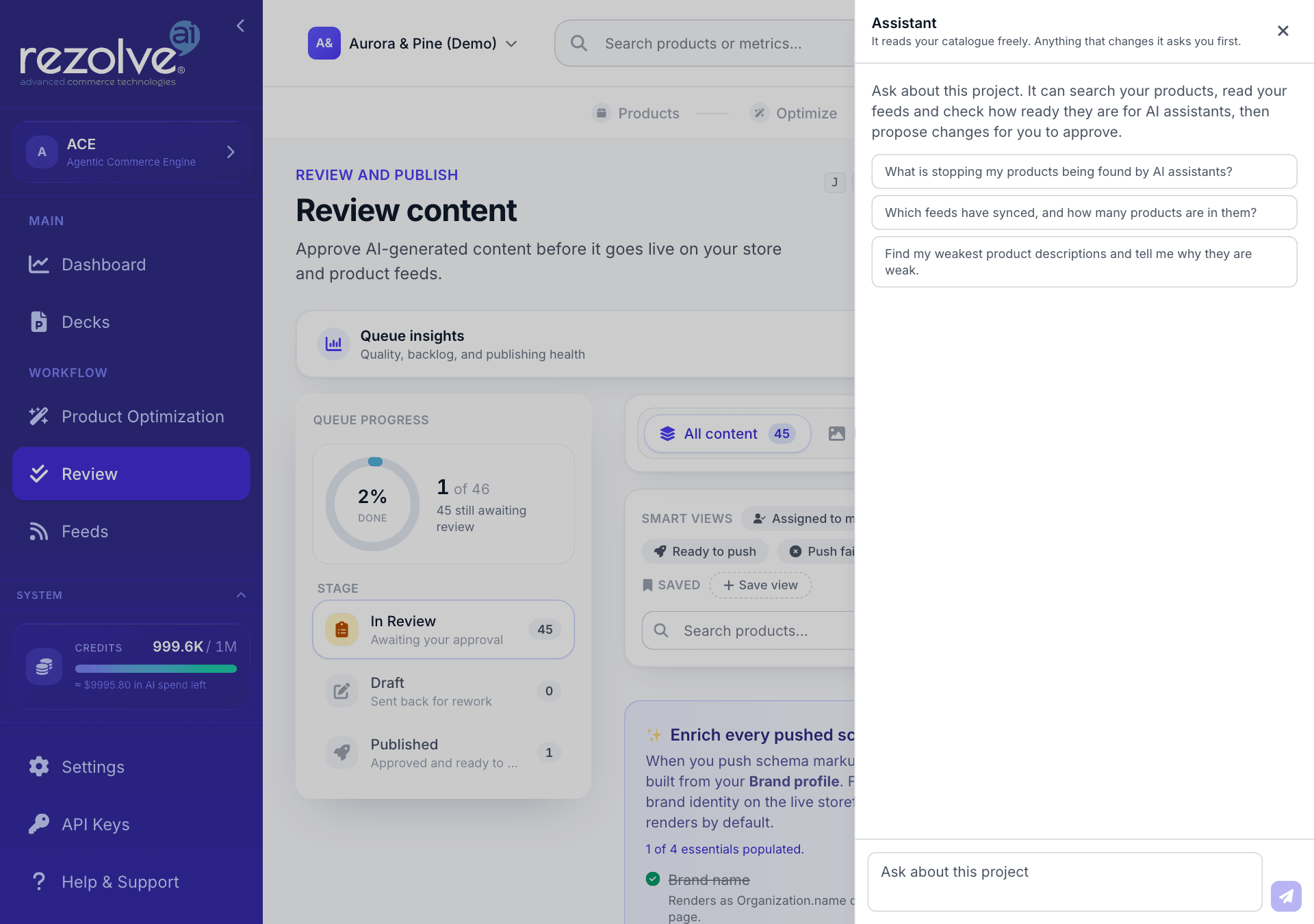
Above each answer, the assistant lists the lookups it ran to produce it. Each one shows a spinner while it runs and a tick when it finishes, with a short name for what it did, such as search_products or list_feeds. You can see which lookups an answer rests on.
Changes are proposals
When you ask for something that changes data, the assistant explains what it is about to propose and then shows a card. The card is the request for your permission. Nothing has happened yet.
A proposal card shows:
- What it would do, as a title and a one-line description.
- How serious it is, as a label (see the table below).
- What it costs, as "Costs about N credits", when the action is charged.
- What it will send. Open this to read the exact details of the request. Nothing is summarised away.
| Label | Meaning |
|---|---|
| Changes your data | Recoverable. The change is versioned and goes through your review queue. |
| Deletes or cancels something | Running it again will not undo it. |
| Publishes outside this app | It reaches a live account or an address you have connected, and cannot be taken back from the app. |
Then choose:
- Approve to run it. For anything that deletes, cancels or publishes outside the app, the button reads Yes, do it and the card is marked as a warning.
- Not now to leave it. The card then reads "Left alone. Nothing changed."
After you approve, the card shows that it is running, then a one-line result (for example the job it started), or the reason it failed.
The assistant cannot skip this step. If you tell it to go ahead without asking, the only thing it can do is show the same card. Until you approve a card, treat the change as not made, whatever the conversation says.
Things you can ask it to prepare:
- "Run enrichment for product descriptions and meta tags on my winter boots."
- "Cancel the enrichment job that is running."
- "Pull the latest products from Merchant Center."
- "Push my linked products to Merchant Center."
After it starts a job, ask "How is that job doing?" to follow it.
The assistant is set up to propose one change at a time, so each card is something you can read and judge.
Approving a proposal runs that one request. It does not approve anything waiting in Review: those items still need your decision there.
Who can use it
The assistant needs edit rights on the project, because any conversation can end in a proposed change. Owners and editors can use it. Approvers and viewers cannot. See Team and Roles.
What uses credits
- Each message you send uses credits, based on how much the assistant reads and writes to answer. There is no separate charge for the lookups it runs.
- An approved action can cost credits too. A card for charged work shows an estimate before you approve. The actual charge depends on the work that runs.
- Choosing Not now costs nothing more.
You need a positive credit balance to use the assistant. Stopping an answer partway does not refund it. See Credits and Usage.
Other assistants in the app
The deck builder has its own assistant for writing and editing a deck. It is covered in Decks.