
Find your API key
Where to find and create your ACE API key, with screenshots, so you can connect the Shopify app, the WordPress plugin, or the API.
Your ACE API key connects your store to your ACE account. The Shopify app and the WordPress plugin both ask for it once, during setup, and it never leaves your own site or Shopify admin.
Where your keys live
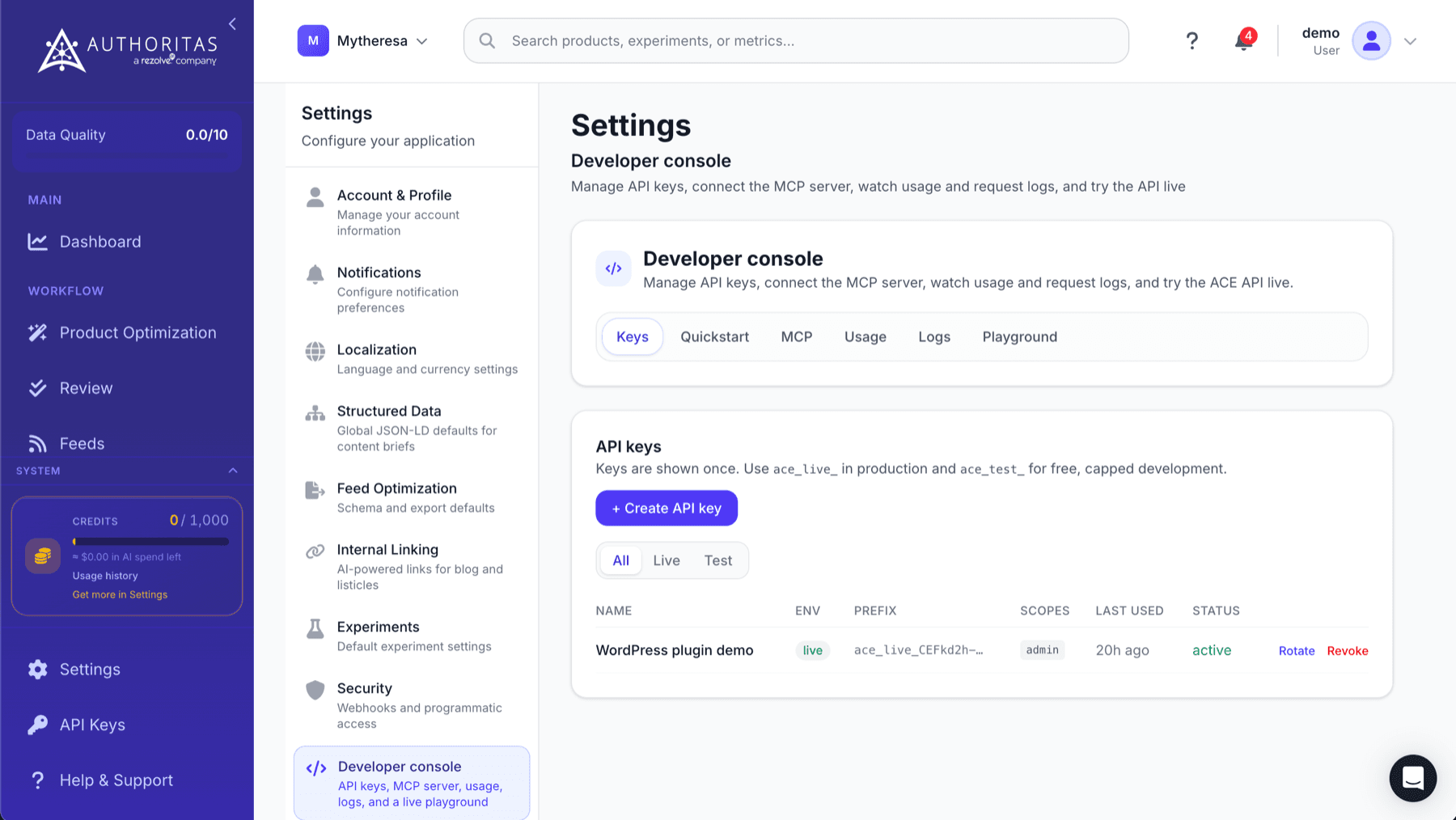
Sign in at ace.authoritas.com, then click API Keys in the left menu. You can also reach the same screen through Settings → Developer console → Keys.
Create a key
- Click Create API key.
- Give it a name you will recognise later, for example "Shopify" or the name of your store.
- Keep the Live environment selected. Live keys start with
ace_live_and are the ones production plugins should use. Test keys (ace_test_) are free and capped, meant for development. - Leave the default scopes selected and click Create key.
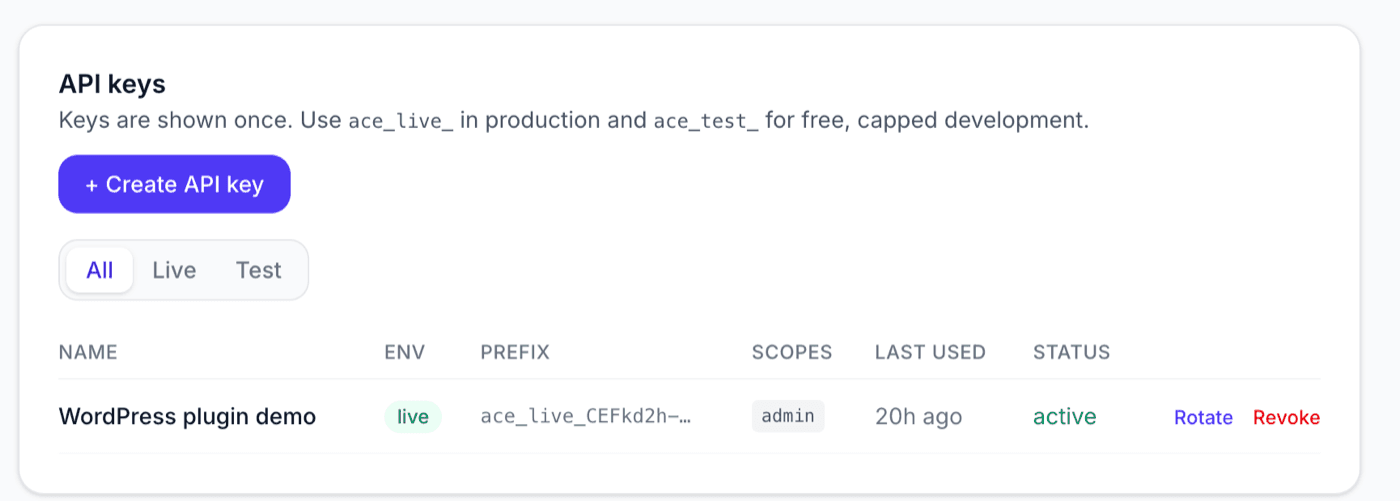
The full key is shown once, right after creation. Copy it straight into the app that asked for it. After that moment the dashboard only ever shows the key's prefix, like this:
Paste it into the Shopify app
Back in your Shopify admin, open the Agentic Commerce Engine app, paste the key into the ACE API key field on the Connect screen, and click Connect. The key is stored encrypted and stays in your Shopify admin. See Set up on Shopify for the full walkthrough.
Paste it into the WordPress plugin
In your WordPress admin, go to Agentic Commerce Engine → Connection, paste the key into the API key field, and click Connect site. If you host ACE at a custom address, set it under Advanced → Platform URL. See Set up on WordPress for the full walkthrough.
Let onboarding create the key for you
If you are setting up a new account, the onboarding wizard can do this for you. Pick Shopify or WooCommerce and click Get your API key. ACE creates your project, mints a Live key, and shows it once so you can copy it straight into the app or plugin.
Lost or leaked a key?
Keys cannot be viewed again after creation. If a key is lost, click Rotate next to it to mint a replacement, or Revoke to disable it and create a fresh one. Rotating invalidates the old value, so update any plugin that was using it.
No ACE account yet?
Create an account first, then come back to this page. New accounts include free credits, so you can connect and try everything before choosing a plan.
See also
- API Keys reference: scopes, rate limits, and programmatic key management.
- Getting started with ACE: the full setup walkthrough.